How to Customize an Embedded Form: Frames, Colors and Corners
What You Can Change
An embedded form already uses the design you made in BeeForm. On top of that you can pick a few options that fit it to the page it sits on, without touching the form itself:
| Option | Choices | What it does |
|---|---|---|
| Frame | None, Mac, Browser, Card | Wraps the form in a window, a browser or a card. |
| Theme | Auto, Light, Dark | Sets the light or dark look of the frame and the page behind it. |
| Accent color | Any color | Recolors the progress bar and the Next and Submit buttons. |
| Corner radius | 0 to 40 pixels | Rounds the form and the frame corners. |
Use the Generator
- Open the form, click Publish (or Published) and click Other options.
- Choose a Frame and a Theme.
- Pick an Accent color and drag the Corner radius slider. Click Reset next to either to go back to the form's own look.
- Check the Preview. It is a small sample, so you can judge the frame, color and corners at a glance. Your real form appears once you paste the code.
- Click Copy embed code and paste it into your page.
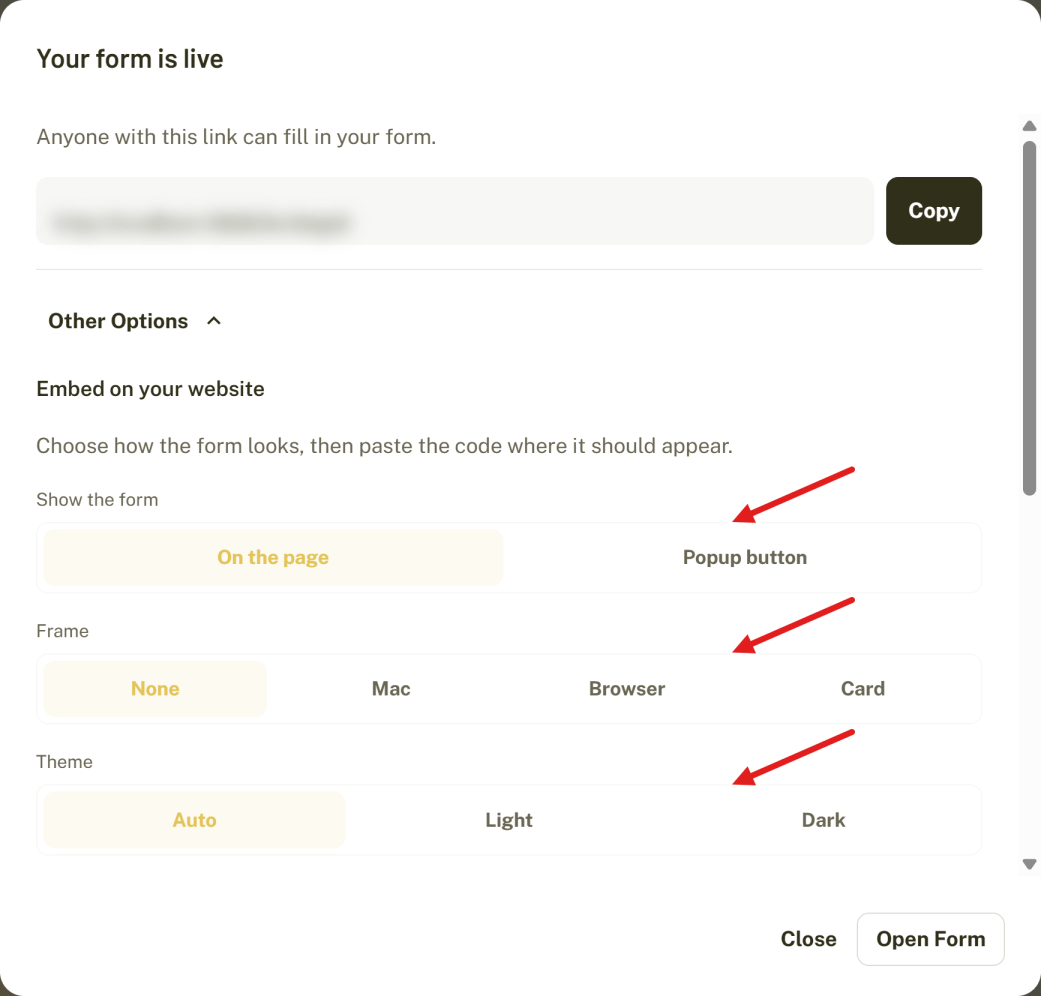
The code box updates as you change options, so you always copy the code for what you see.
The Frames
- None shows the form on its own, edge to edge. This is the default.
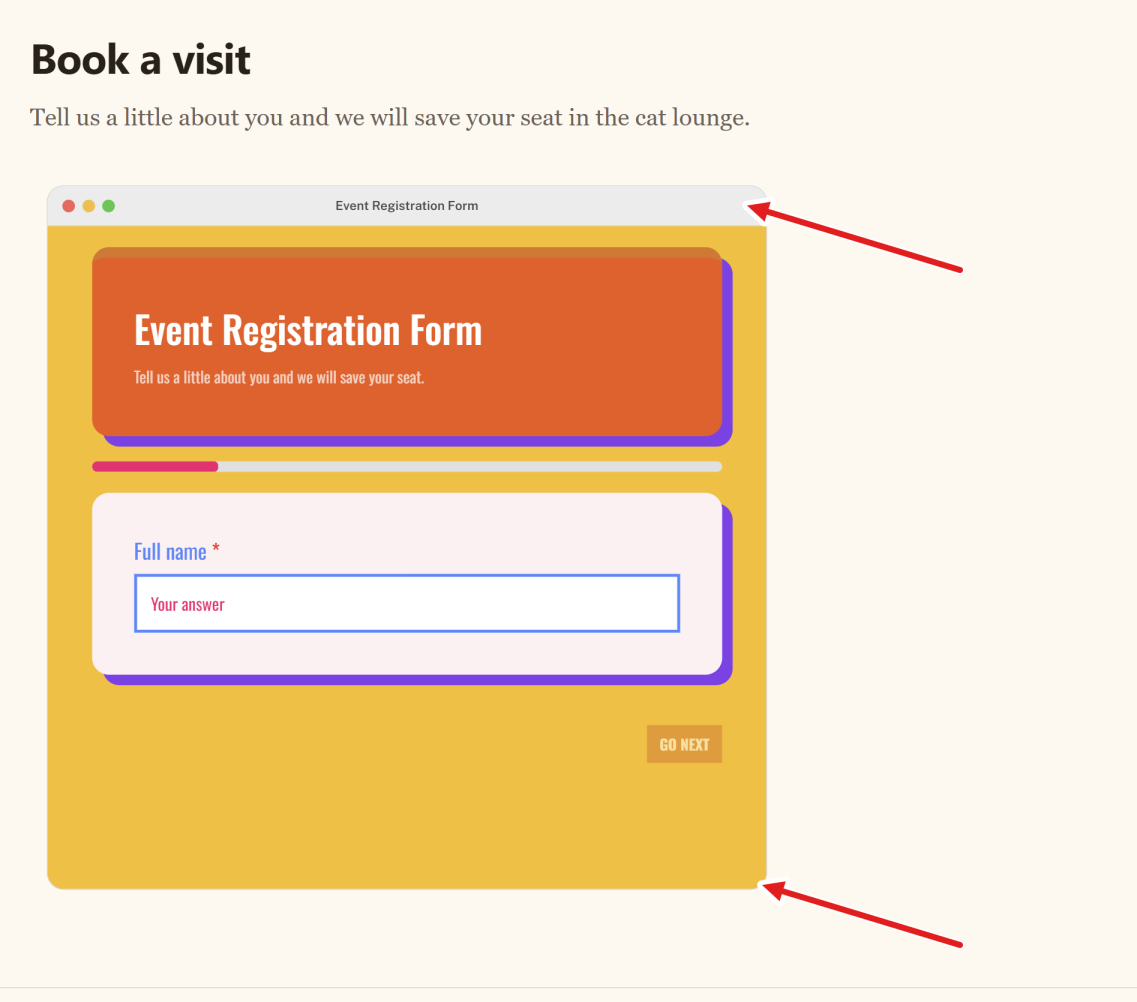
- Mac wraps the form in a window with a title bar, three colored dots and your form's title.
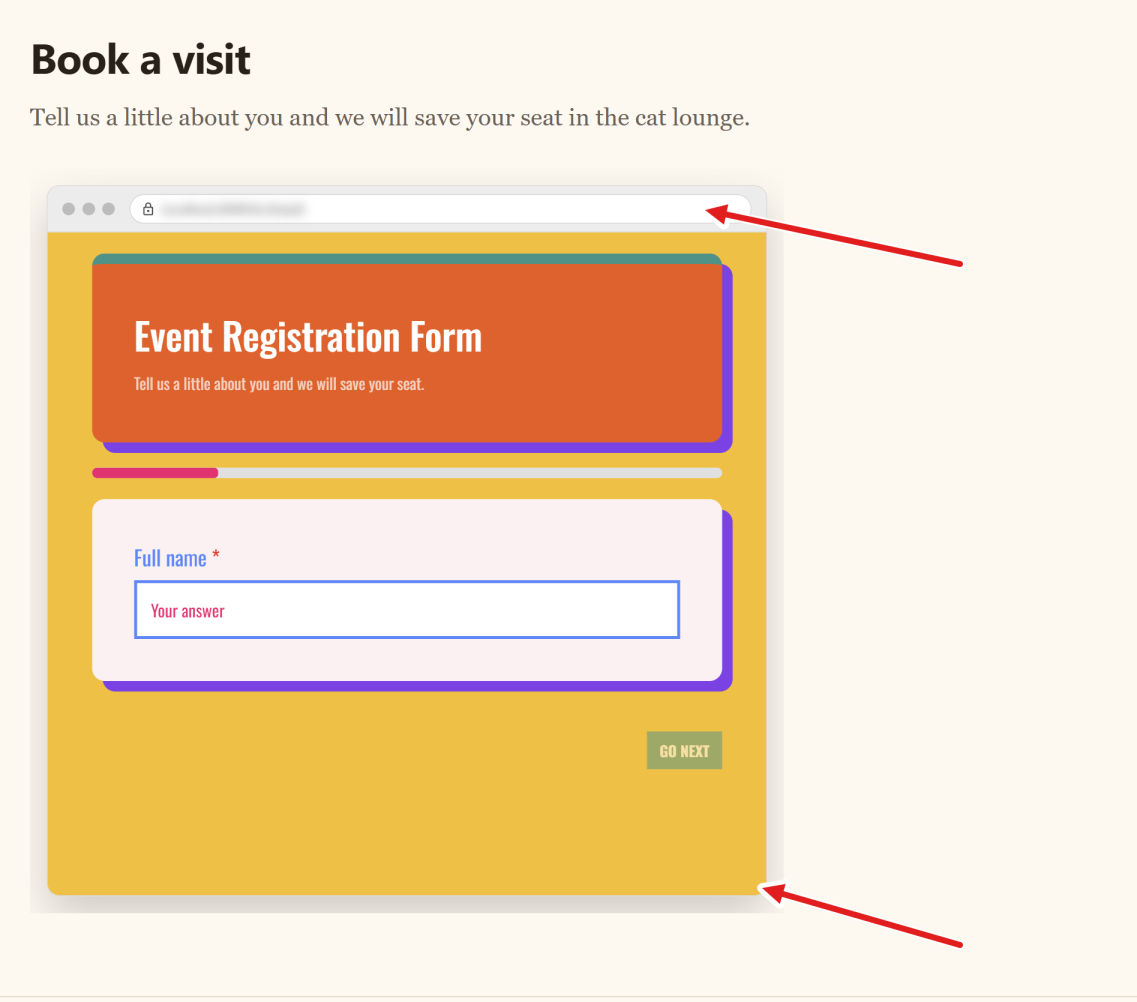
- Browser wraps the form in a browser window with an address bar that shows your form's link and a padlock.
- Card wraps the form in a rounded card with a soft shadow and no title bar.
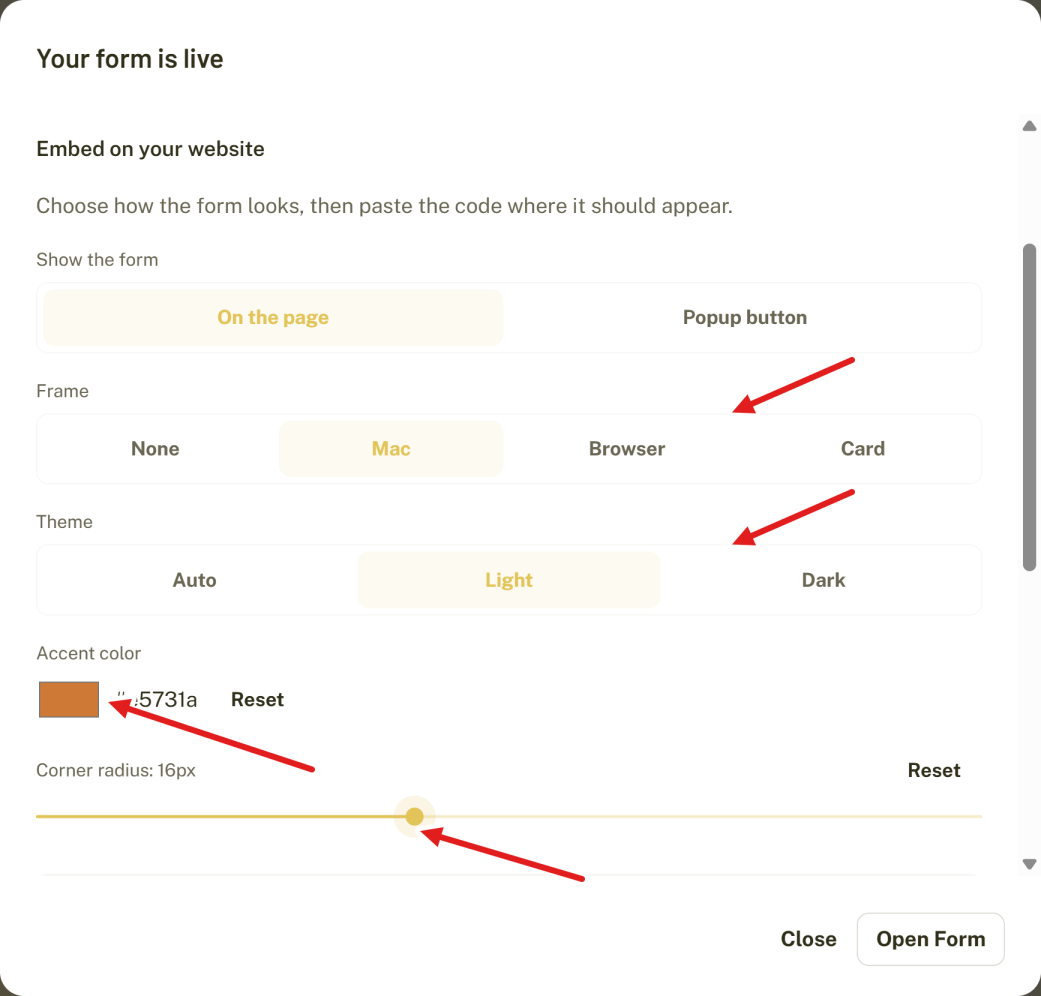
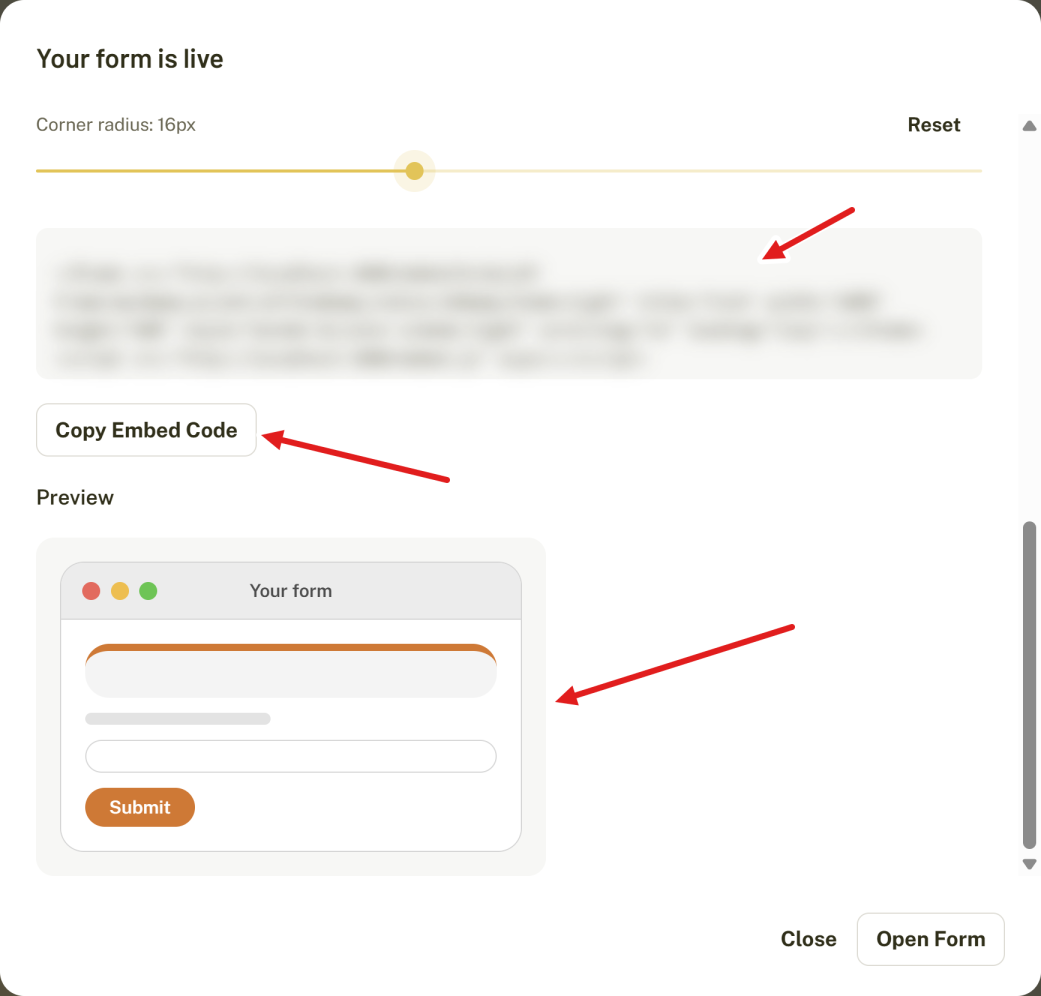
The frame's corners follow the Corner radius you choose. Without one, each frame uses its own default.
Here is a Mac window frame with an orange accent on a website:
And a browser frame, which shows a padlock and your form's link in the address bar:
Theme: Light, Dark or Auto
- Light and Dark always use that look for the frame.
- Auto follows each visitor's device, so a visitor who uses dark mode sees the dark frame.
The theme changes the frame and the area behind it. The form's own colors come from the design you made in BeeForm and stay as they are, so a form with a white background stays white. If you want a dark form, apply a dark theme to it in the Design tab.
The code the generator gives you includes color-scheme in the iframe's style, set to match the theme. Keep it. It lets the frame's shadow show your page through the iframe instead of a solid box. If you change the theme by hand, change color-scheme to match: light, dark or light dark for Auto.
The Embed Address Options
The options are added to the iframe address as a query string, so you can also write or edit them by hand:
| Option | Allowed values | Example |
|---|---|---|
frame | none, mac, browser, card | ?frame=mac |
theme | auto, light, dark | ?theme=dark |
accent | A hex color with 3 or 6 digits, without the # | ?accent=2563eb |
radius | A whole number from 0 to 40 | ?radius=14 |
Join several options with &. Here is an embed with a Mac window, a blue accent, rounded corners and the light theme:
<iframe src="https://beeform.co/embed/YOUR-LINK-ID?frame=mac&accent=2563eb&radius=14&theme=light" title="Form" width="100%" height="600" style="border:0;color-scheme:light" scrolling="no" loading="lazy"></iframe>
<script src="https://beeform.co/embed.js" async></script>
Any value that is not allowed is ignored. For example frame=evil or radius=999 does nothing and the form simply keeps its own look, so a typo never breaks the form.
Tips and Best Practices
- Use the accent color from your brand so the buttons match the rest of your page.
- Frames suit landing pages and product pages. For a form that should blend into the page, keep the frame on None.
- Match the corner radius to the rounded corners used elsewhere on your site.
- Leave extra space around a framed form, because the frame adds a soft shadow.
Common Pitfalls to Avoid
- Do not type the
#in the accent color. Useaccent=2563eb, notaccent=%232563eb. - If you change the theme by hand, change
color-schemetoo, or a solid dark or light box can appear around a frame. - A very light accent color gets dark button text and a very dark one gets white text, but pick a color with good contrast on your form's background.