How to Set a Response Limit or Closing Date
Open the Settings Tab
From your Forms list, click a form to open the editor. The editor has three tabs on the left, Questions, Design and Settings, and a live preview on the right. Click Settings.
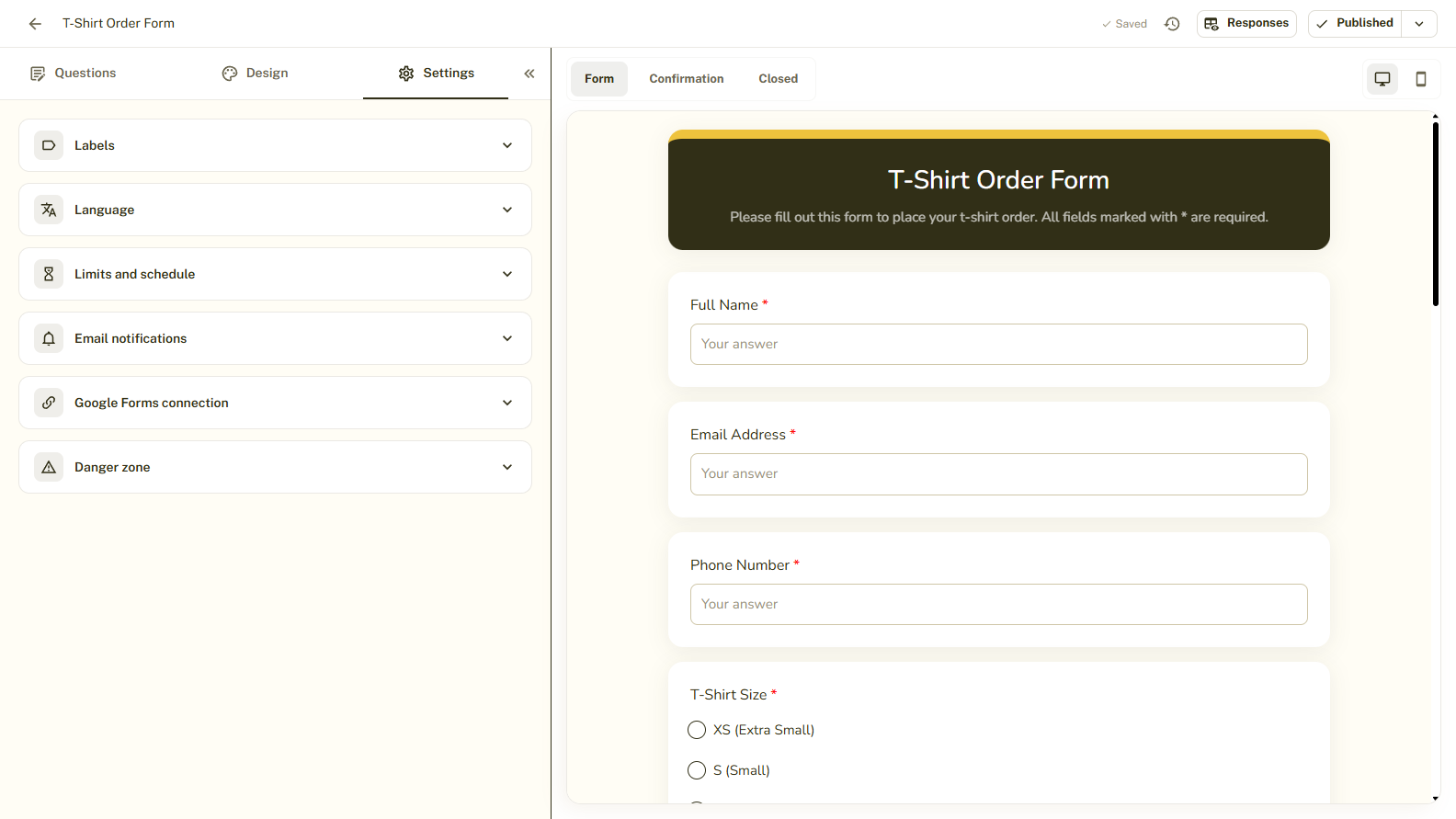
Open Limits and Schedule
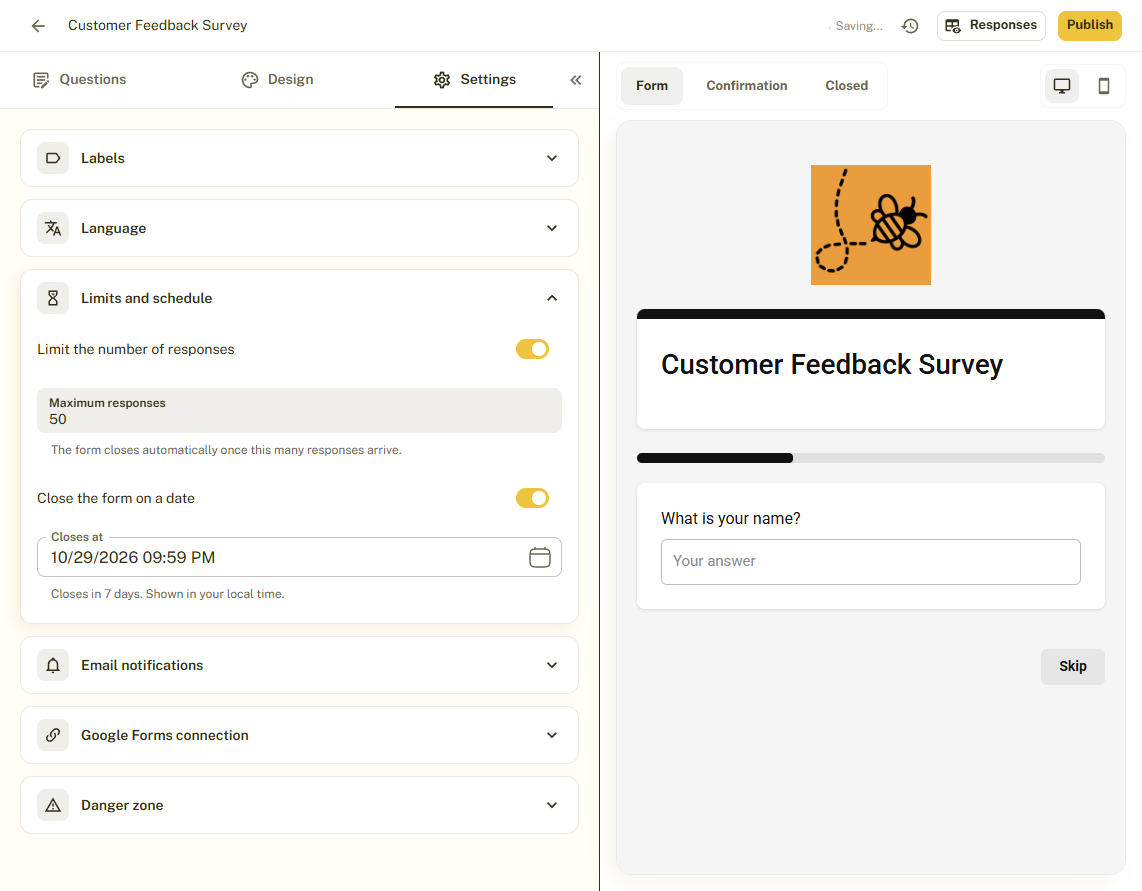
Open Limits and schedule. It has two independent switches, and you can use one or both.
Limit the Number of Responses
Switch on Limit the number of responses and enter a number in Maximum responses. The form closes automatically once this many responses arrive.
Close the Form on a Date
Switch on Close the form on a date and choose the date and time in Closes at. BeeForm shows how soon that is, and times are shown in your local time.
Customize the Closed Message
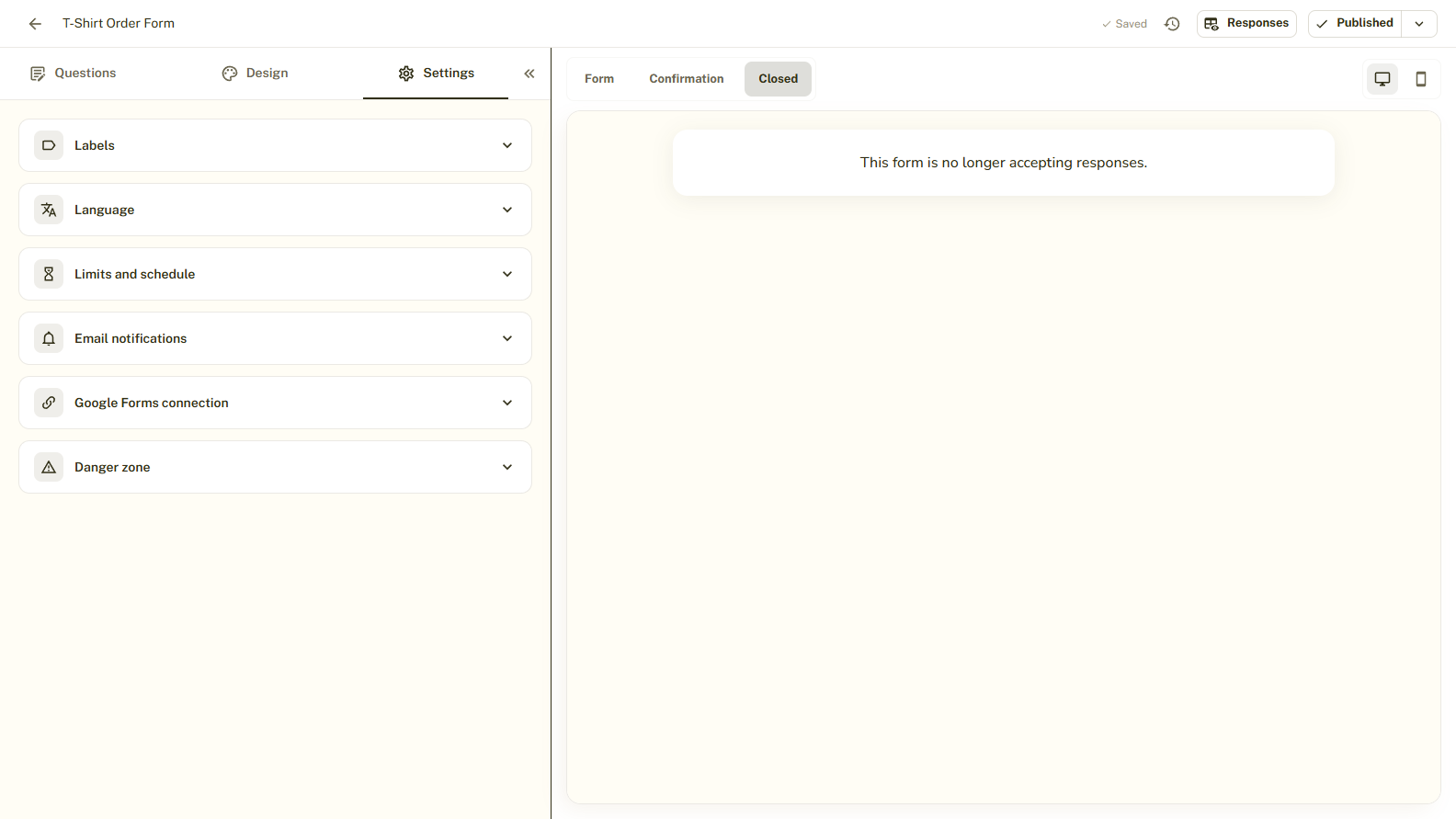
When a form is closed, people who open the link see your closed page. Click Closed above the preview to see it, and use Closed page in the Design tab to change the message and its style.
Publish
Limits apply to published forms. Make sure the form is published, then share the link as usual. On your Forms list a form that has closed shows a closed status.
Tips and Best Practices
- Use a limit for events with limited seats, sign-ups and first-come offers.
- Use a closing date for registrations, applications and surveys with a deadline.
- Say when the form closes in its description so people know to respond in time.
Common Pitfalls to Avoid
- Write a clear closed message. It is the only thing late visitors will see.
- The count includes responses you already have, so a form with earlier responses reaches the limit sooner.
- Raise the limit or move the date to reopen a form that has closed.