How to Set Response Limits in BeeForm
Open BeeForm Designer
In your Google Form, click the Add-ons icon (puzzle piece) in the top toolbar, choose BeeForm: Pretty Forms Designer, then click 🚀 Open App. The BeeForm Designer opens in a window on top of your form.
Open Alerts & Limits
In the Settings Panel on the left, open Alerts & Limits and find the Limits part. Response limits are available on every plan, including Free.
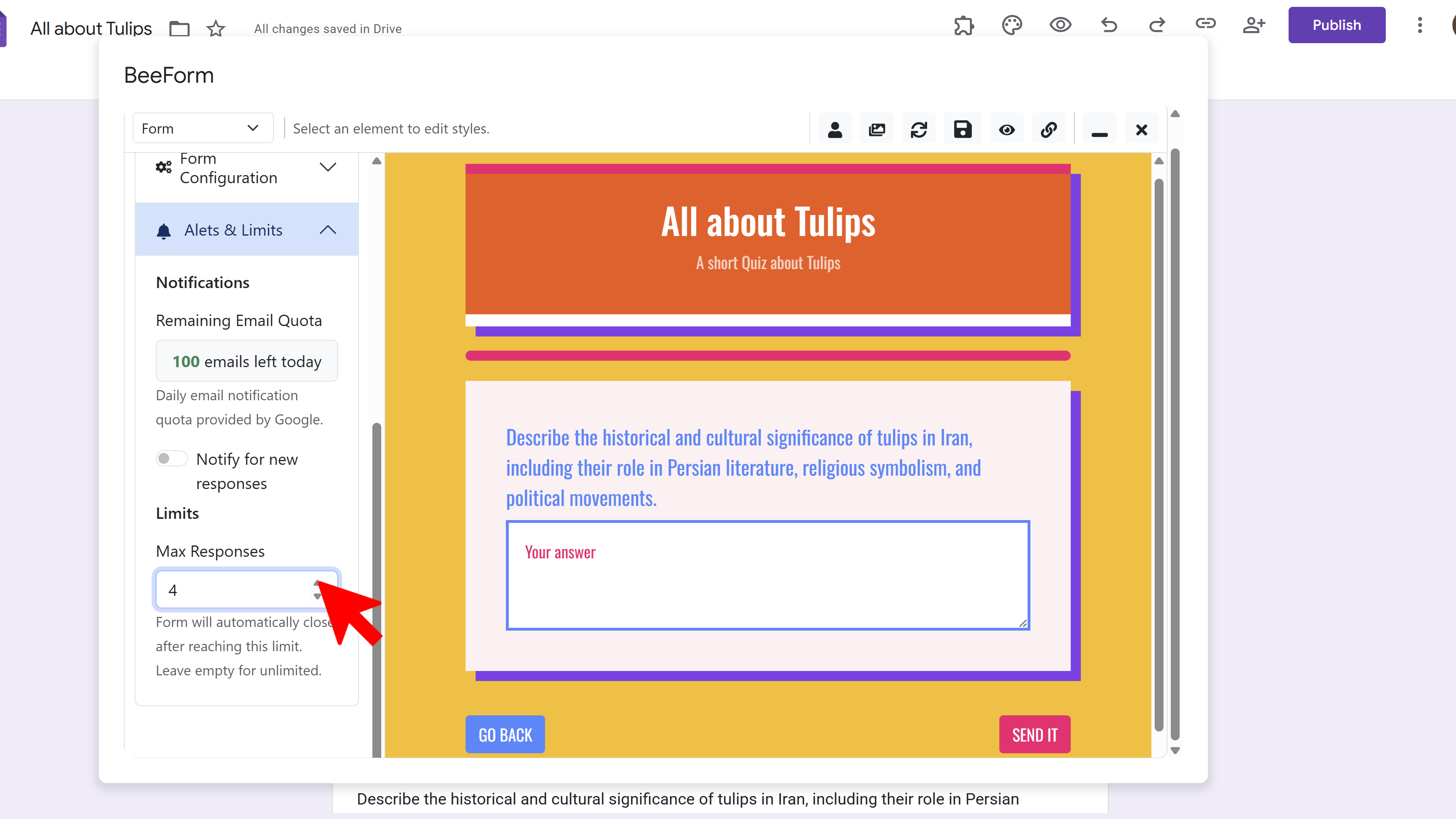
Enter Max Responses
In Max Responses, type the number of responses you want to accept, for example 50. Leave it empty for Unlimited. There is no separate on/off switch. A number turns the limit on, and an empty box turns it off.
Save Your Settings
Click the Save icon in the toolbar. After each new response, BeeForm counts the responses and, once the count reaches your limit, switches your Google Form to stop accepting responses.
Customize the Closed Message
In the toolbar, change the view dropdown from Form to Form Closed. The Settings Panel now shows Closed Settings. Edit Form Closed Message and, if you like, the text color, font size and alignment. The default message is This form is no longer accepting responses. Save when you are done.
Reopen the Form Later
To accept more responses, raise or clear Max Responses and save, then turn Accepting responses back on in the Responses tab of Google Forms. If you only reopen the form and leave the old limit, it closes again on the next response.
Tips and Best Practices
- Use limits for events with limited seats, sign-up sheets, or first-come first-served offers.
- Mention the limited availability in your form description so people know to respond quickly.
- The count includes every response the form already has, so a form with earlier responses reaches the limit sooner.
Common Pitfalls to Avoid
- Write a helpful closed message. The default may not tell people what to do next.
- The limit is checked after a response is submitted, so the form closes right after the last allowed response, not before it.
- If you set a limit and later add more capacity, remember to raise the limit, or the form closes again.