How to Enable Wizard Mode in BeeForm
Open BeeForm Designer
In your Google Form, click the Add-ons icon (puzzle piece) in the top toolbar, choose BeeForm: Pretty Forms Designer, then click 🚀 Open App. The BeeForm Designer opens in a window on top of your form.
Open the Layout Section
In the Settings Panel on the left, open Layout. It is the first section and is open by default when you view the Form.
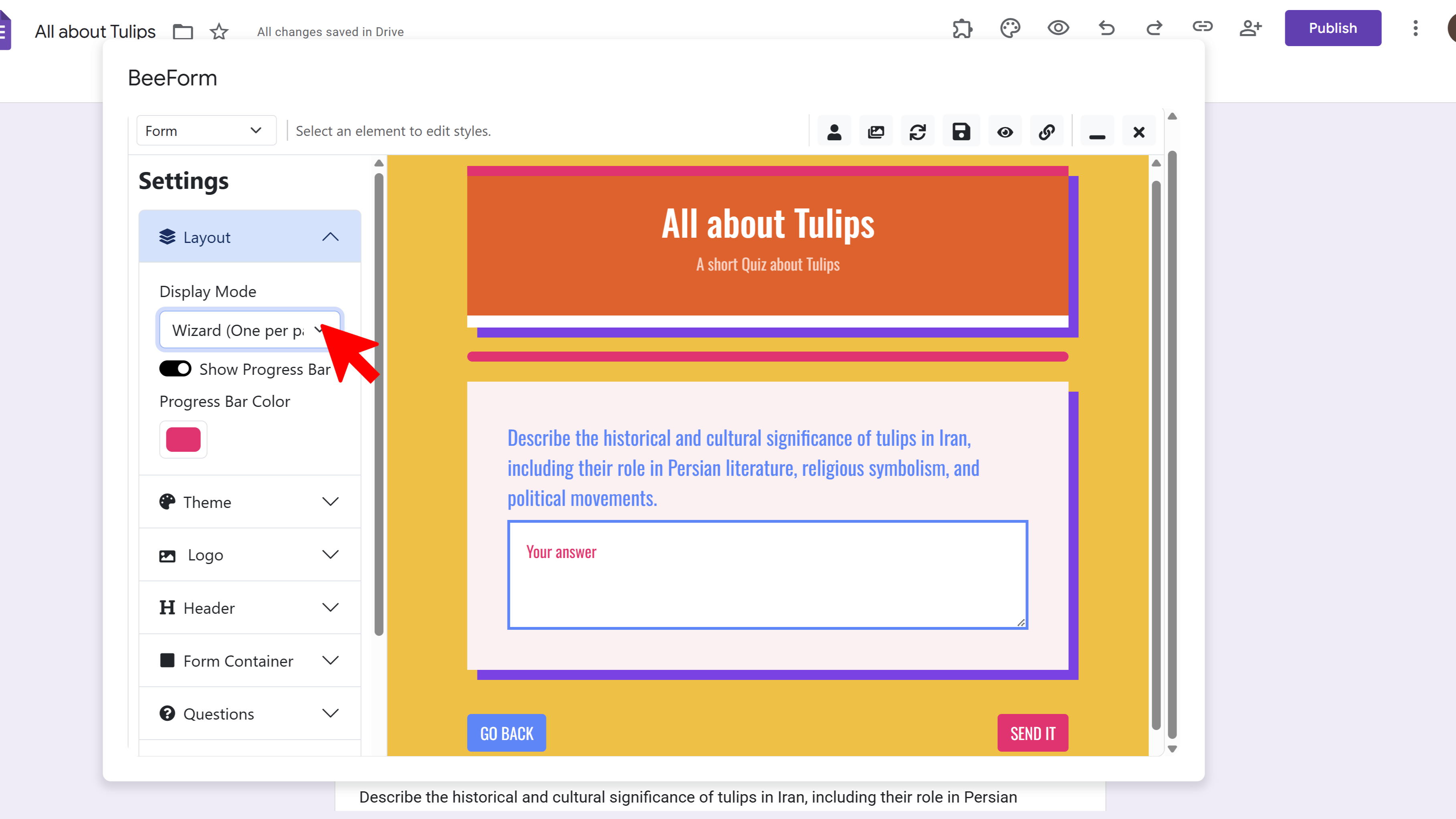
Choose Wizard Display Mode
In Display Mode, choose Wizard (One per page) instead of Classic (All on one page). The preview now shows one question at a time.
Set the Progress Bar
In Wizard mode, Show Progress Bar appears. Leave it on to show a bar that fills as respondents move through the form, and use Progress Bar Color to match your brand.
Style the Navigation Buttons
Wizard forms use Back, Next, and Skip buttons. Open Buttons in the Settings Panel to change their text and colors. The Skip button only appears on optional questions that have not been answered yet, and the last page shows Submit.
Save Your Changes
Click the Save icon in the toolbar. Share your BeeForm link to see Wizard mode live.
Tips and Best Practices
- Wizard mode suits longer forms, applications, and quizzes, because respondents see one question at a time.
- Keep the progress bar on so people can tell how much of the form is left.
- Make required questions clearly marked, since respondents cannot skip them.
Common Pitfalls to Avoid
- Very short forms usually work better in Classic mode.
- Make sure your Back, Next, and Skip button colors have enough contrast against the page.
- Wizard mode only shows on your BeeForm link. The normal Google Forms link keeps its standard look.