How to Collect Files with a File Upload Question
Open the Questions Tab
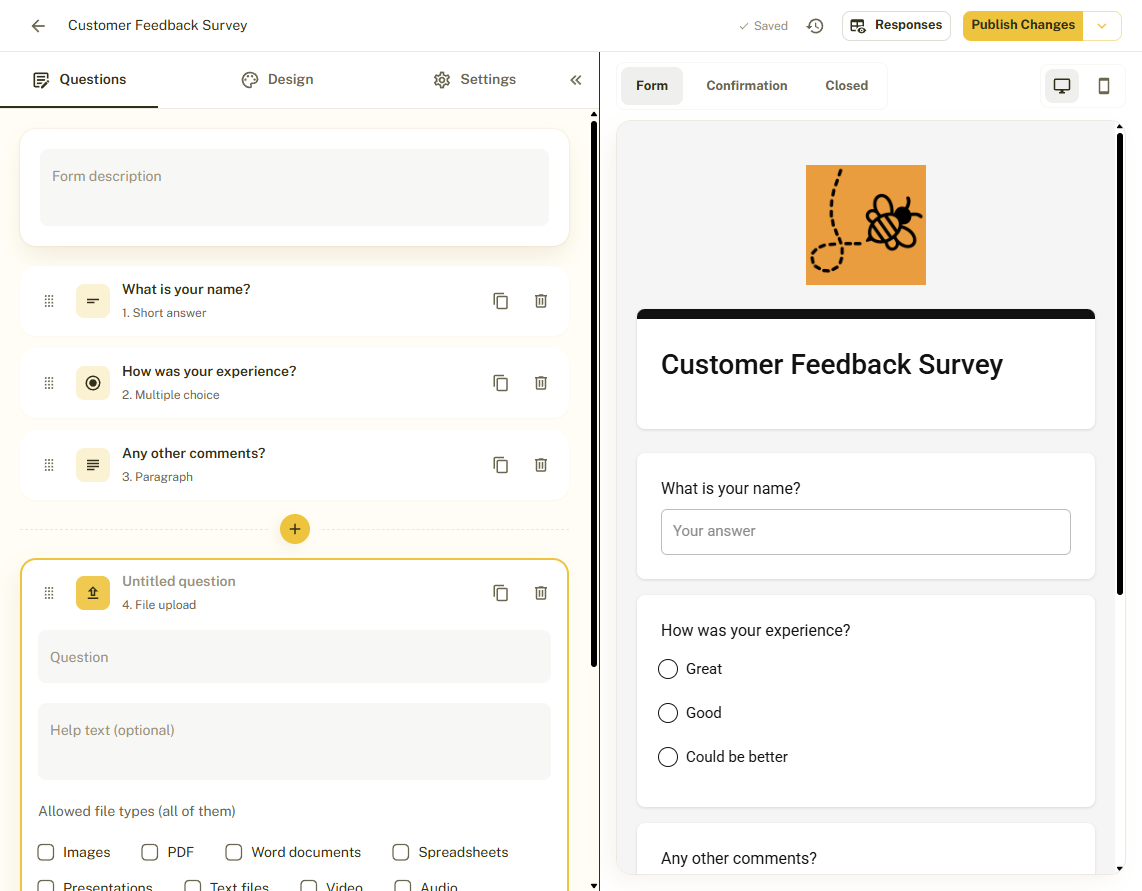
From your Forms list, click a form to open the editor. The editor has three tabs on the left, Questions, Design and Settings, and a live preview on the right.
Add a File Upload Question
Click Add question and choose File upload from the list of question types.
Write the Question
Type your question in Question and add optional Help text so people know what to upload, for example "Upload your signed form as a PDF".
Choose Allowed File Types
Under Allowed file types, pick one or more of Images, PDF, Word documents, Spreadsheets, Presentations, Text files, Video and Audio. If you pick none, all of these types are allowed.
Set the Limits
Use Max files to limit how many files one respondent can upload, and Max size (MB) for the size of each file. The biggest size you can set depends on your plan: 10 MB on Free, 100 MB on Pro and 1 GB on Business.
Make It Required (Optional)
Switch on Required if the form cannot be submitted without a file.
Find the Files Later
Files are stored privately. Only people in your workspace can download them, from the responses page. They are deleted automatically after the retention period you choose on the Workspace page under Uploaded files (up to 30 days on Free, 1 year on Pro and 2 years on Business).
Tips and Best Practices
- Restrict file types to what you really need. It cuts down on wrong uploads.
- Tell people the size limit in the help text so they can prepare their files.
- Download important files before the retention period ends.
Common Pitfalls to Avoid
- A deleted file cannot be recovered. The response and its other answers are kept.
- Very large files may be slow to upload on mobile connections. Set a sensible Max size.