How to Organize Your Forms with Labels
3 min read
Updated Oct 22, 2026
Open the Settings Tab
From your Forms list, click a form to open the editor. The editor has three tabs on the left, Questions, Design and Settings, and a live preview on the right. Click Settings.
Open Labels
Open Labels. The On this form list shows the labels the form already has, or No labels yet.
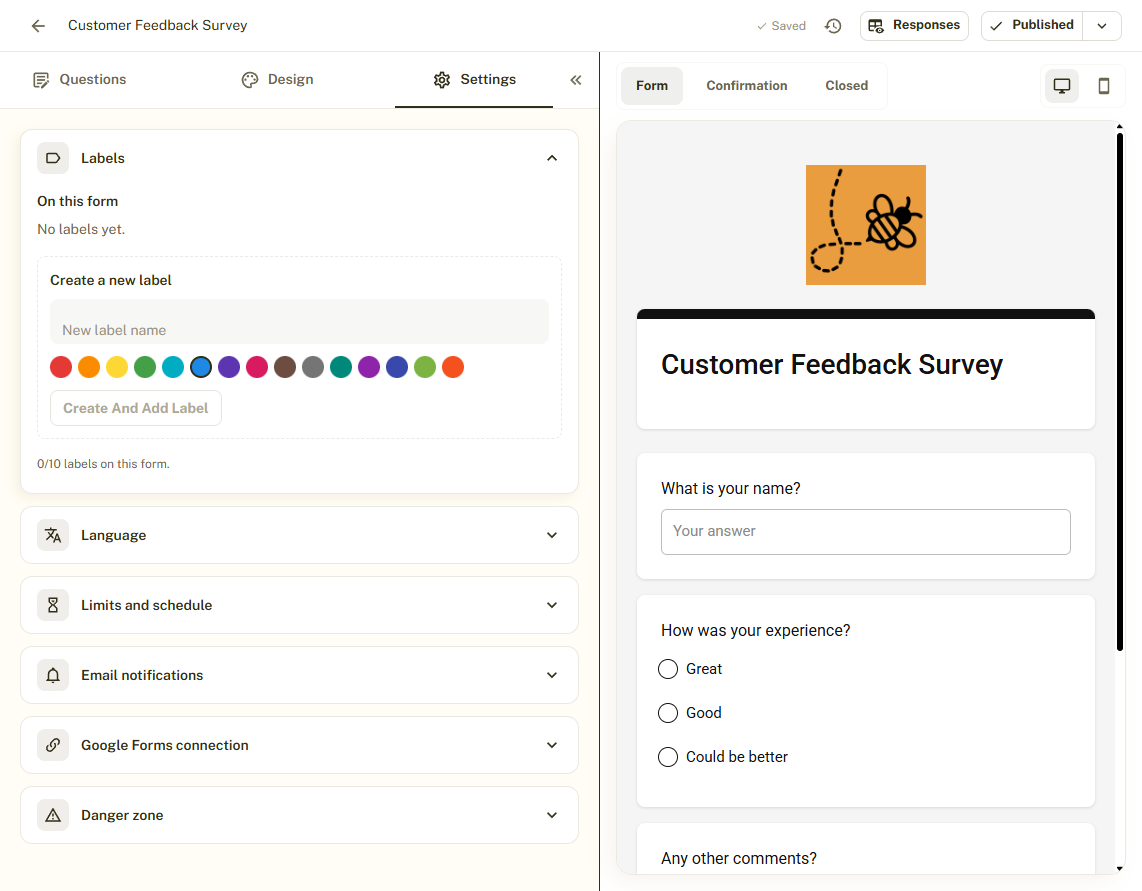
Create a Label
Under Create a new label, type a name and pick a color, then click Create and add label. The label is created and added to this form in one step.
Add or Remove Labels
Labels you created earlier can be added to any other form from the same section. A form can have up to 10 labels, and the counter under the list shows how many you have used.
Use Labels to Find Forms
Labels appear on your forms in the Forms list, so you can see at a glance which forms belong together, for example by client, event or year.
Tips and Best Practices
- Use one color per category, such as a color per client, so labels are easy to scan.
- Keep label names short so they fit on the form card.
Common Pitfalls to Avoid
- Labels are shared across your workspace. Renaming or deleting one affects every form that uses it.
- Only people who can edit forms can change labels.