How to Start a Form from a Template
Open the Templates Page
Click Templates in the sidebar. The gallery shows ready-made forms for common needs, each with a short description and a preview of its look. Templates you saved yourself appear here too.
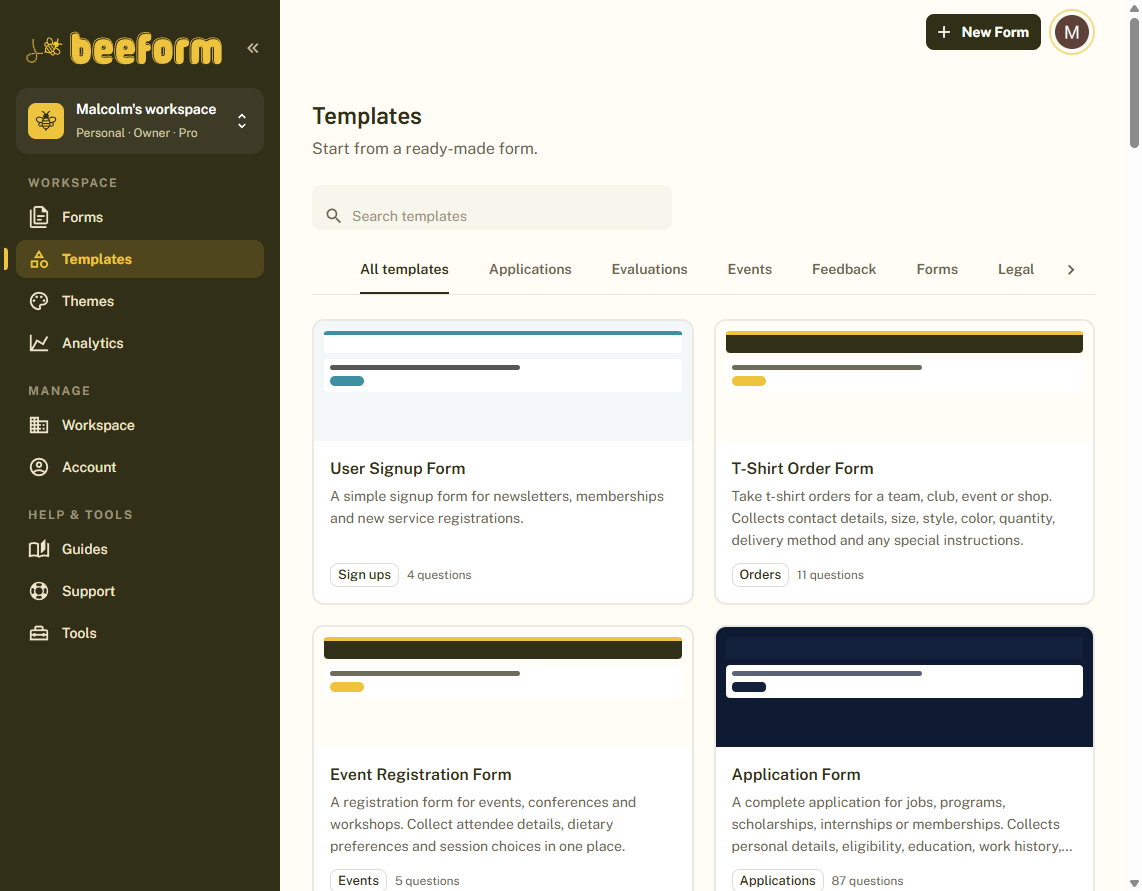
Preview a Template
Click a template to open its preview. You can switch the preview between Form, Confirmation and Closed to see every page respondents would see.
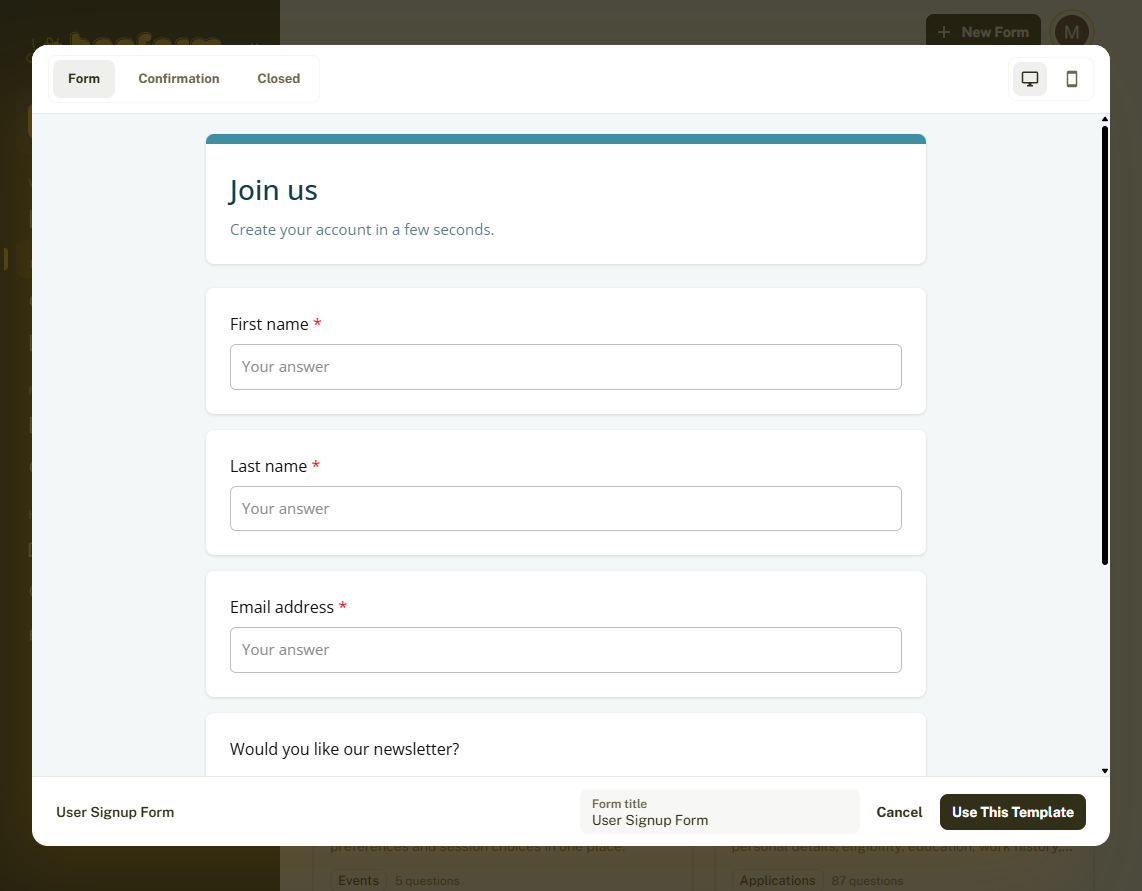
Name Your Copy
Type a name in Form title. Your new form is a copy, so changing it never affects the template.
Use the Template
Click Use This Template. Your new form opens in the editor with the template's questions and design already in place.
Make It Yours
Edit questions on the Questions tab, change the look on the Design tab, and click Publish when you are ready. You can also start from a template when you create a form: choose From a template in the Create a new form window.
Tips and Best Practices
- Templates are the fastest way to a good-looking form. Change the questions to fit, then adjust the colors.
- Preview the Confirmation and Closed pages too, they are part of the template.
Common Pitfalls to Avoid
- Check every question after using a template. Wording and required fields may not match your needs.
- A template is copied once. If the template changes later, your form is not updated.