How to Create Your First Form in BeeForm
Open Your Forms
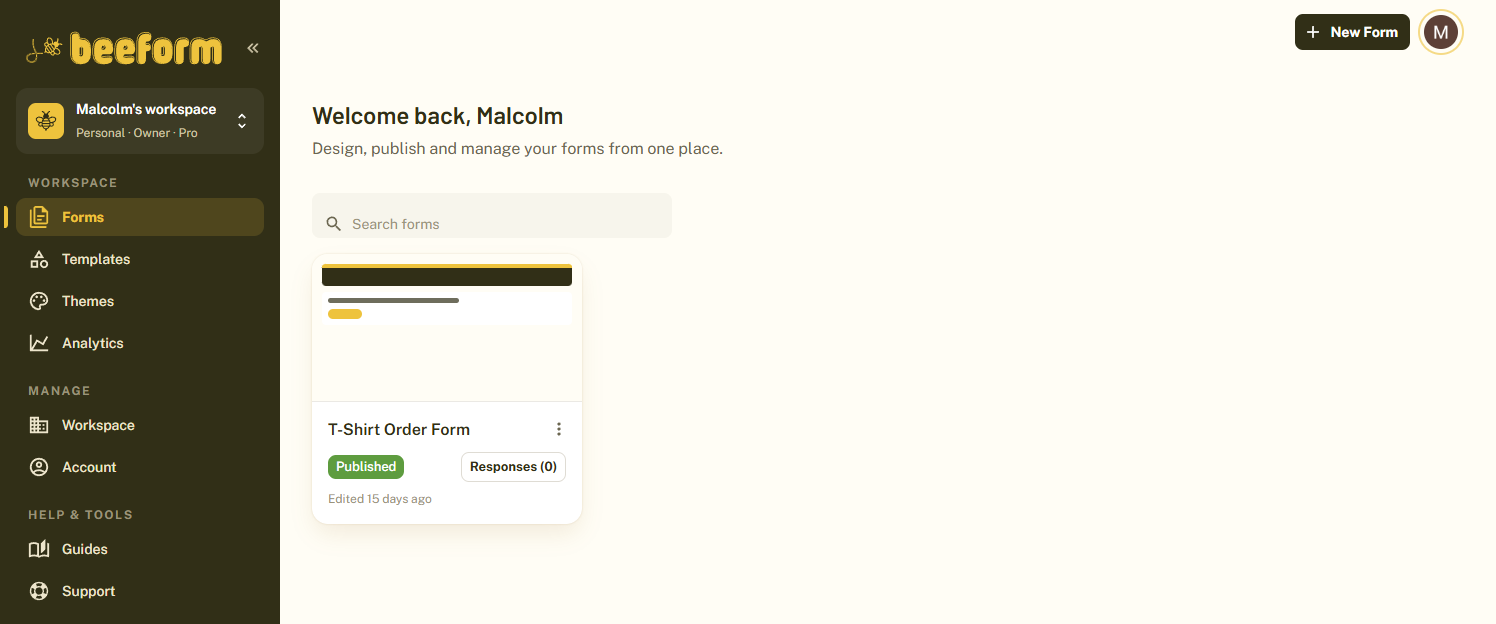
Log in to BeeForm. You land on your Forms list, which shows every form in your workspace with its status (draft, published or closed) and a Responses button. Use Search forms to find a form later.
Click New Form
Click New form at the top of the page. The Create a new form window opens.
Name Your Form
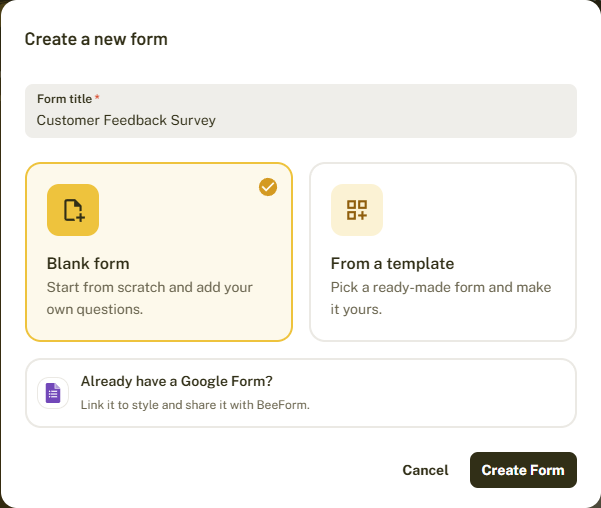
Type a name in Form title. This field is required. You can change the title later at the top of the editor.
Choose How to Start
Pick one of the three options:
- Blank form: start from scratch and add your own questions.
- From a template: pick a ready-made form and make it yours.
- Already have a Google Form?: link a Google Form so you can style and share it with BeeForm. You need to connect your Google account first.
Then click Create form.
Meet the Editor
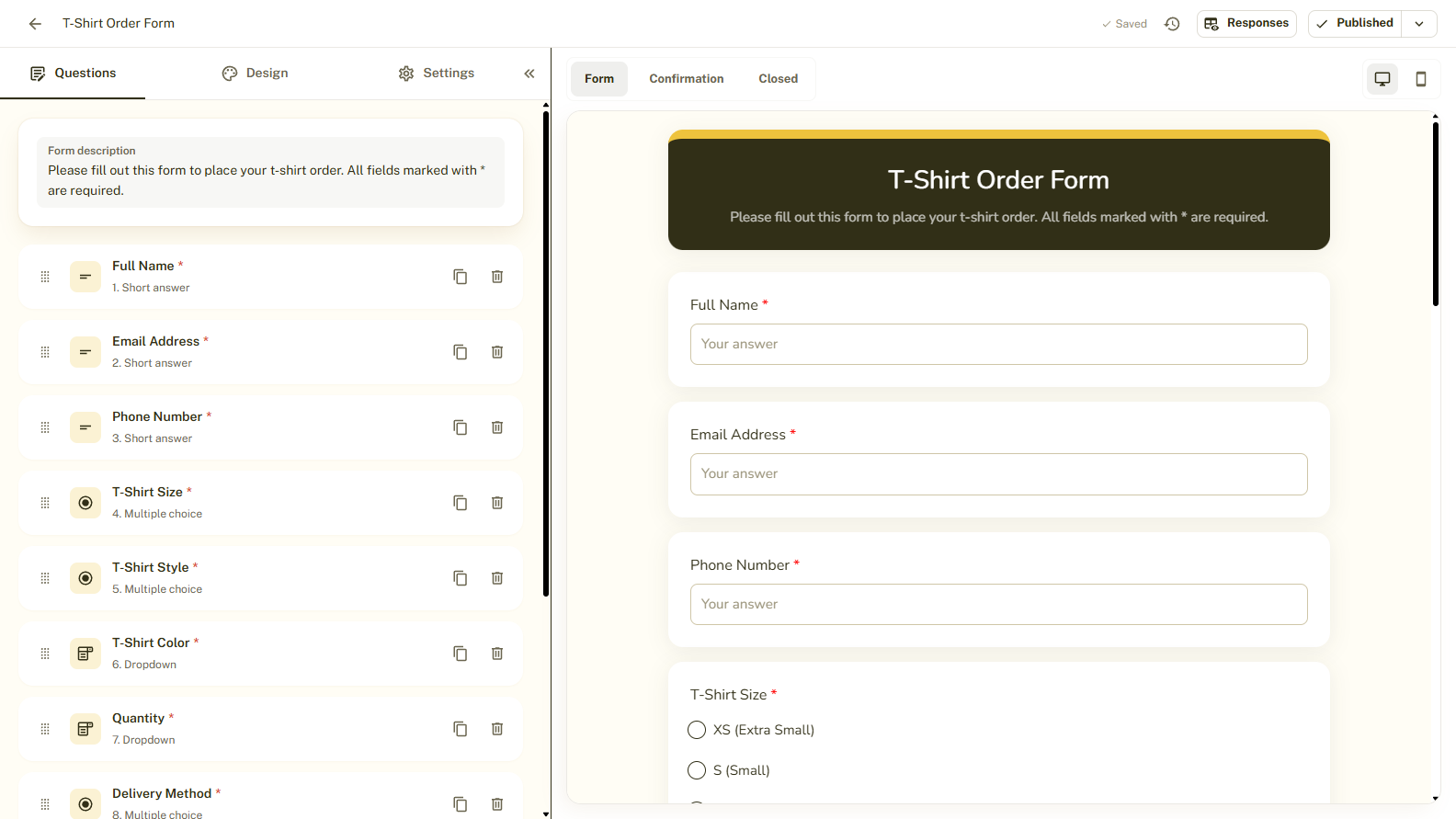
Your new form opens in the editor. The tabs on the left are Questions, Design and Settings. The preview on the right shows exactly what respondents will see, and you can switch it between Form, Confirmation and Closed, or between desktop and mobile.
Your Work Saves Automatically
The top bar shows Saving..., Saved or Unsaved changes, so you always know where you stand. When you are ready, click Publish to get a link you can share.
Tips and Best Practices
- Start from a template when you are short on time. You can change every question and the design afterwards.
- Your form stays a draft until you click Publish, so you can build and test freely.
- Use the mobile preview toggle to check how the form looks on a phone.
Common Pitfalls to Avoid
- A title is required. The Create form button stays disabled until you enter one.
- A form with no questions cannot be published. Add at least one question first.