How to Publish Your Form in BeeForm
Finish Your Design
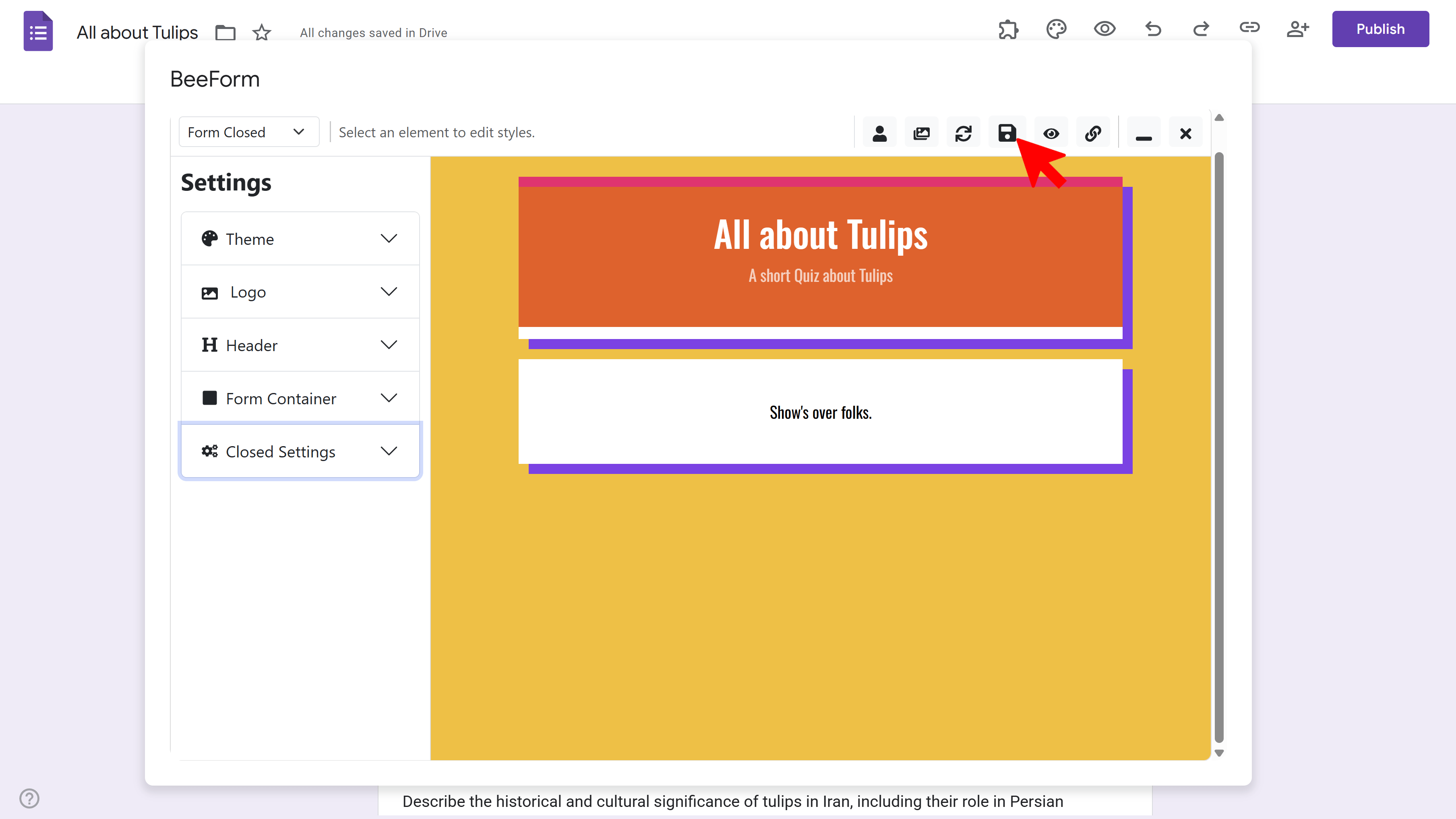
Open the Designer and finish your design. Use the live preview, and the Form, Confirmation, and Form Closed views in the toolbar dropdown, to check every page respondents might see.
Save Your Design
Click the Save icon in the toolbar. A small red dot on the icon means there are unsaved changes. BeeForm also auto-saves about once a minute, and saves when you copy your link or preview.
Preview Your Form
Click the â‹® menu in the toolbar and choose Preview. Your form opens in a new tab as respondents will see it. Fill it in once to test your questions and styling.
Get Your Shareable Link
Click the Link icon (tooltip Get Link). The Share Form window shows your form's link. Click Copy, and the button changes to Copied!. Your BeeForm link stays the same for this form.
Share the BeeForm Link
Paste the link into emails, messages, social posts or your website. Responses go to your Google Form as usual, so you read them in the Responses tab of Google Forms.
Tips and Best Practices
- Always preview and test the form before sharing it with your audience.
- Update the design any time. Save again and the same link shows the newest design.
- Your responses stay in Google Forms and Google Sheets, so your existing workflows keep working.
Common Pitfalls to Avoid
- Share the BeeForm link, not the normal Google Form link. The Google Form link shows the default Google Forms look and never your design.
- If you see a banner saying the form collects verified email addresses, or limits responses to one per user, BeeForm cannot submit responses. Use the banner button to fix it, or change the setting in Google Forms.
- Do not close the Designer with unsaved changes. Save first so respondents see your latest version.