How to Publish and Share Your Form
Check Your Form First
Use the preview on the right to review the Form, Confirmation and Closed pages. Switch to the mobile preview to see how it looks on a phone.
Click Publish
Click Publish in the top right of the editor. If something needs fixing, such as a form with no questions, a Fix these before publishing window lists what to change.
Copy Your Link
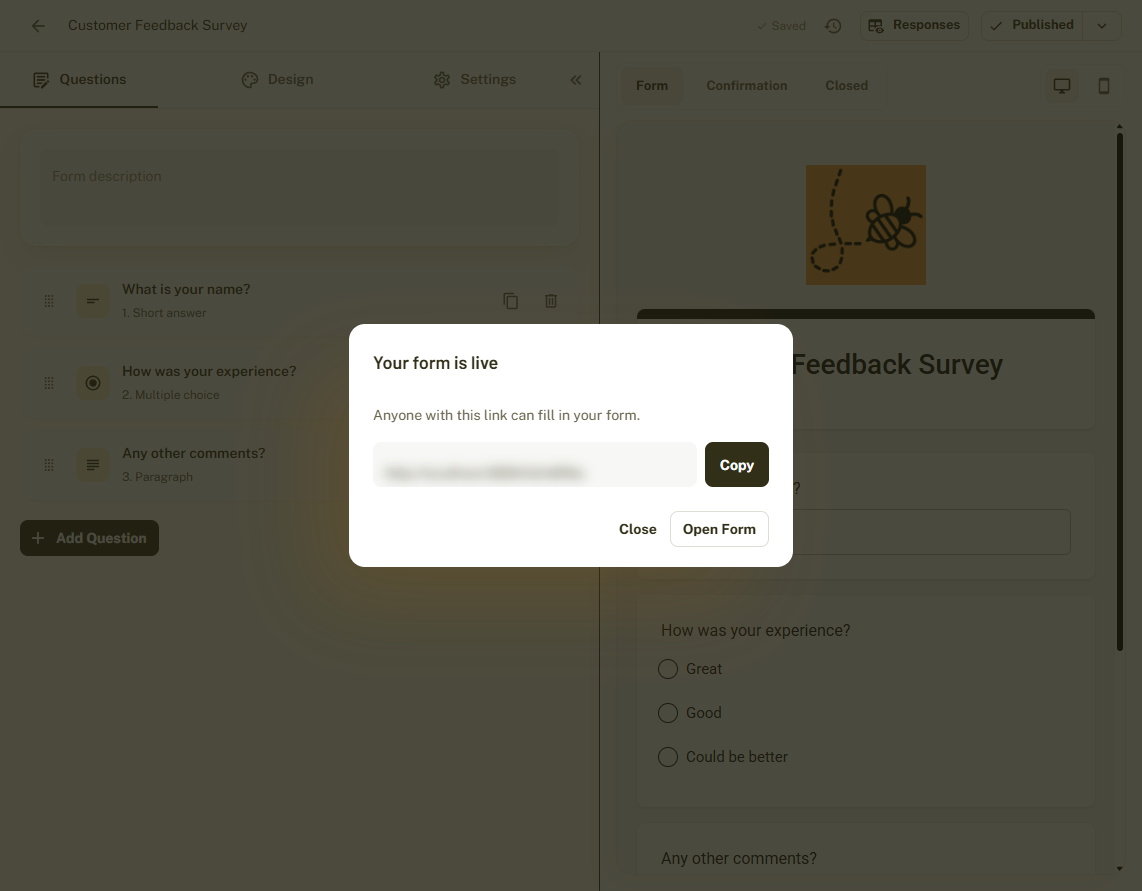
The Your form is live window shows your link and the message Anyone with this link can fill in your form. Click Copy, or Open form to see it as a respondent does.
Share It
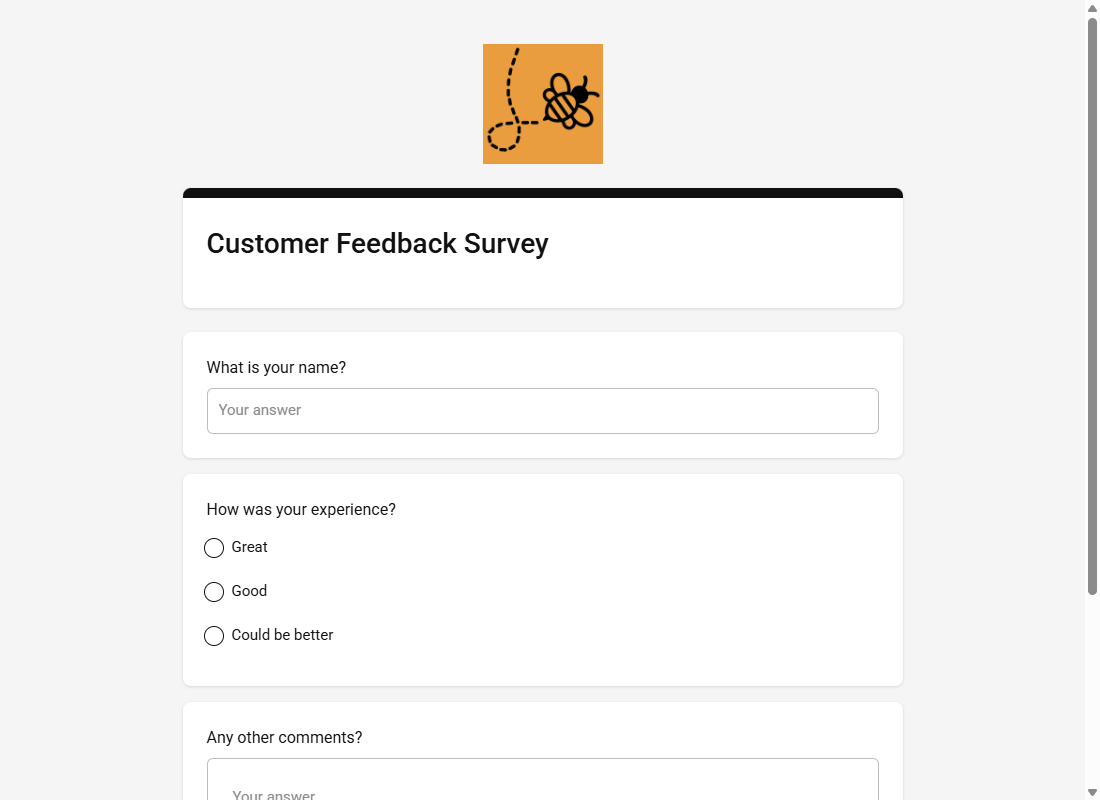
Paste the link into an email, a message, a social post or your website. Respondents see your design, and their answers appear in your responses.
See What Respondents See After Submitting
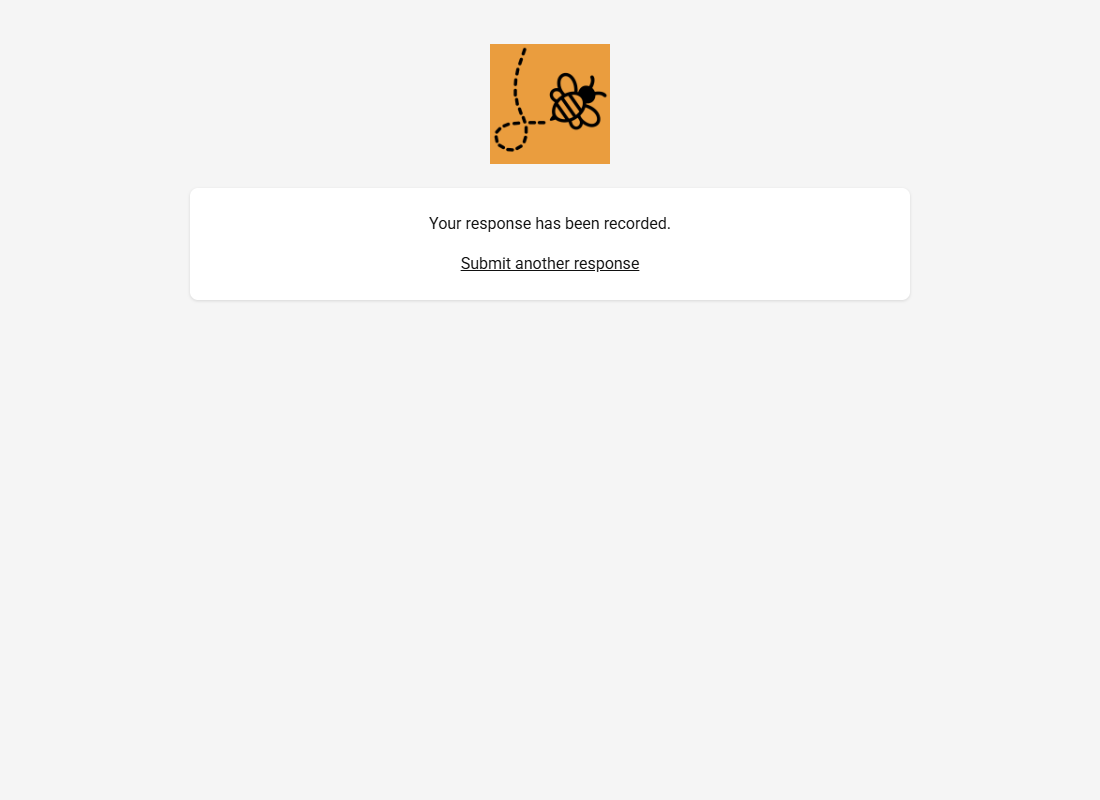
After they submit, respondents see your confirmation message and, if you allow it, a Submit another response link.
Update or Unpublish Later
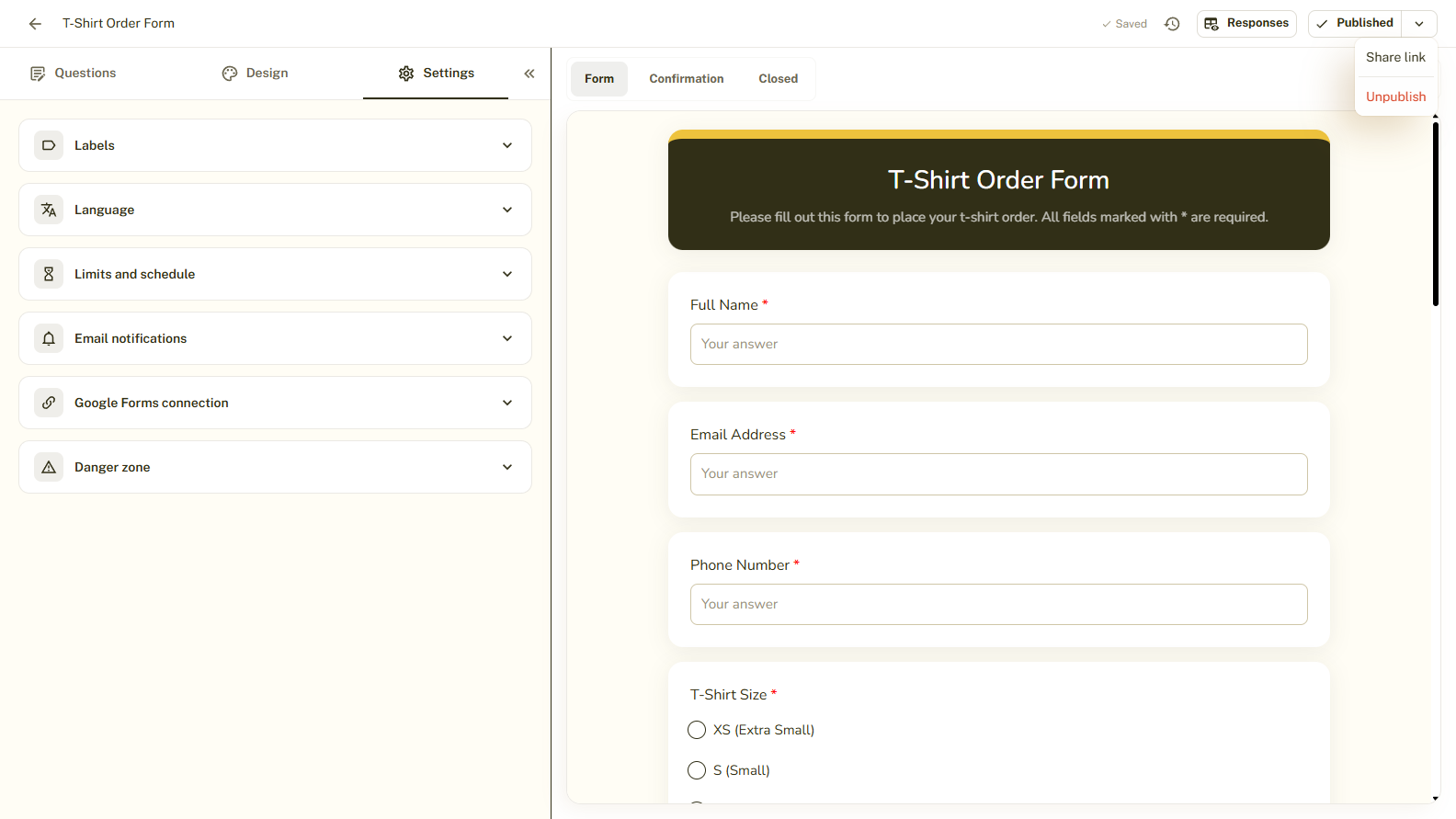
Once a form is live, the button reads Published and has a small arrow with extra options. Use Share link to see the link again, or Unpublish to turn the link off. If you edit a live form, the button changes to Publish changes, and visitors keep seeing the previous version until you publish.
Tips and Best Practices
- Open the link yourself and submit a test response before you share it widely.
- Your link stays the same when you publish changes, so you never need to resend it.
- Unpublishing is safe. Your form and its responses are kept.
Common Pitfalls to Avoid
- Edits are not visible to respondents until you click Publish changes.
- A form can also close by itself if you set a response limit or a closing date.