How to Customize Colors and Layout in BeeForm
Open the Design Tab
From your Forms list, click a form to open the editor. The editor has three tabs on the left, Questions, Design and Settings, and a live preview on the right. Click Design.
Open Colors and Background
Under Customize, open Colors and background. Here you set the primary color, the page background and the font, and you can add a background image.
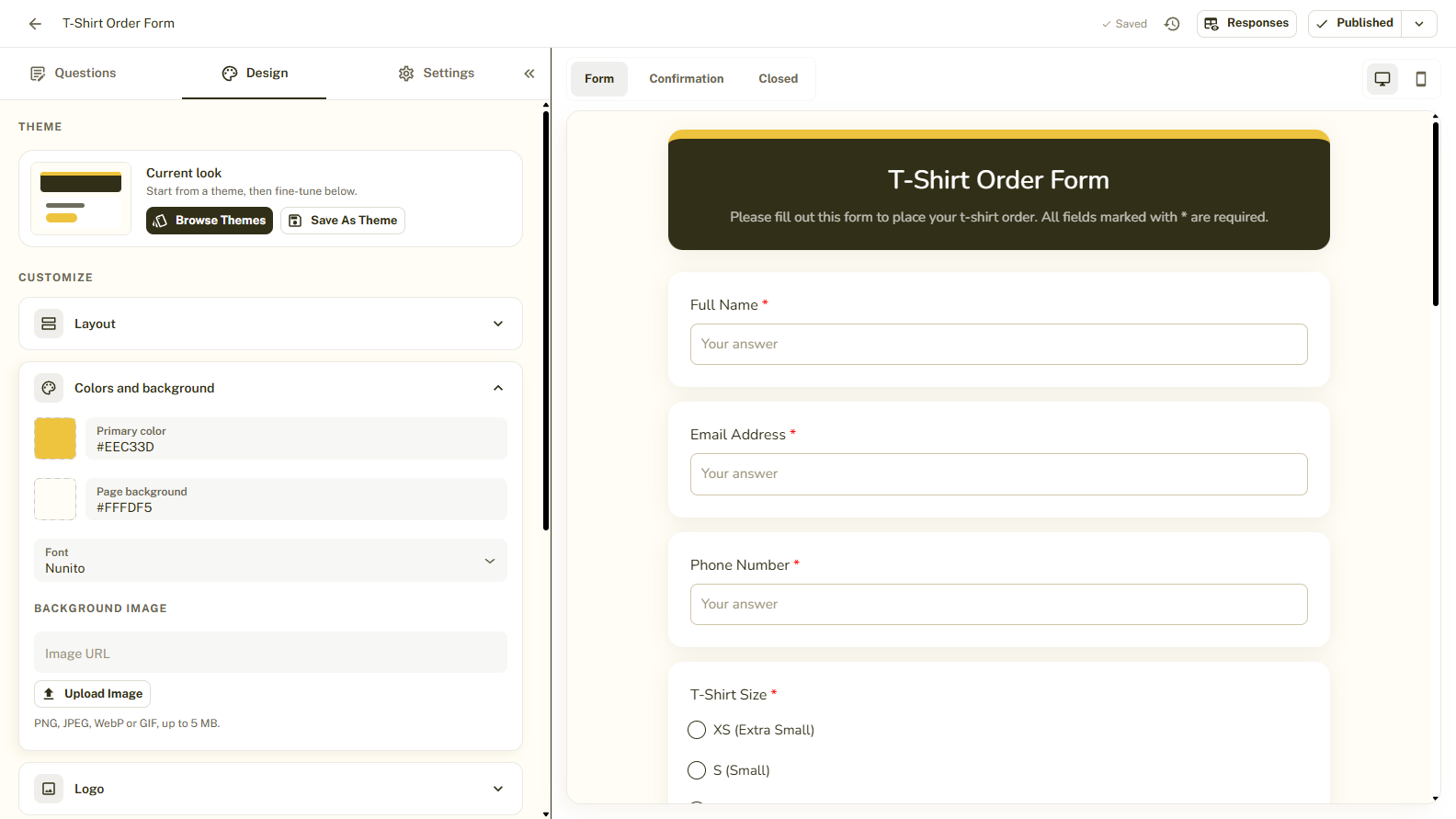
Pick Your Colors
Click a color swatch to choose a color, or type an exact hex code such as #312F17 to match your brand. The preview updates immediately. The Header, Form container, Questions and Buttons sections have their own colors too.
Open Layout
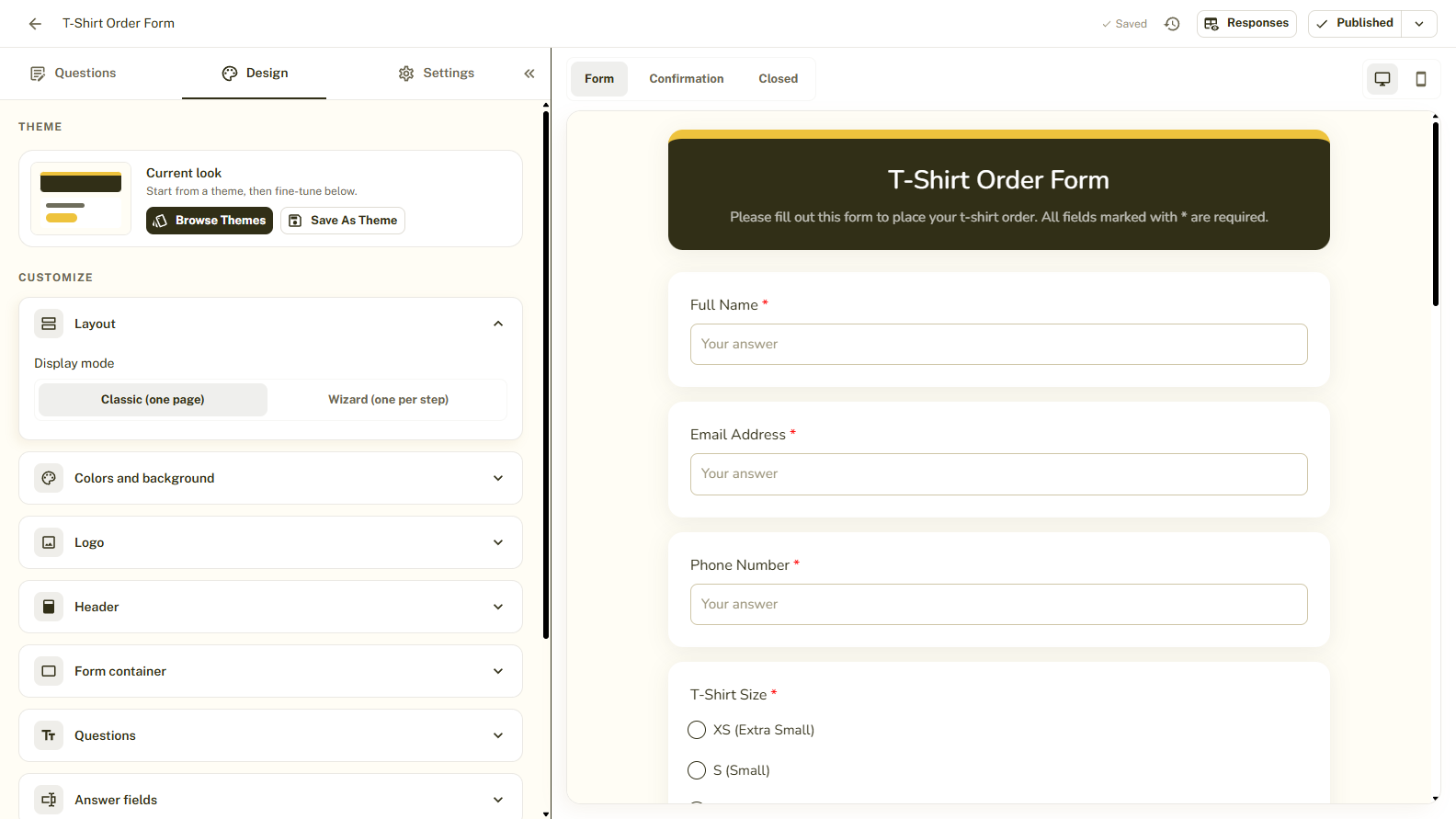
Open Layout to choose the Display mode:
- Classic (one page): all questions on one page.
- Wizard (one per step): one question at a time.
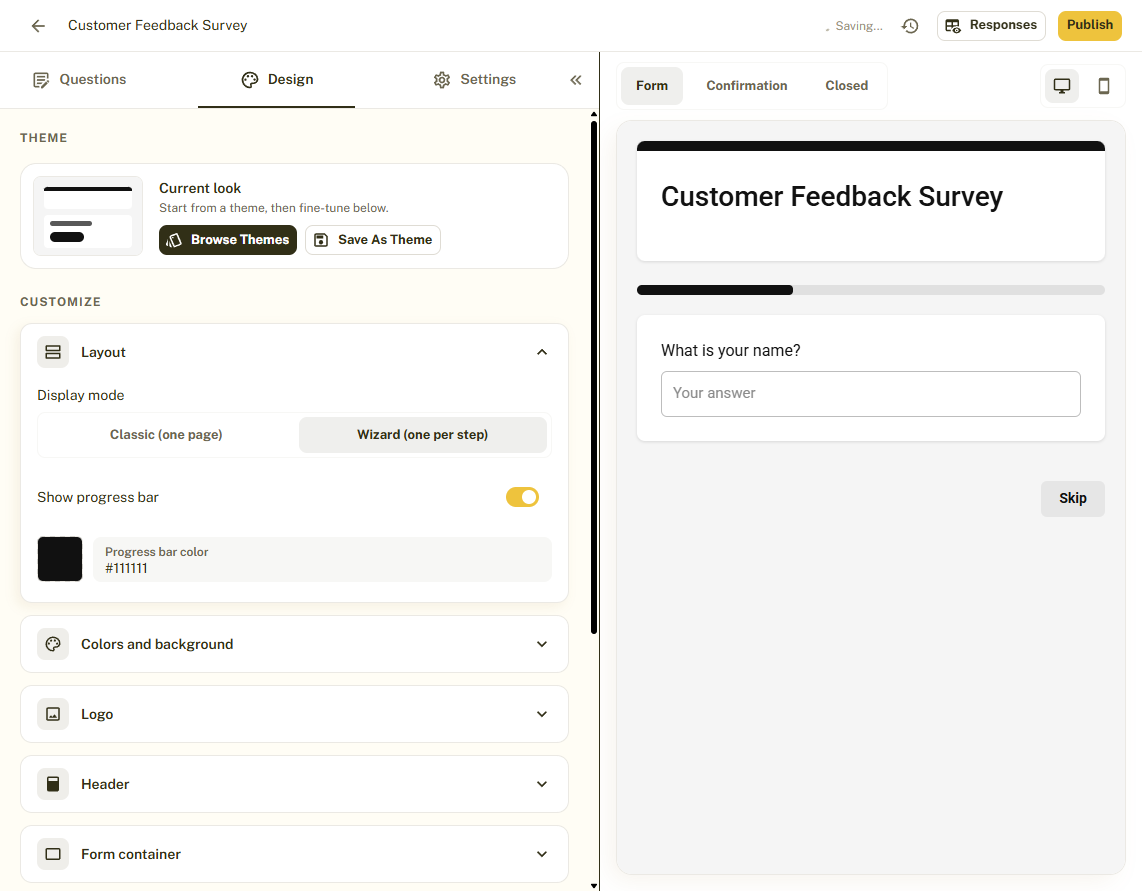
Set Up the Wizard
In Wizard mode, Show progress bar and Progress bar color appear. Respondents move with Back and Next, and the last step shows Submit. A Skip button appears on optional questions that have not been answered. You can change the text and colors of these buttons in the Buttons section.
Check It and Publish
Use the desktop and mobile preview toggles to check the result. Your changes save automatically, and published forms show the new design after you click Publish changes.
Tips and Best Practices
- Use two or three main colors so the form does not feel busy.
- Wizard mode suits long forms and quizzes. Short forms usually work better in Classic mode.
- Aim for strong contrast between text and background, at least 4.5:1.
Common Pitfalls to Avoid
- Avoid using almost the same color for the page background and the form container, they need contrast to look separate.
- In Wizard mode, required questions cannot be skipped, so mark only what is truly needed.
- Check the mobile preview. Colors and long text can look different on a small screen.