How to Choose a Theme in BeeForm
Open the Design Tab
From your Forms list, click a form to open the editor. The editor has three tabs on the left, Questions, Design and Settings, and a live preview on the right. Click Design.
Find the Theme Card
At the top of the Design tab, the Theme card shows your Current look and the line Start from a theme, then fine-tune below.
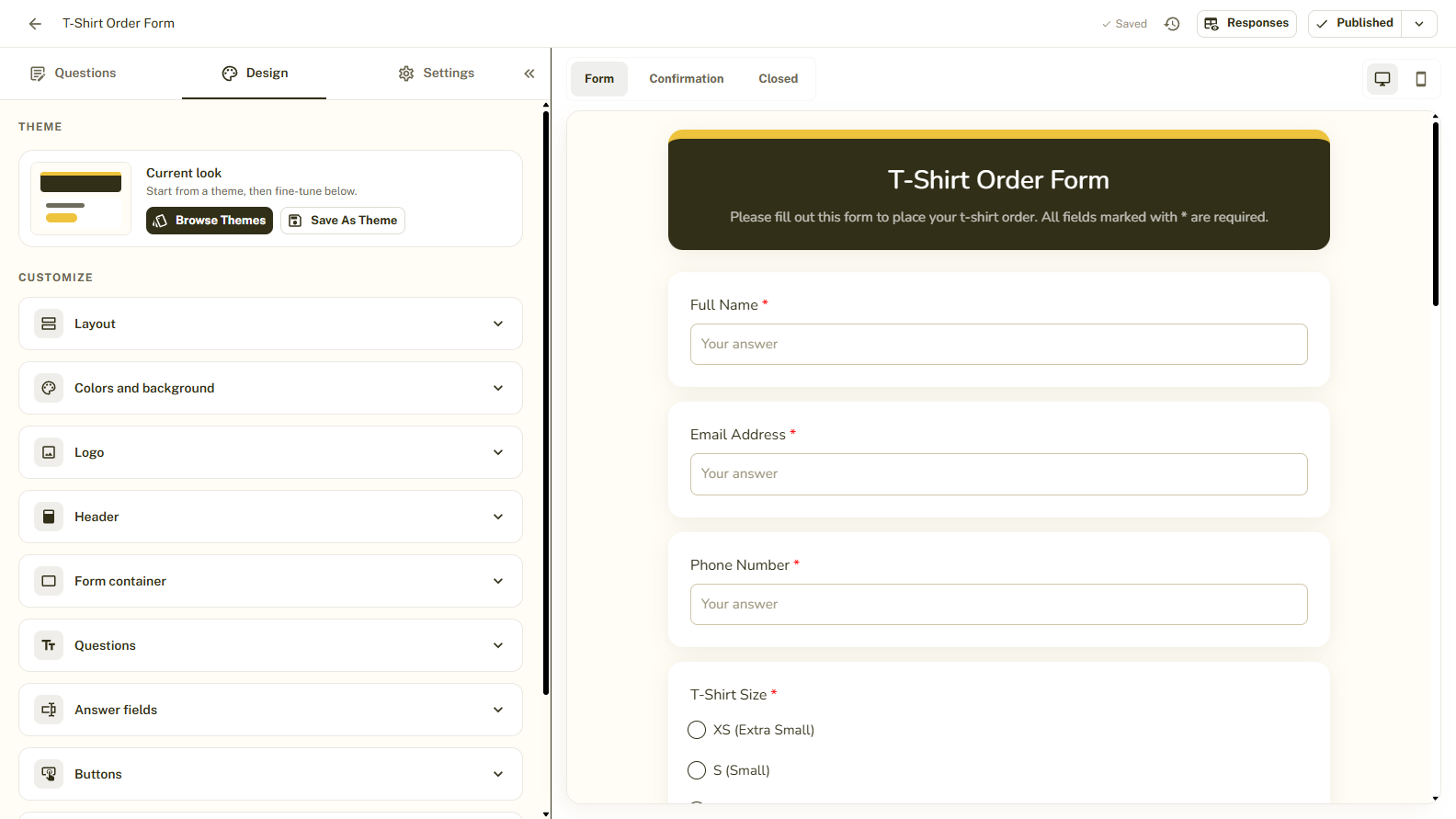
Browse Themes
Click Browse themes. The gallery shows each theme as a small preview. Select a theme to try it on your own form. Your questions, logo and messages are kept, only the look changes.
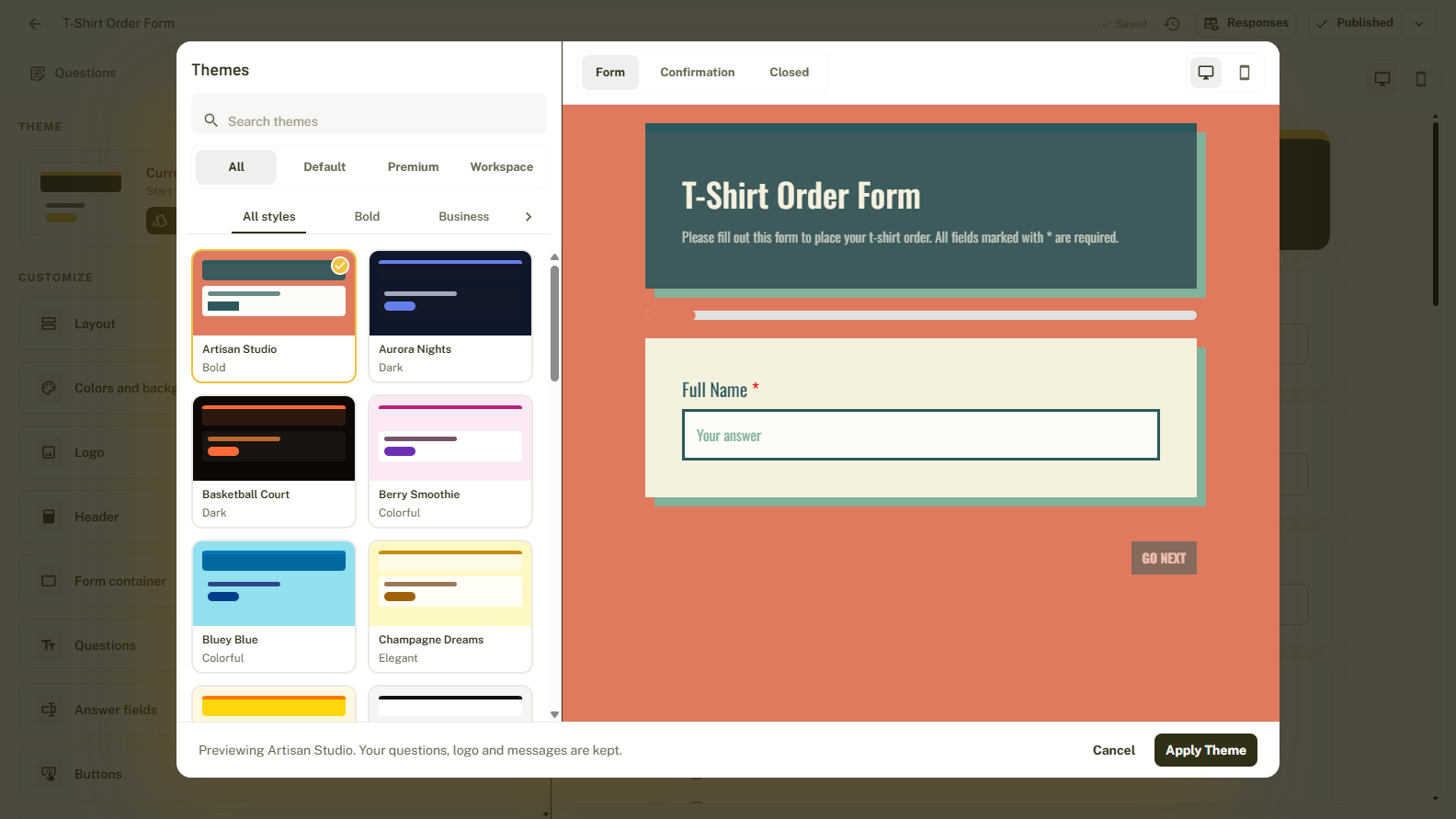
Apply the Theme You Like
When you find a look you like, apply it. The live preview on the right updates right away. If it is not what you wanted, close the gallery without applying and your design stays as it was.
Fine-Tune the Result
A theme is a starting point. Use the Customize sections below the Theme card, such as Colors and background, Logo and Buttons, to adjust it.
Save Your Own Theme
Happy with your design? Click Save as theme, give it a name, and it joins your saved themes so you can reuse it on any form. You can also manage saved themes on the Themes page in the sidebar.
Tips and Best Practices
- Pick a theme first, then fine-tune. It is much faster than building a design from scratch.
- Save a theme once your branding is ready and reuse it for every new form.
- Some themes are premium and need the Pro plan.
Common Pitfalls to Avoid
- Applying a theme changes your colors and styling, so apply a theme before detailed customizing.
- The Free plan limits how many themes you can save. Pro removes the limit.