How to Add a Logo in BeeForm
Open BeeForm Designer
In your Google Form, click the Add-ons icon (puzzle piece) in the top toolbar, choose BeeForm: Pretty Forms Designer, then click 🚀 Open App. The BeeForm Designer opens in a window on top of your form.
Open Logo Settings
In the Settings Panel on the left, click Logo. Logos are a PRO feature. On the Free plan the section is locked and shows a PRO badge.
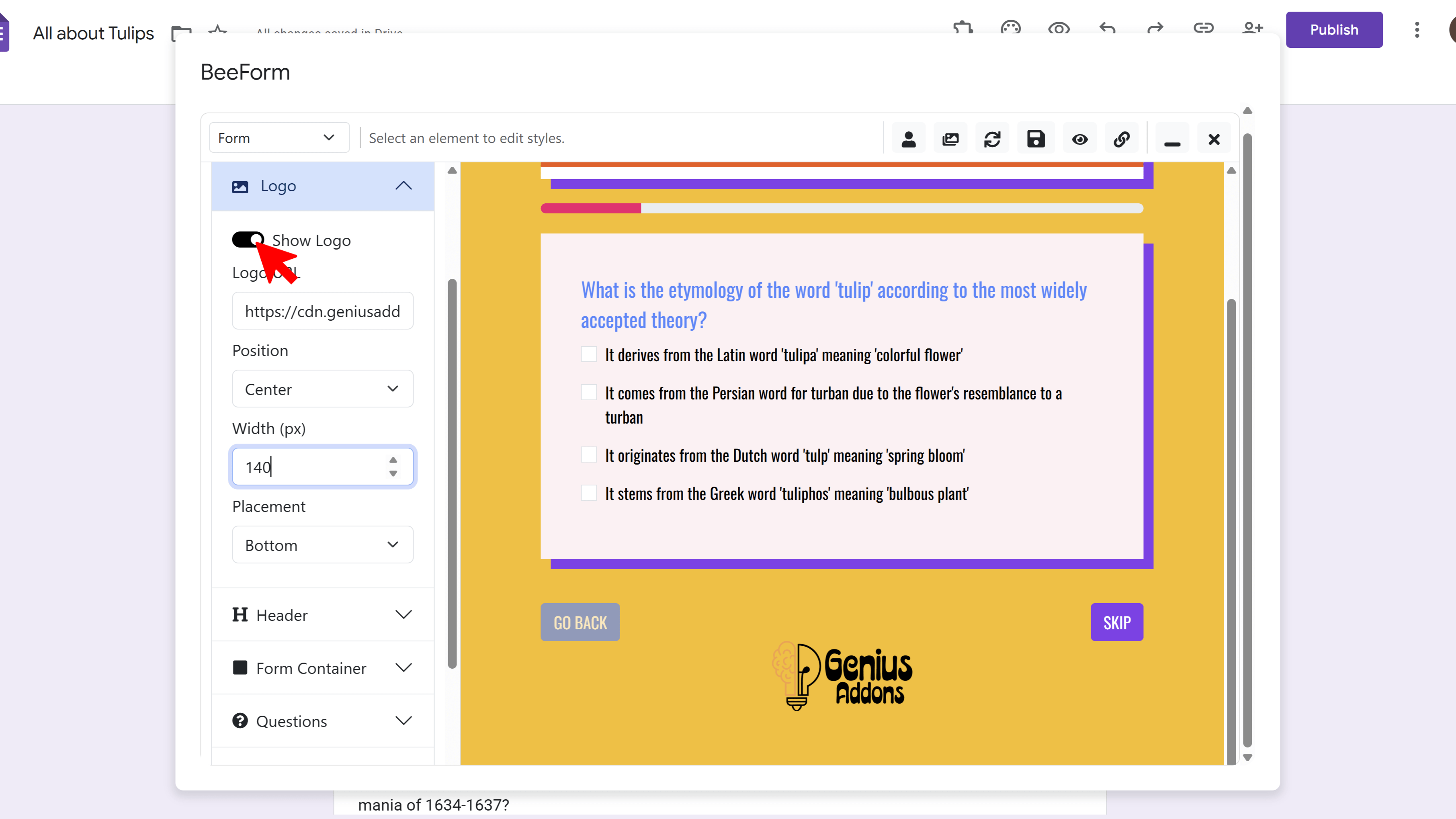
Turn On Show Logo
Switch on Show Logo to reveal the logo options.
Add Your Logo URL
Paste the web address of your logo image into Logo URL (for example https://example.com/logo.png). The image must already be hosted online at a public link. Your logo appears in the form preview.
Set Width, Position, and Placement
Use Width (px) to set how wide the logo is. Choose a Position of Left, Center, or Right. Under Placement, choose Top or Bottom of the form.
Save Your Changes
Click the Save icon in the toolbar to keep your changes.
Tips and Best Practices
- Use a PNG with a transparent background for the cleanest result, especially on colored backgrounds.
- Use a reasonably small file so the form loads quickly.
- Use a high-resolution image so the logo looks sharp on every device.
Common Pitfalls to Avoid
- The logo must be reachable by a public URL. Links that need a login will not show for respondents.
- Avoid white logos on light backgrounds or dark logos on dark backgrounds. Check the contrast in the preview.
- If the logo does not appear, check that the URL opens the image directly in a browser tab.
- The Free plan cannot use the logo or header image. Upgrade to Pro to unlock them.