How to Enable Email Notifications in BeeForm
Open BeeForm Designer
In your Google Form, click the Add-ons icon (puzzle piece) in the top toolbar, choose BeeForm: Pretty Forms Designer, then click 🚀 Open App. The BeeForm Designer opens in a window on top of your form.
Open Alerts & Limits
In the Settings Panel on the left, open Alerts & Limits. The Alerts part is a PRO feature, so on the Free plan it is locked.
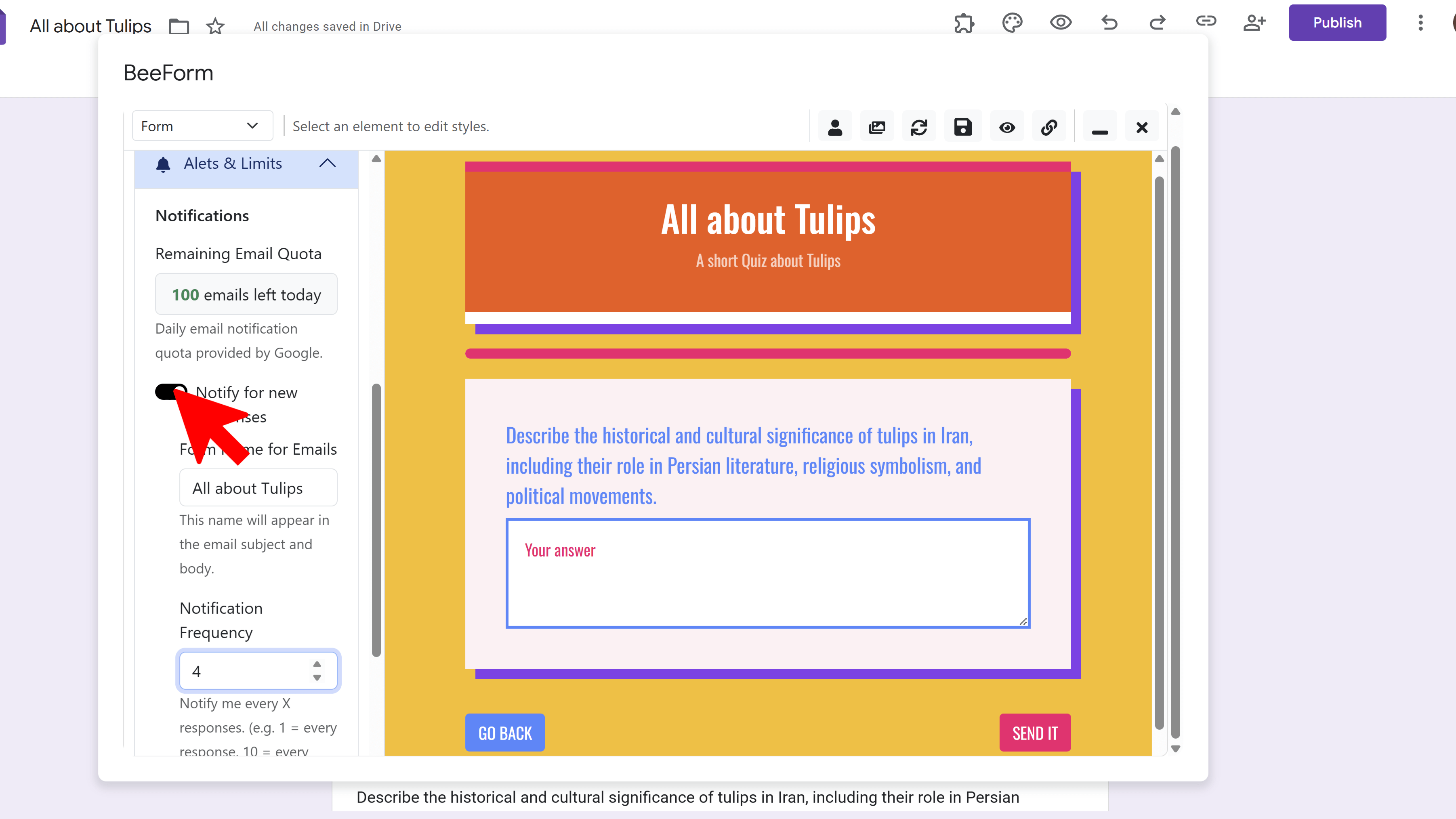
Check Your Email Quota
Remaining Email Quota shows how many alert emails you can still send today. This is a daily quota provided by Google, so a very busy form can use it up.
Turn On the Alert
Switch on Alert me about new responses.
Name the Form and Choose Frequency
Enter a Form Name for Emails. It appears in the email subject and body, and the form's own title is used if you leave it empty. Then set Alert Frequency: 1 emails you for every response, and 10 emails you on every 10th response.
Save Your Settings
Click the Save icon in the toolbar. Saving is what activates the alerts for your form.
What the Email Contains
With a frequency of 1, the email is titled New Response and lists each question with the respondent's answer, plus a View in Google Forms button. With any higher number, you get a shorter Response Milestone Reached email that shows the total response count and a View Responses in Google Forms button.
Tips and Best Practices
- Use a frequency of 1 for urgent forms such as event registrations or support requests.
- On high-volume forms, use a higher number like 10 or 25 to save your daily email quota and your inbox.
- Submit a test response through your BeeForm link to confirm the alert arrives.
Common Pitfalls to Avoid
- Alerts are sent to the Google account that set up BeeForm on the form, not to an address you type in.
- Check your spam folder if alerts do not arrive.
- A frequency above 1 does not include answers. Open the Responses tab in Google Forms to read them.
- Alerts are a Pro feature. The setting is locked on the Free plan.