How to Add and Edit Questions in BeeForm
Open the Questions Tab
From your Forms list, click a form to open the editor. The editor has three tabs on the left, Questions, Design and Settings, and a live preview on the right.
Add a Question
On the Questions tab, click Add question. Once you have questions, you can also use the small Add question above and Add question below buttons between cards to insert one exactly where you want it. A menu lists the types you can add.
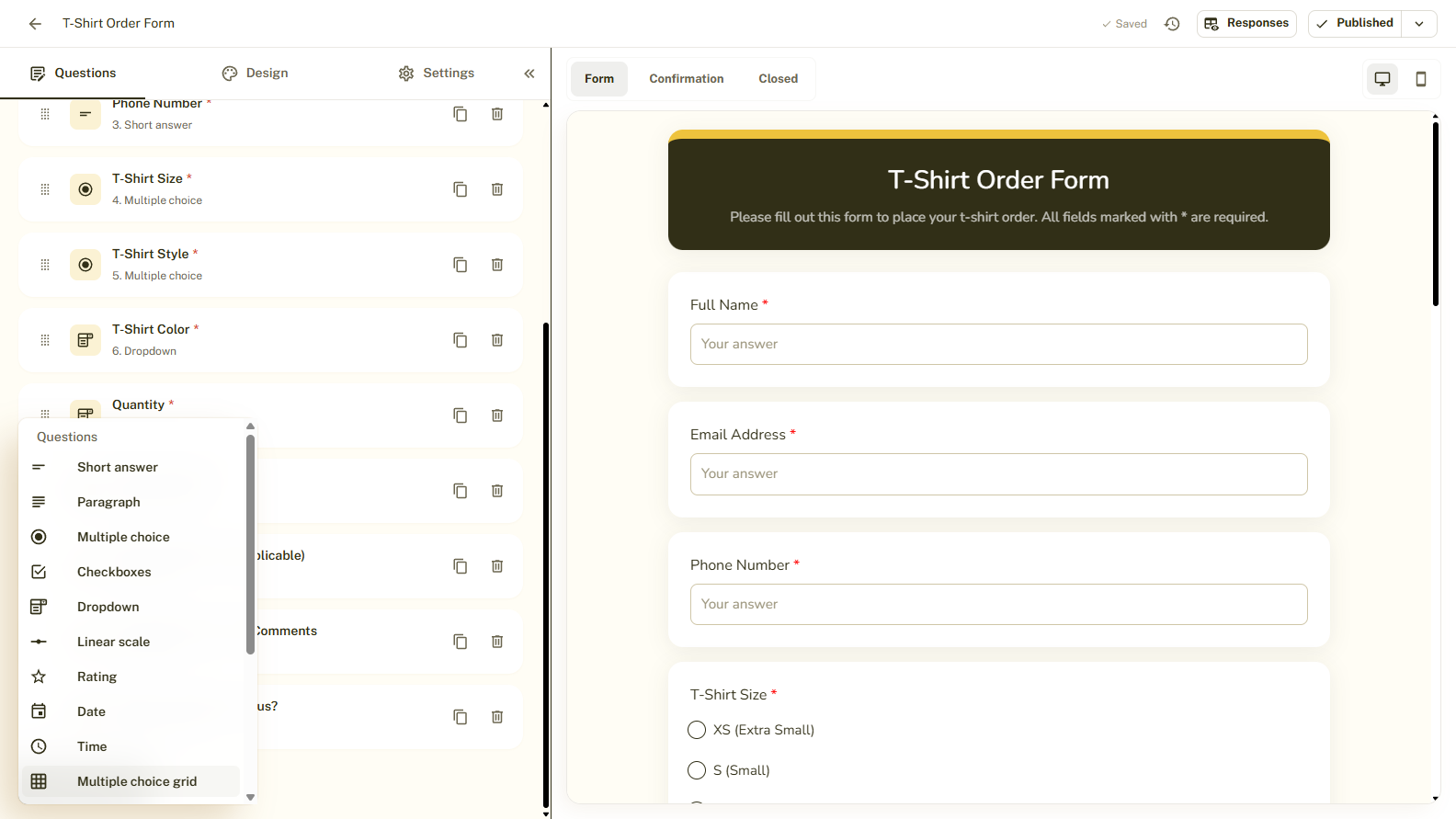
Pick a Question Type
Under Questions choose from Short answer, Paragraph, Multiple choice, Checkboxes, Dropdown, Linear scale, Rating, Date, Time, Multiple choice grid, Checkbox grid or File upload. Under Content you can add a Title and description, an Image, a Video or a Page break, which are not questions but help organize the form.
Write the Question
Click a question card to open it. Type your question in Question and, if useful, add Help text (optional) underneath. Choice questions also show an Options list. Use Add option for more choices, or Add "Other" to let people write their own answer.
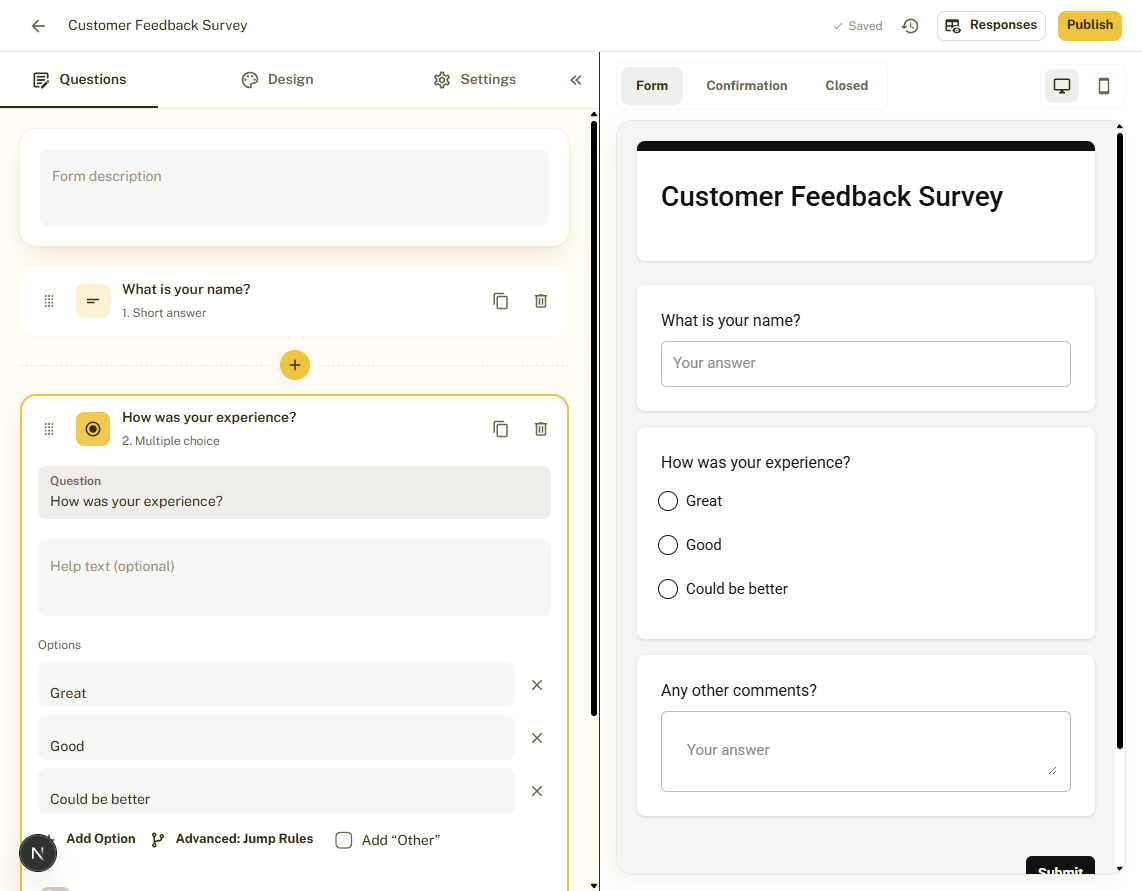
Mark It Required
Switch on Required if the question must be answered before the form can be submitted. Questions that are not required can be skipped.
Reorder, Duplicate or Delete
Each card has a handle to drag to reorder, a duplicate button and a delete button. The preview updates as you work, and the top bar shows Saved once your changes are stored.
Add a Form Description
At the top of the Questions tab, Form description lets you explain what the form is for. It appears below the form title for respondents.
Tips and Best Practices
- Use Multiple choice for one answer, Checkboxes for several, and Dropdown when the list is long.
- Add a Page break to split a long form into sections.
- Short help text under a question prevents many mistakes.
- Try Advanced: jump rules on choice questions to send people to different parts of the form based on their answer.
Common Pitfalls to Avoid
- Give every question a clear title so respondents know what to answer.
- Marking everything Required discourages people from finishing. Only require what you really need.
- File upload questions have size limits that depend on your plan.