How to Add a Logo and Header to Your Form
Open the Design Tab
From your Forms list, click a form to open the editor. The editor has three tabs on the left, Questions, Design and Settings, and a live preview on the right. Click Design.
Open the Logo Section
Under Customize, open Logo. Logos are a Pro feature, so on the Free plan the options are locked.
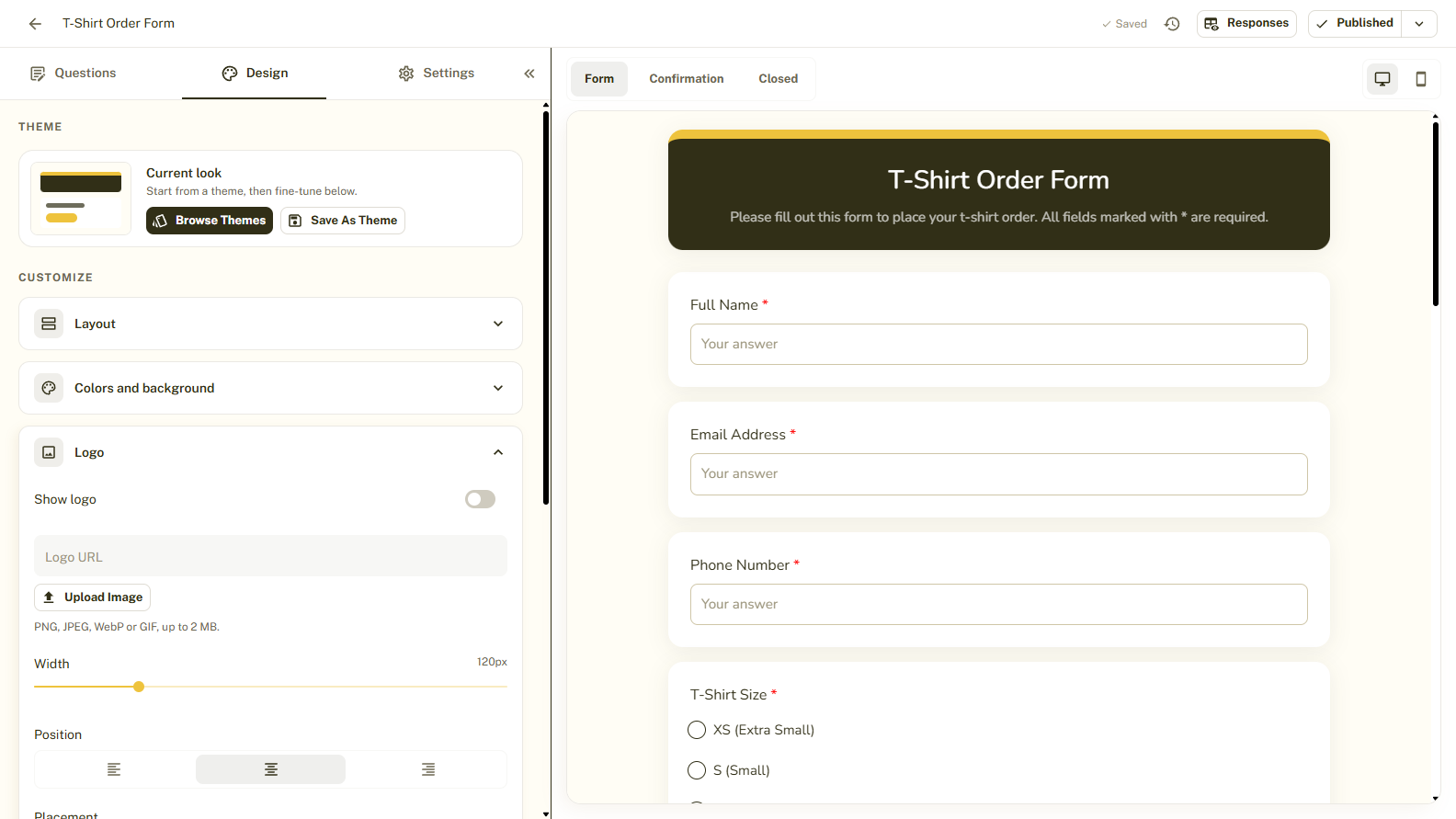
Turn On Show Logo
Switch on Show logo to reveal the logo options.
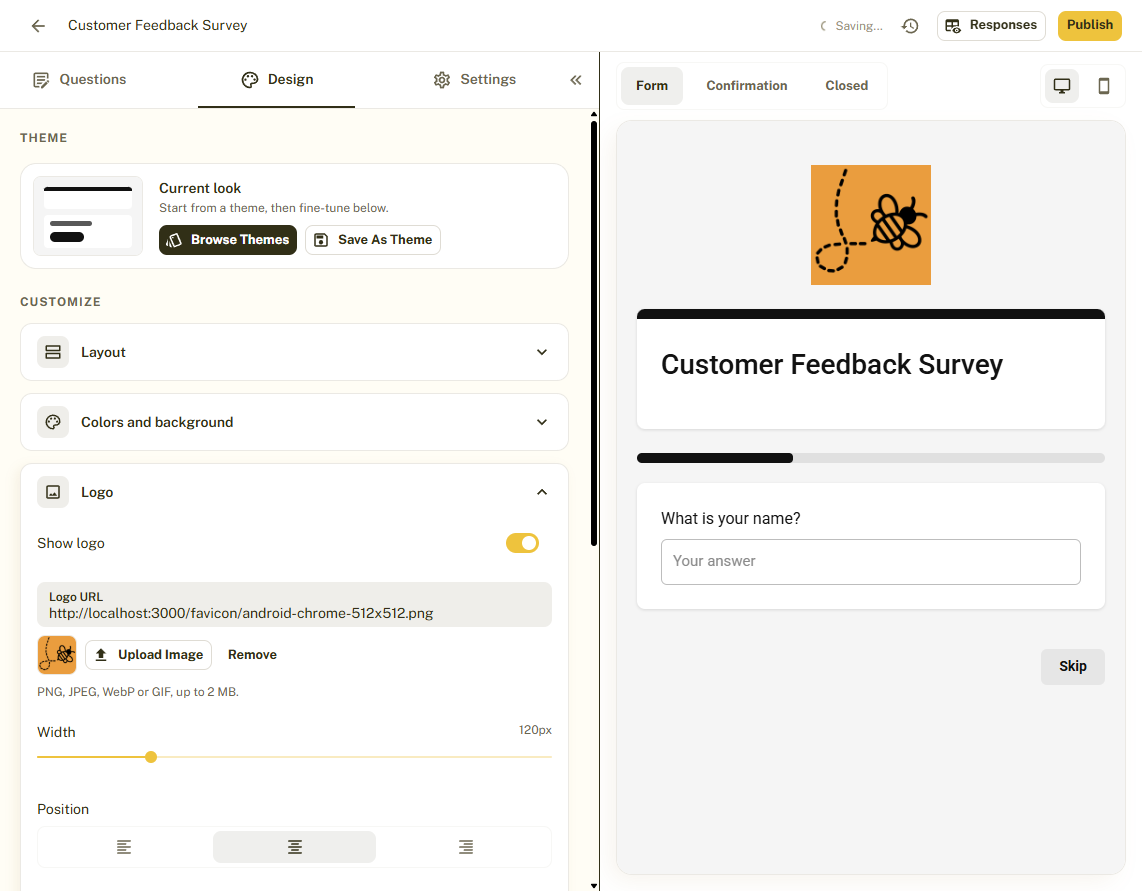
Add Your Logo
Either paste a public image address into Logo URL, or click Upload image to upload a file from your computer. PNG, JPEG, WebP and GIF files up to 2 MB are accepted.
Set Width, Position and Placement
Use the Width slider to set the size. Choose a Position of left, center or right. Under Placement, choose Top, Bottom or Both. The preview shows the result right away.
Style the Header
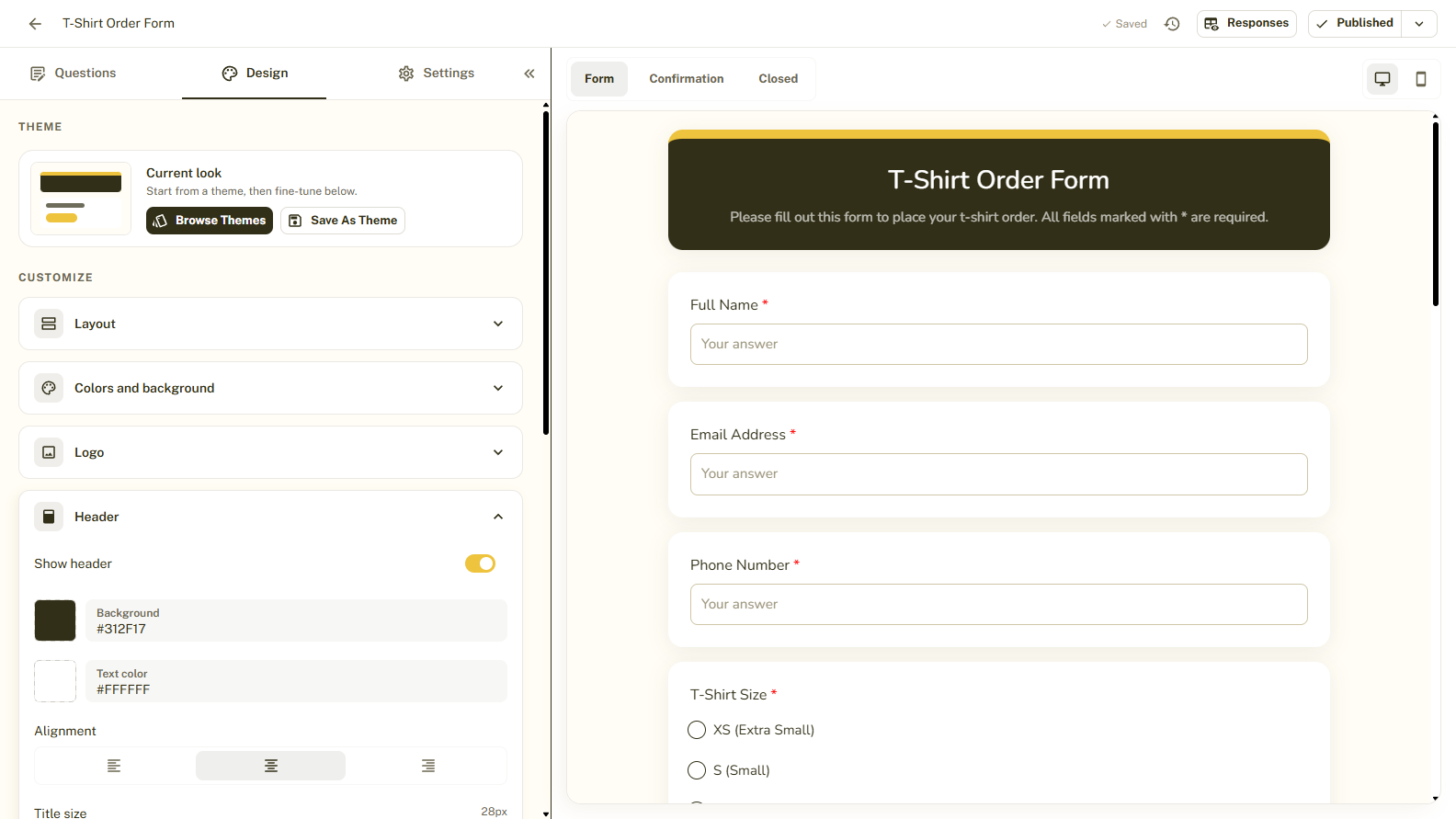
Open Header to control the banner at the top of the form. You can show or hide it with Show header and change its Background and Text color, the Alignment, the Title size and Description size, and the Minimum height. To use a picture, set a Header image with an Image URL or Upload image (up to 5 MB) and adjust its Opacity.
Tips and Best Practices
- Use a PNG with a transparent background so the logo sits cleanly on any color.
- Use a high-resolution image so the logo looks sharp on phones and large screens.
- Keep the logo modest in size so the form itself stays the focus.
Common Pitfalls to Avoid
- If you paste a URL, the image must be public. Links that need a login will not show for respondents.
- Avoid white logos on light backgrounds or dark logos on dark ones. Check the contrast in the preview.
- Logos and header images need the Pro plan.