How to Install BeeForm
Open Any Google Form
Go to forms.google.com. Create a new form with + Blank, or open an existing form. BeeForm works with any Google Form, new or existing.
Open the Add-ons Store
In the form, click the More menu (three vertical dots) in the top-right corner and select Get add-ons.
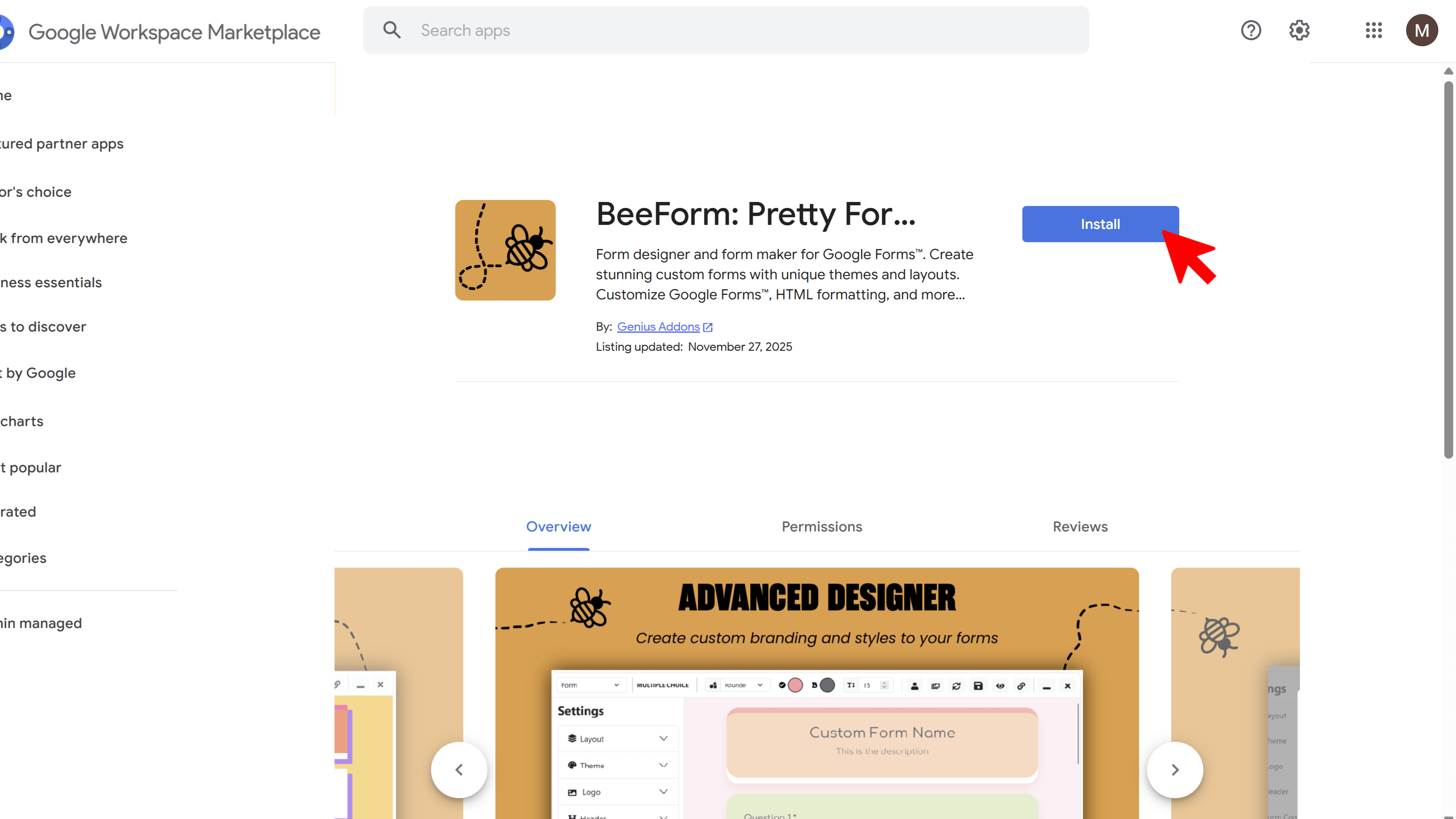
Search for BeeForm
The Google Workspace Marketplace opens. Search for "BeeForm" and open BeeForm: Pretty Forms Designer from the results.
Install BeeForm
Click Install, then Continue to begin the installation.
Grant Permissions
Google asks you to review and allow the permissions BeeForm needs. In plain terms, BeeForm asks to:
- See your email address and basic profile info
- View and manage the Google Form you are working in, so it can read your questions and apply your design
- Send email as you, which is used only for the response alerts you turn on
- Connect to an external service, so your design can be saved and served on your BeeForm link
- Access the Drive files you use with the app
- Run when you are not present, so response limits and alerts keep working after you close the form
Review the list and click Allow.
Enable BeeForm in Your Form
Refresh the Google Form and wait 10 to 20 seconds for BeeForm to load. Until BeeForm is authorized, its menu only shows 👋 Enable BeeForm, which opens short setup instructions. Once it is enabled, the BeeForm: Pretty Forms Designer menu shows 🚀 Open App and 👥 Join Team.
Open the Designer
In your Google Form, click the Add-ons icon (puzzle piece) in the top toolbar, choose BeeForm: Pretty Forms Designer, then click 🚀 Open App. The BeeForm Designer opens in a window on top of your form. On first use a short guided tour walks you through the toolbar. You can replay it any time from the ⋮ menu in the Designer toolbar, under Guide.
If you see an Authorization Required! banner, click Click here to authorize, allow the popup, accept the permissions, then click the Refresh icon in the Designer toolbar.
Tips and Best Practices
- You only install BeeForm once. It is then available in all of your Google Forms.
- Install it while signed in to the Google account that owns the forms you want to design.
- Your design and settings are saved per form, so each form can have its own look.
Common Pitfalls to Avoid
- Allow popups for Google Forms. The authorization window opens as a popup and is blocked otherwise.
- If you see Multiple Accounts Detected, you are signed in to more than one Google account. Sign out of the others, or open the form in the account that has BeeForm, then refresh.
- If the menu still only shows Enable BeeForm after installing, refresh the form page and wait a few seconds.