How to Get Email Alerts for New Responses
Open the Settings Tab
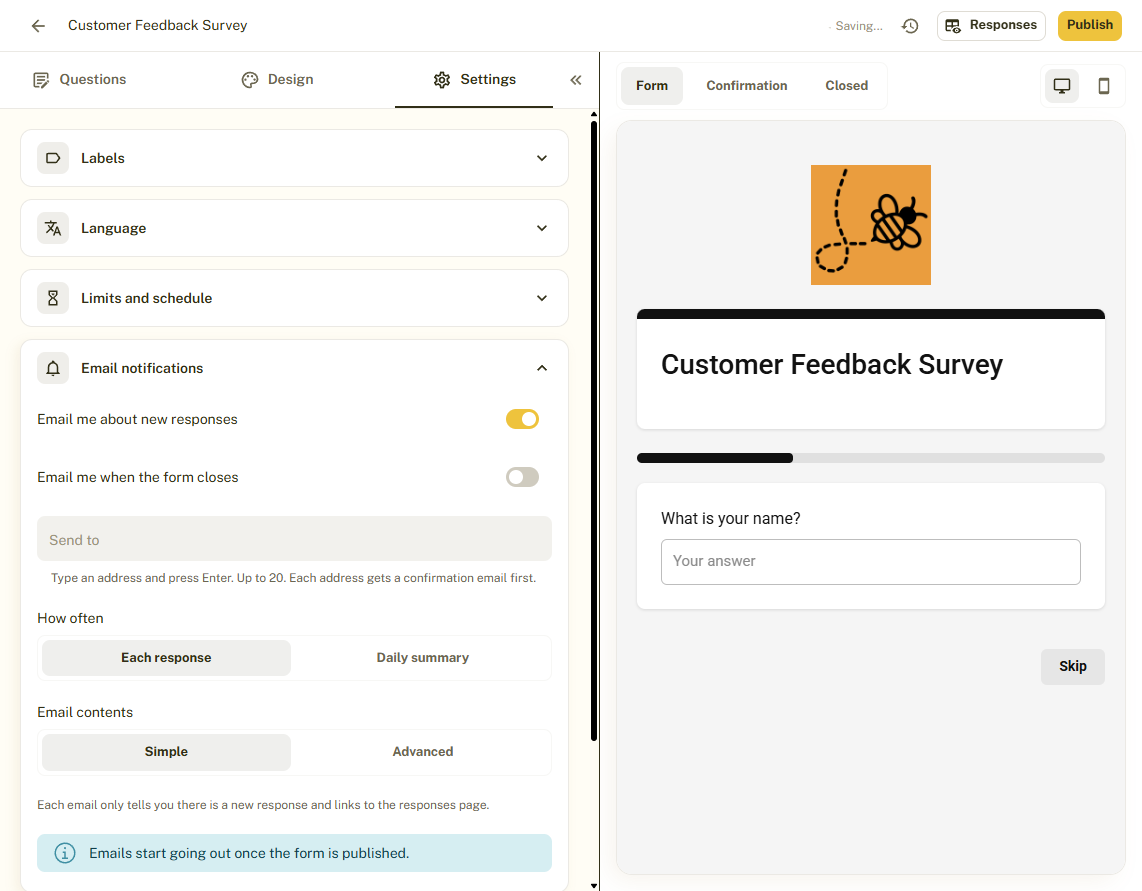
From your Forms list, click a form to open the editor. The editor has three tabs on the left, Questions, Design and Settings, and a live preview on the right. Click Settings.
Open Email Notifications
Open Email notifications. Email alerts are a Pro feature, so on the Free plan this section is locked.
Turn On the Alerts You Want
Switch on Email me about new responses to be told when someone submits. Switch on Email me when the form closes to be told when a response limit or closing date closes it.
Choose Who Gets the Email
In Send to, type an email address and press Enter. You can add up to 20 addresses, and each one gets a confirmation email first so only people who agree receive alerts.
Choose How Often
Under How often, pick Each response for an email every time, or Daily summary for one email a day.
Choose What the Email Contains
Under Email contents, Simple only tells you there is a new response and links to the responses page. Advanced includes more detail in the email.
Publish
Emails start going out once the form is published.
Tips and Best Practices
- Use Each response for urgent forms such as event registrations or support requests.
- Use a Daily summary for busy forms so your inbox stays calm.
- Add teammates to Send to so everyone who needs to act is informed.
Common Pitfalls to Avoid
- Check spam folders if confirmation or alert emails do not arrive.
- Alerts are a Pro feature. They are locked on the Free plan.
- Alerts do not replace checking your responses page for the full data.