How to Choose a Theme in BeeForm
Open BeeForm Designer
In your Google Form, click the Add-ons icon (puzzle piece) in the top toolbar, choose BeeForm: Pretty Forms Designer, then click 🚀 Open App. The BeeForm Designer opens in a window on top of your form.
Click the Themes Icon
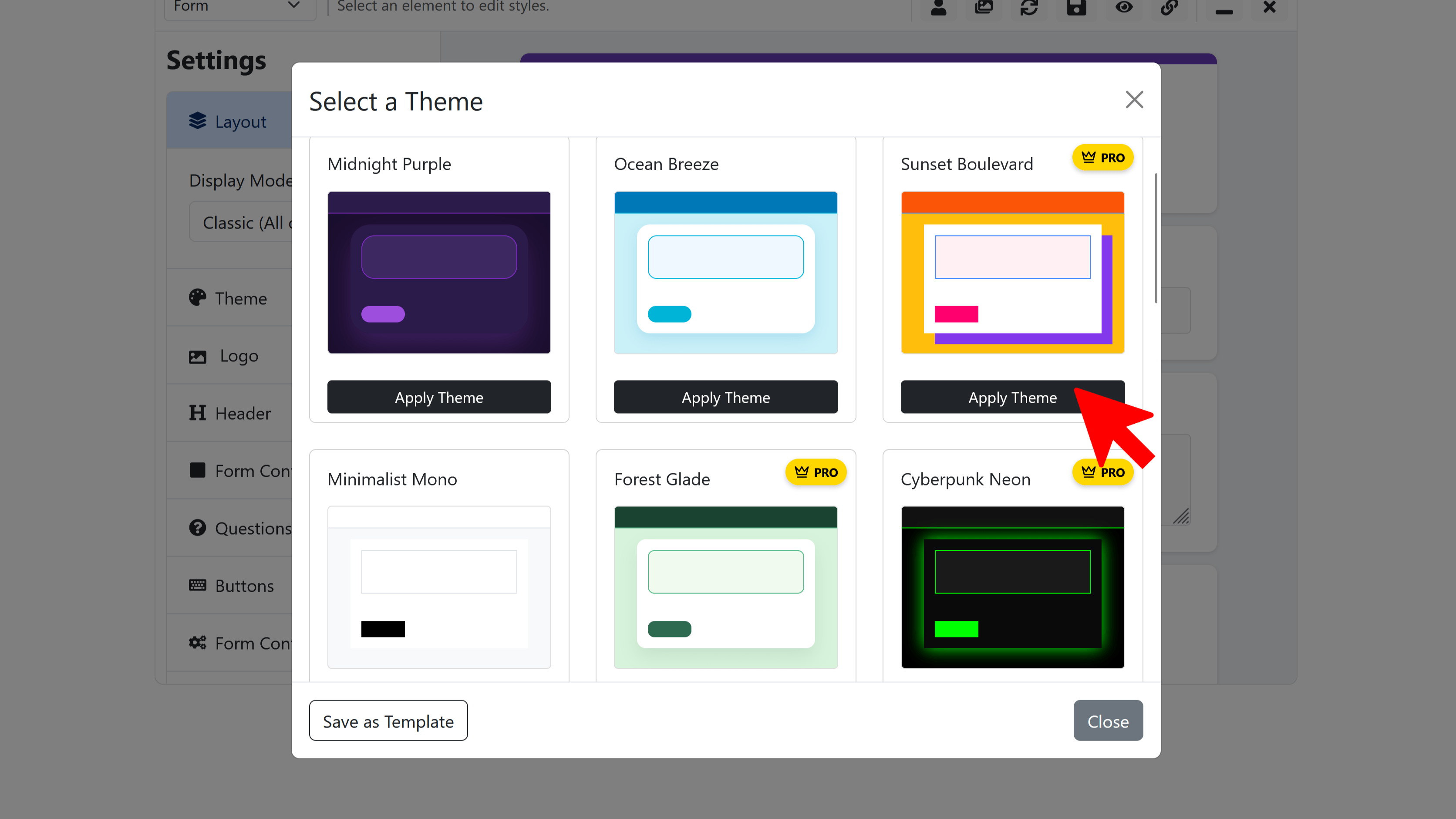
In the Designer toolbar, click the Themes icon (the gallery or images icon with the honey-colored button). Hover over it to see its Themes tooltip. The Select a Theme window opens.
Browse the Theme Tabs
Themes are organized into three tabs:
- Default: the themes BeeForm provides for everyone
- Personal: designs you saved yourself
- Team: designs shared by people in your team
Each theme shows a small preview card. Themes marked PRO need the Pro plan; on the Free plan they show Upgrade to Apply instead of an apply button.
Apply a Theme
Click Apply Theme under the theme you like. BeeForm asks you to confirm, because applying a theme fully replaces your current design settings. Click to confirm and the live preview updates right away.
Fine-Tune and Save
After applying a theme you can still change colors, fonts, logo and more in the Settings Panel. Your form questions are not changed by a theme. Click the Save icon in the toolbar to keep your design.
Save Your Own Theme (Optional)
Once your design looks right, open the Themes window again and click Save as Template. Give the design a name and it appears under the Personal tab. If you belong to a team, use the share icon on a personal theme to share it under the Team tab, or the trash icon to delete it. The Free plan limits how many themes you can save; Pro removes that limit.
Tips and Best Practices
- Pick a theme first, then customize. It is much faster than building a design from scratch.
- Use Randomize in the â‹® menu to try surprising combinations.
- Saved templates let you reuse the same look on every form.
Common Pitfalls to Avoid
- Applying a theme replaces your current design settings, including colors you changed by hand. Apply a theme before detailed customizing.
- Remember to save. Changes are also auto-saved about once a minute, but click Save before you share the link.