How to Track Form Performance with Analytics
Open Analytics
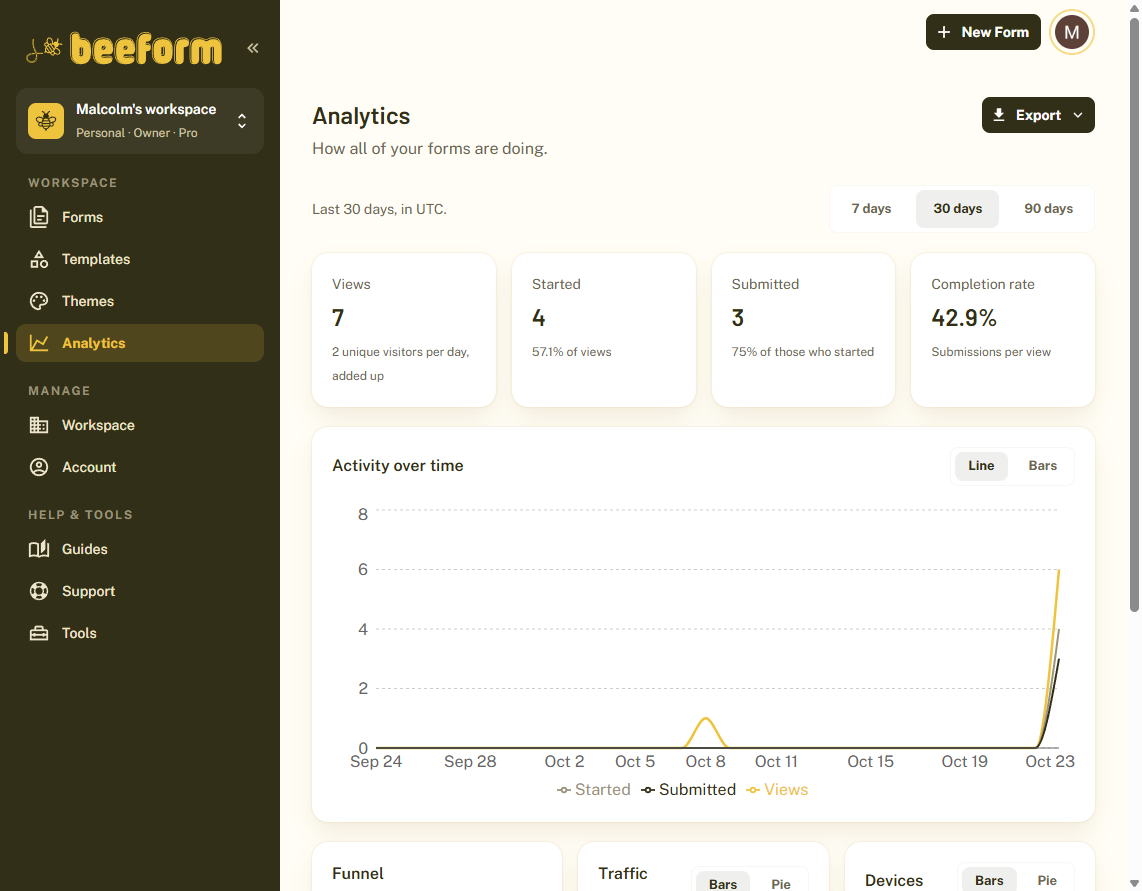
Click Analytics in the sidebar to see every form in your workspace together. Analytics is a Pro feature. On the Free plan you see a preview with sample numbers and an upgrade prompt.
Pick a Time Range
Choose 7, 30 or 90 days at the top to change the period the charts cover.
Read the Headline Numbers
The cards at the top show Views (people who opened your forms), Started (people who began answering), Submitted (completed responses) and the Completion rate, the share of people who finished.
Explore the Details
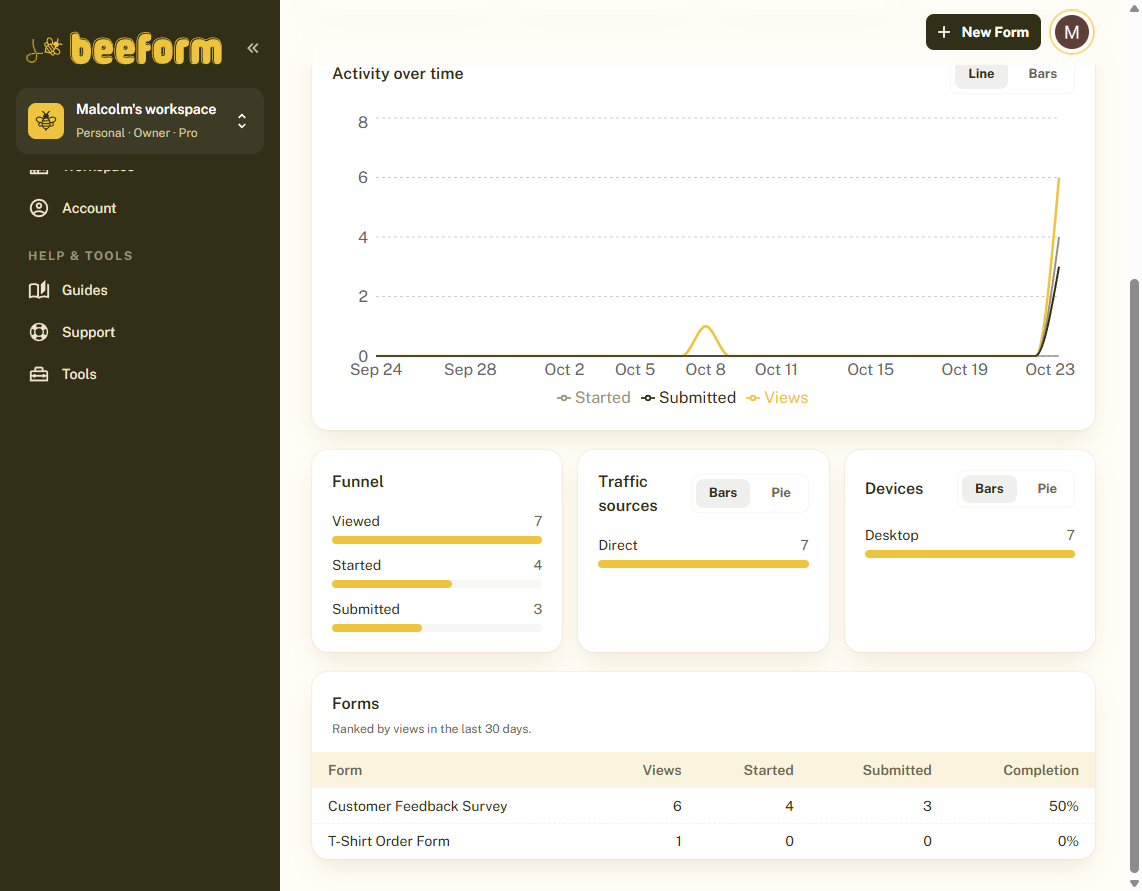
Scroll down for the funnel from views to submissions, Traffic sources that bring people to your forms, and the Devices people use. A table lists each form so you can compare them.
See One Form in Detail
Open a form's Responses page and click the Analytics tab to see the same numbers for just that form, including which questions people stop at.
Export a Report
On a form's responses page, use Export and choose Analytics report (PDF) to share the numbers.
Tips and Best Practices
- A low completion rate usually means the form is too long. Try removing questions or switching to Wizard mode.
- Check Traffic to see which channels bring the most responses, and share your link there more often.
- Compare mobile and desktop. If most people are on phones, check the mobile preview.
Common Pitfalls to Avoid
- Analytics only counts activity after you publish, and tests you run in the editor preview are not counted.
- Visitors who have Do Not Track turned on, and automated bots, are not counted as views. Completed responses are always counted.
- Analytics needs the Pro plan.