How to Connect Google and Manage Google Forms in BeeForm
Open Your Account Page
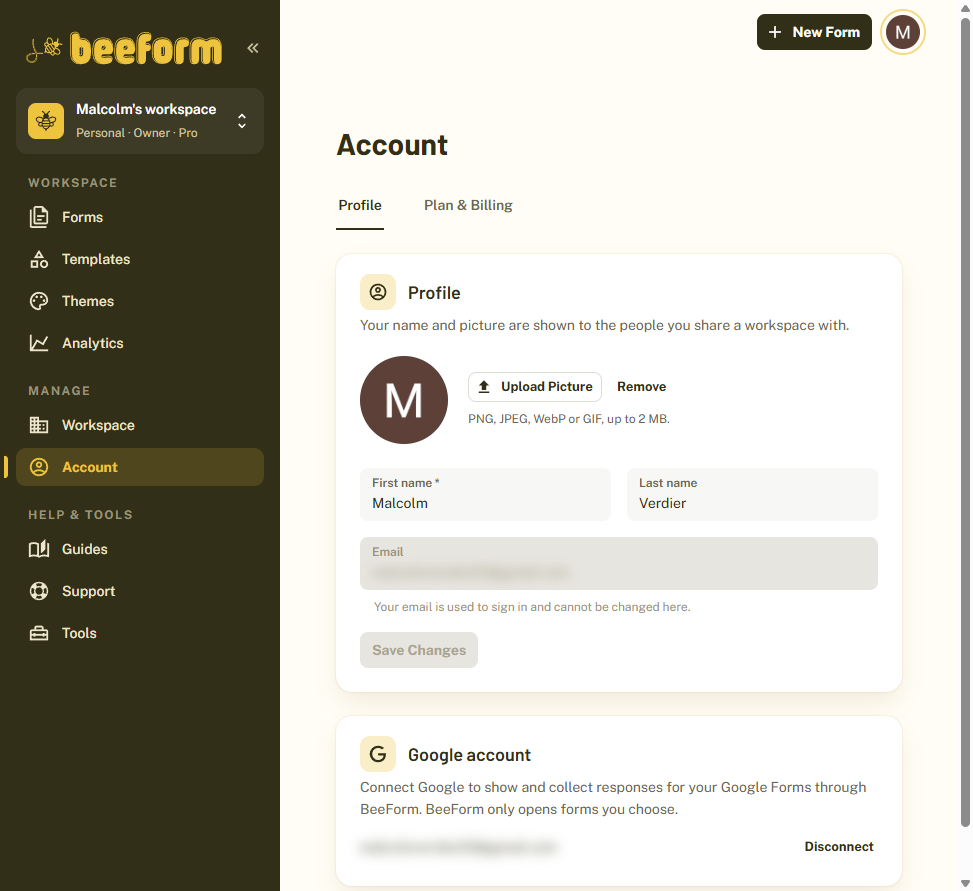
Click Account in the sidebar. On the Profile tab, the Google account card explains that connecting Google lets BeeForm show and collect responses for your Google Forms. BeeForm only opens forms you choose.
Connect Google
Click Connect Google and approve the access on Google's page. When you come back, your Google account is listed on the card. If BeeForm ever loses access you will see Needs reconnecting and a Reconnect button. Disconnect removes the connection.
Link an Existing Google Form
Click New form and choose Already have a Google Form? to link one. You style and share it with BeeForm while its questions stay in Google.
Turn a BeeForm Form into a Google Form
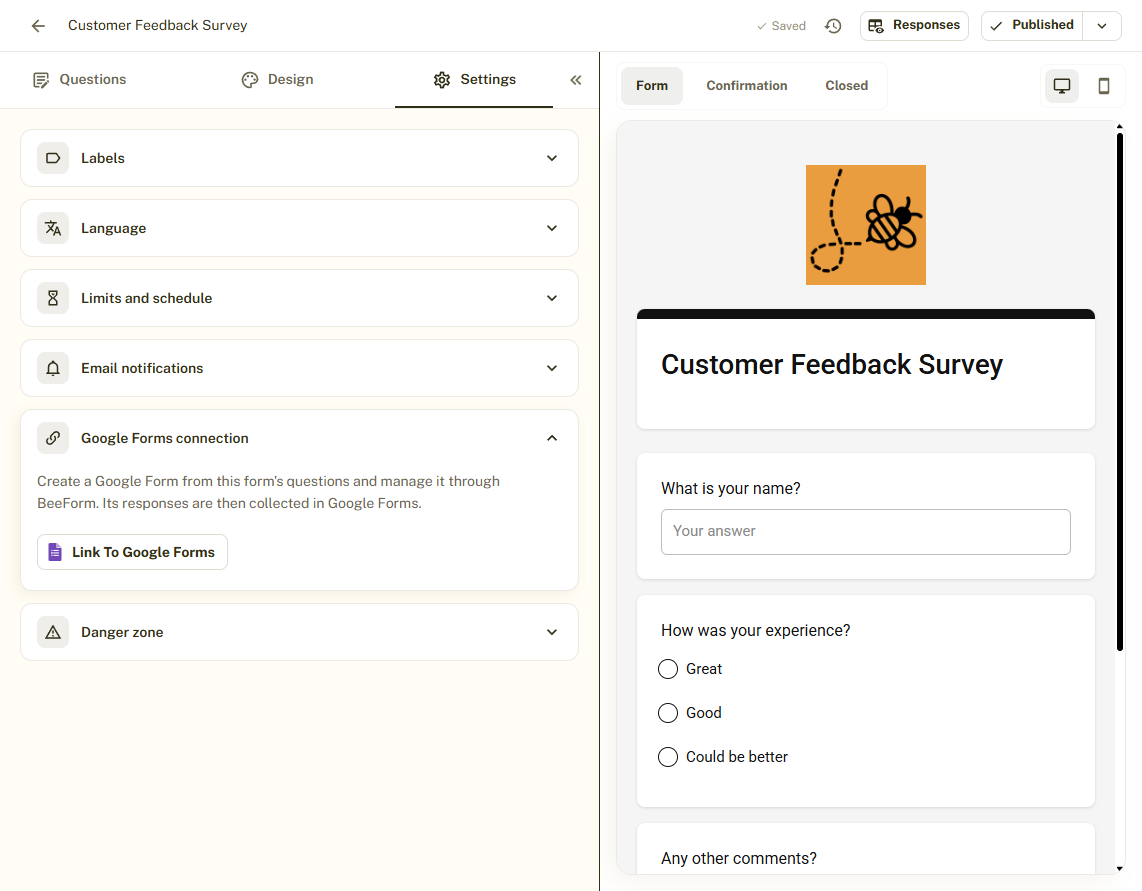
Open a form, go to the Settings tab and open Google Forms connection. Click Link to Google Forms. BeeForm creates a new Google Form in your Google account with this form's questions. The BeeForm form keeps its link, design, limits and labels, and its responses are then collected in Google Forms.
See Responses
For a linked Google Form, the responses page shows how many people submitted through BeeForm, and the View responses in Google button opens the full results in Google Forms.
Tips and Best Practices
- Linking keeps your Google Forms and Sheets workflow, so existing integrations keep working.
- Connect the Google account that owns the forms you want to use.
Common Pitfalls to Avoid
- A Google form keeps its questions in Google, so edit questions there and refresh in BeeForm.
- Email alerts for new responses to Google forms are set up in the BeeForm add-on inside Google Forms.
- If you lose access to a Google account, reconnect it before publishing again.