How to View and Export Responses in BeeForm
Open the Responses Page
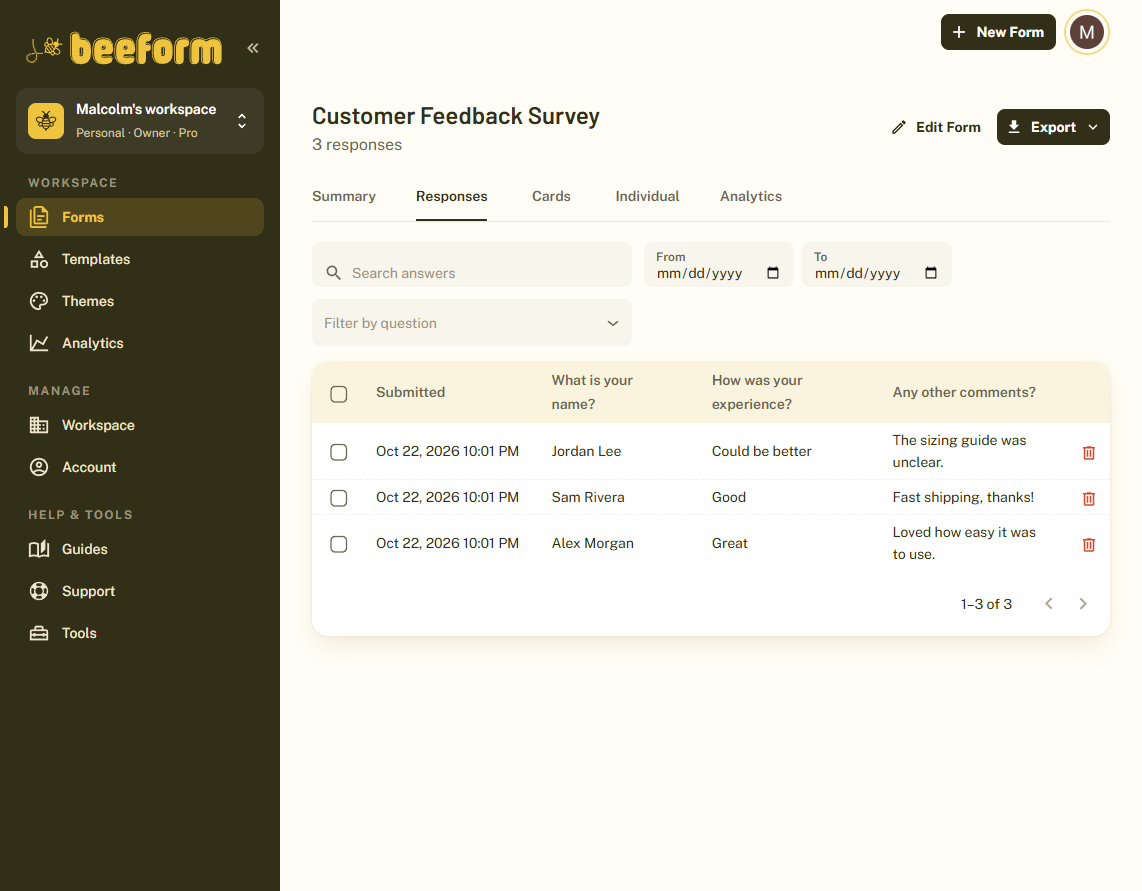
From your Forms list, click Responses on a form card, or click Responses in the top bar of the editor. The page title shows how many responses the form has.
Choose a View
The tabs across the top let you look at the same answers in different ways:
- Summary: charts and counts for each question.
- Responses: a table with one row per response.
- Cards and Individual: other ways to read the same responses.
- Analytics: views, starts and completions (Pro).
Search and Filter
On the Responses tab, type in Search answers to find a word in any answer. Use From and To to limit by date, or Filter by question to focus on one question's answers.
Export Your Data
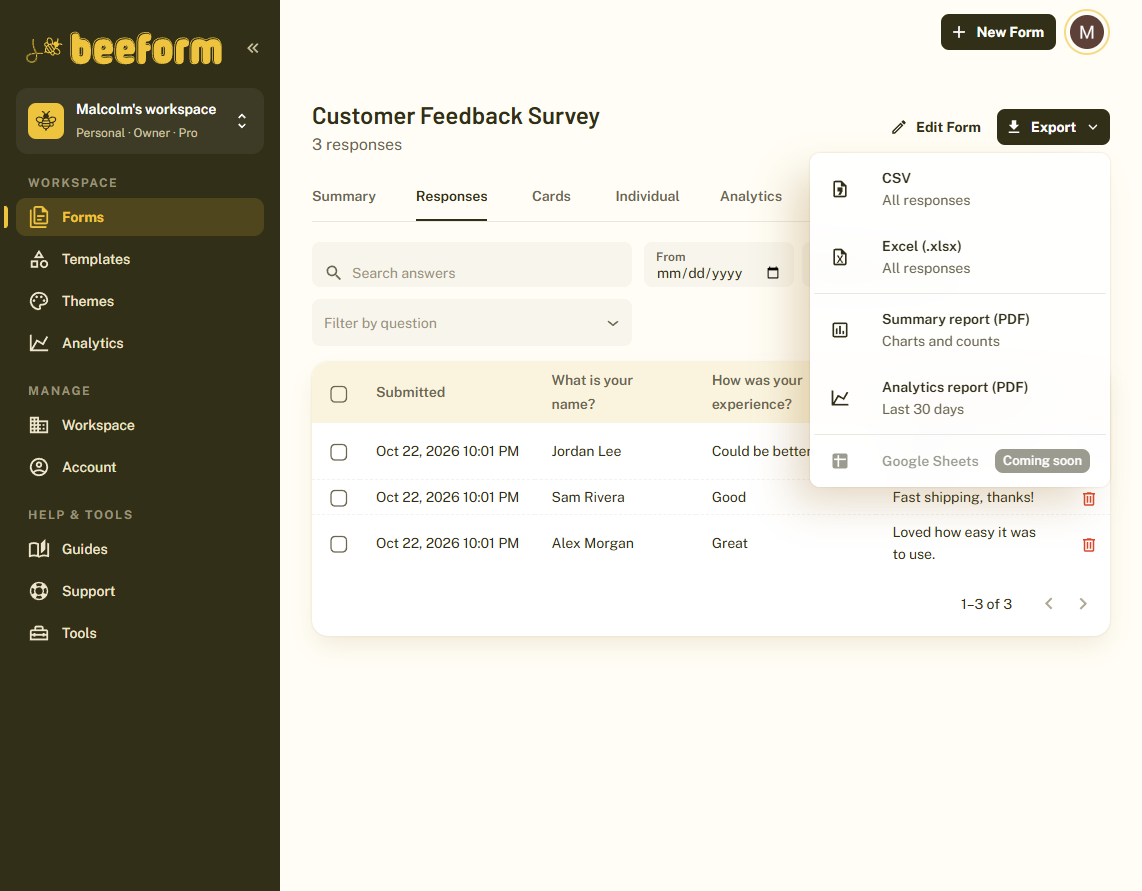
Click Export and choose a format: CSV or Excel (.xlsx) for all responses, a Summary report (PDF) with charts and counts, or an Analytics report (PDF) for the last 30 days.
Delete Responses
Use the checkbox on a row, or select all on this page, then delete. Each row also has its own delete response button. Deleting permanently removes the response and any files uploaded with it.
Edit the Form Again
Click Edit form at the top of the page to go back to the editor.
Tips and Best Practices
- Use the Summary tab for a quick overview, and export to Excel for deeper analysis.
- Filter by date before exporting to get just one week or month.
- The PDF summary report is a quick way to share results with people who do not use BeeForm.
Common Pitfalls to Avoid
- Deleting a response cannot be undone.
- If a form closed because it reached its response limit, deleting responses lowers its count so it can accept new ones.