Microsoft Forms Alternative: Better Branding and Control with BeeForm
Why People Look for a Microsoft Forms Alternative
Microsoft Forms is simple, it sits inside Microsoft 365, and it handles surveys, polls and quizzes well. People start looking for a Microsoft Forms alternative when they want a form that looks like their own brand, behaves differently for long forms, and tells them what happens before the first answer arrives.
Microsoft's own support pages point users who want more advanced branding, question types and data analysis to a separate product, Dynamics 365 Customer Voice. BeeForm is an online form builder and form designer that puts design and control in one place, with unlimited forms and unlimited responses on every plan. This guide compares the two honestly, including where Microsoft Forms is the better choice.
What BeeForm Is
BeeForm lets you build, design, publish and manage forms without a Microsoft account. Every plan, including the Free plan, has unlimited forms and unlimited responses, with no time limit and no card needed. It also works with Google Forms: the BeeForm add-on restyles forms you already have.
1. Custom Themes and Real Branding
Microsoft's help page for form themes describes the options as a gallery of themes, your own background image and a background color you can set with a hex value. That makes a tidy form, but the form itself keeps the same overall look.
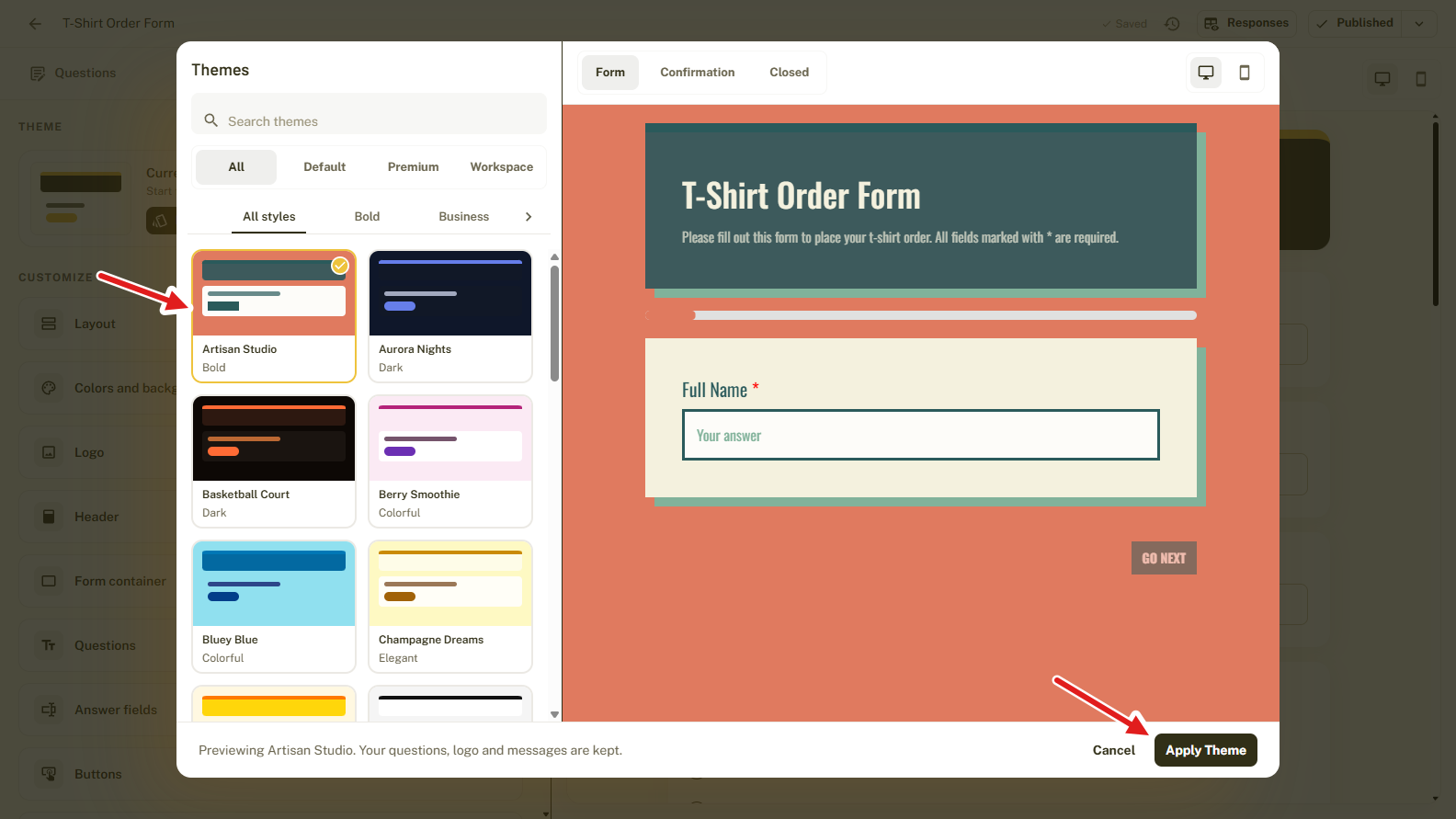
BeeForm starts from a gallery of designed themes, filtered by Default, Premium and Workspace themes and by styles such as Bold and Business. You preview a theme on your own form before you apply it, and your questions, logo and messages are kept.
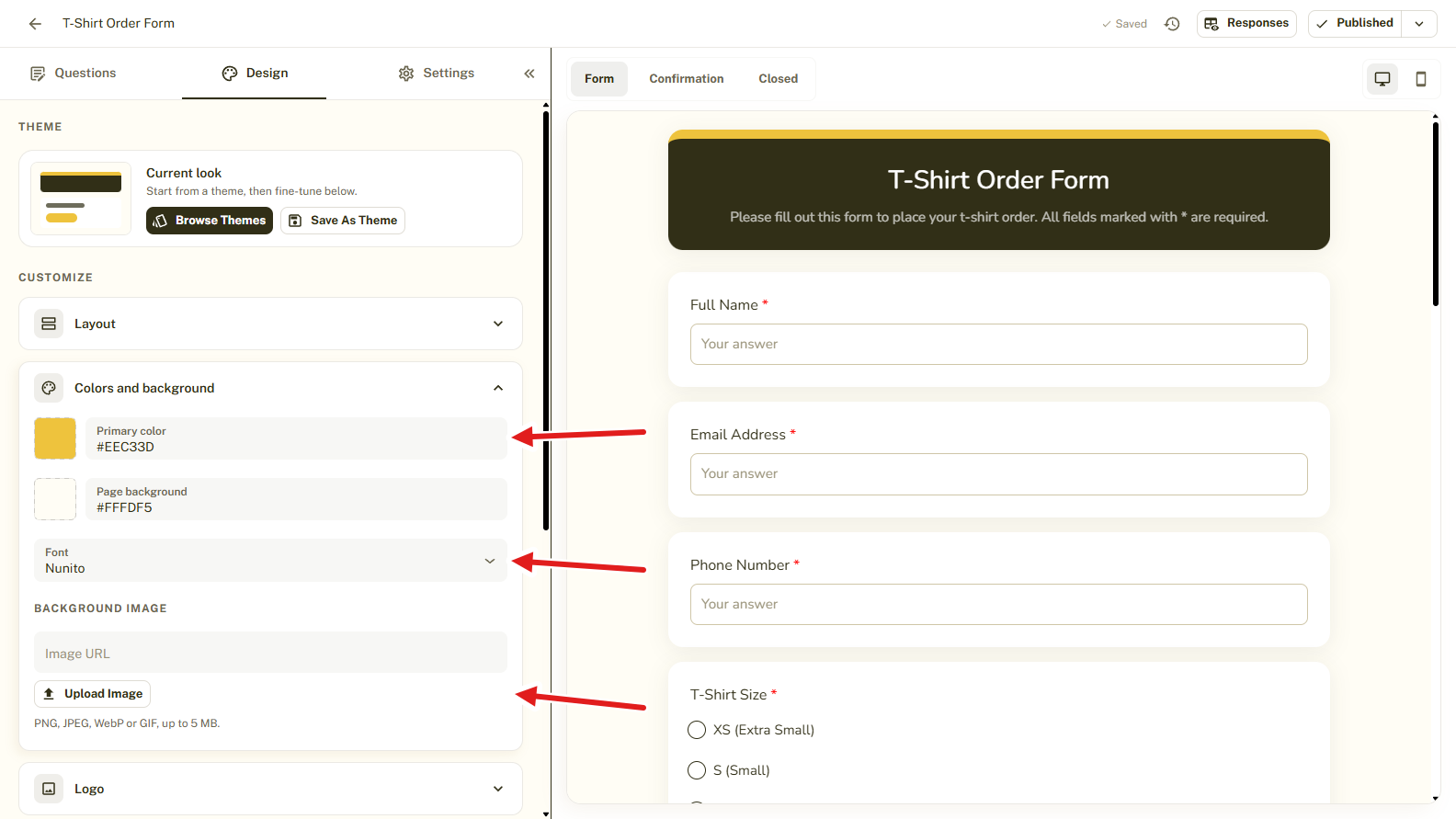
The Design tab then lets you fine-tune the Layout, Colors and background, Logo, Header, Form container, Questions, Answer fields and Buttons. Type exact hex codes, choose a font, and upload a background image (PNG, JPEG, WebP or GIF, up to 5 MB).
Click Save as theme and every new form can start on-brand. Pro adds a custom logo and header, premium themes, unlimited saved themes and the option to remove BeeForm branding. See How to Choose a Theme in BeeForm.
2. Wizard Mode for Long Forms
Microsoft Forms can split a form into sections, and it shows a progress bar on forms with more than one section or page. BeeForm adds a second layout for long forms.
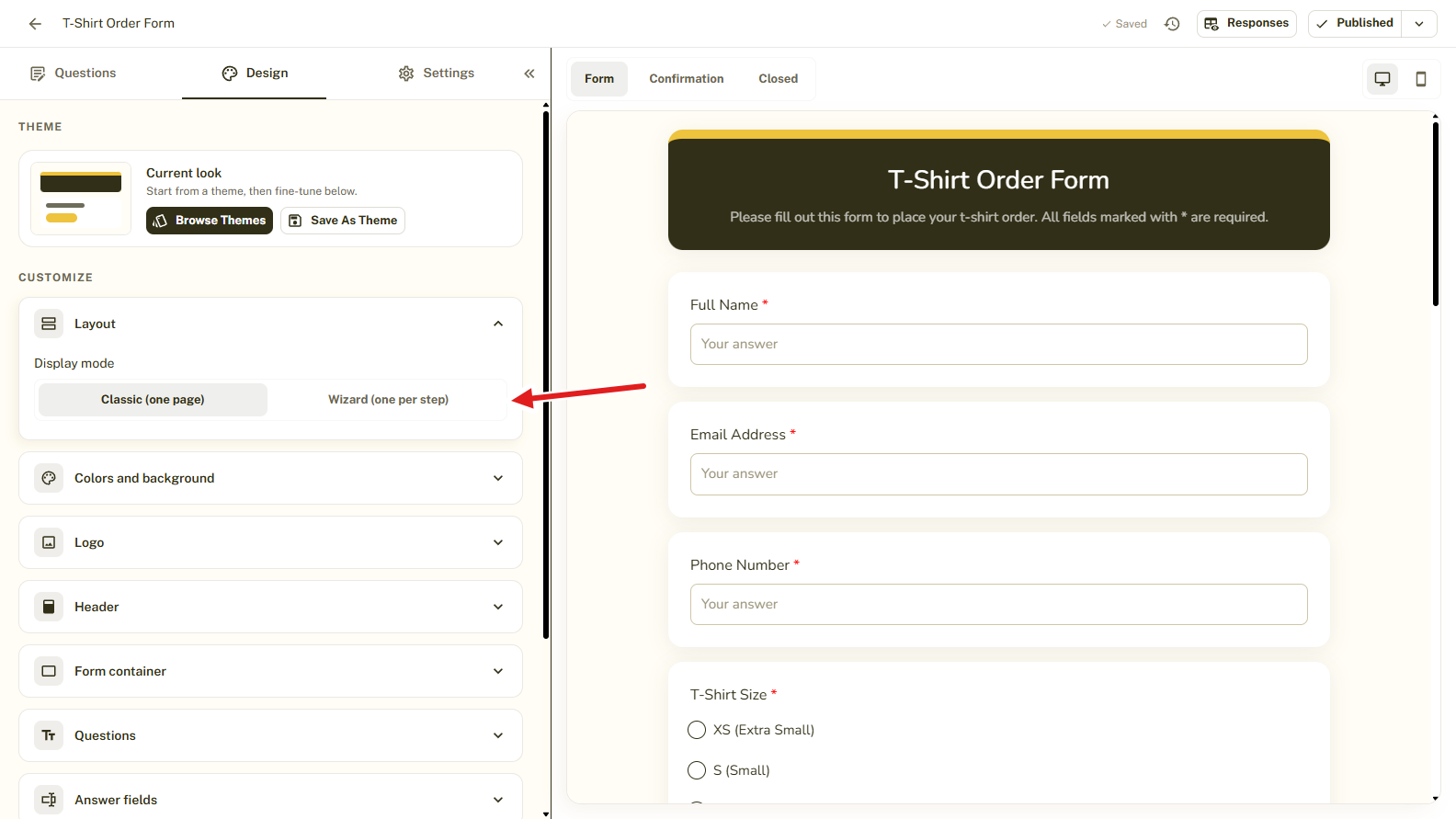
Under Layout, the Display mode is either Classic (one page) or Wizard (one per step). In Wizard mode, respondents see one question at a time.
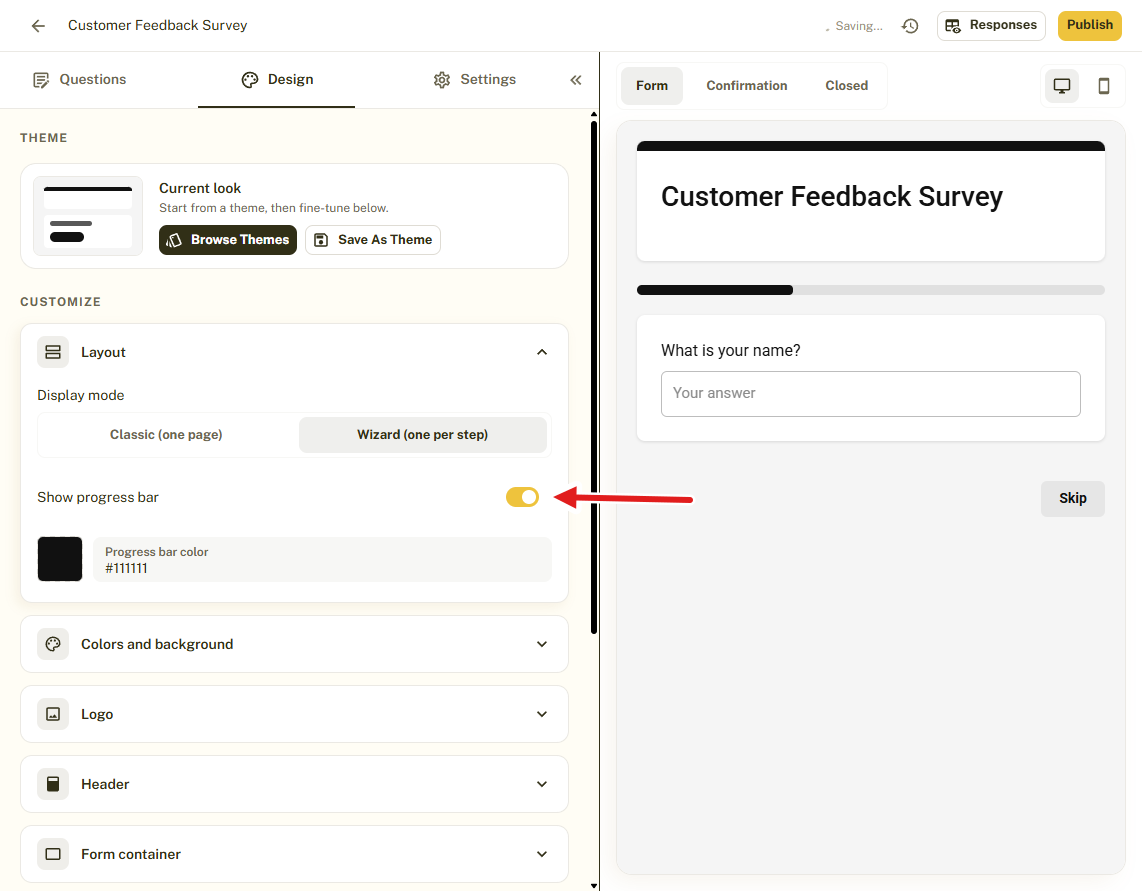
You can turn on a progress bar and choose its color. Respondents move with Back and Next, the last step shows Submit, and optional questions get a Skip button. The button text and colors are yours to change.
3. Close Forms Automatically
Microsoft Forms settings include a start date and an end date, so you can open and close a form on a schedule. They do not list a way to close a form after a set number of responses.
BeeForm has both. Open Settings, then Limits and schedule. You get two independent switches, and you can use one or both:
- Limit the number of responses: the form closes automatically once that many responses arrive.
- Close the form on a date: pick a date and time, shown in your local time.
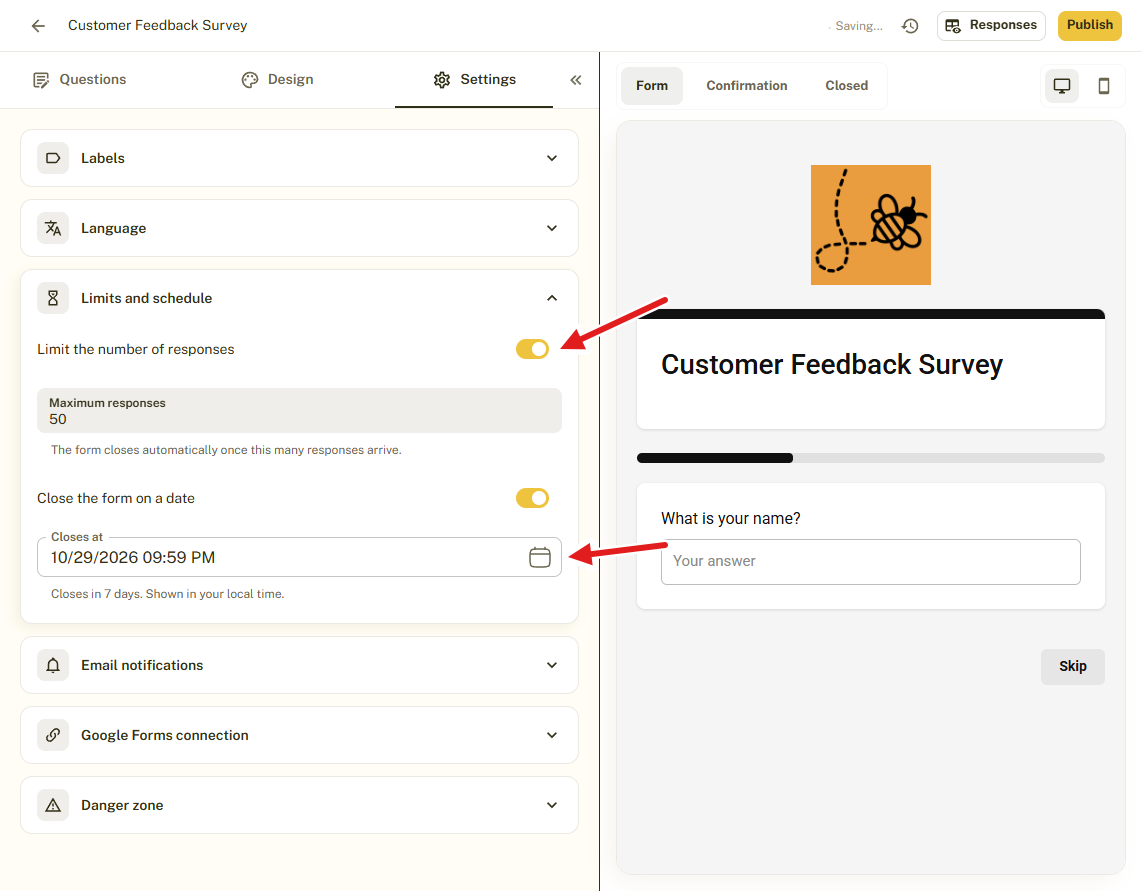
This suits event seats, first-come offers and applications with a deadline. You also write the message late visitors see, using the Closed page. Read How to Set a Response Limit or Closing Date.
4. More Control Over Email Alerts
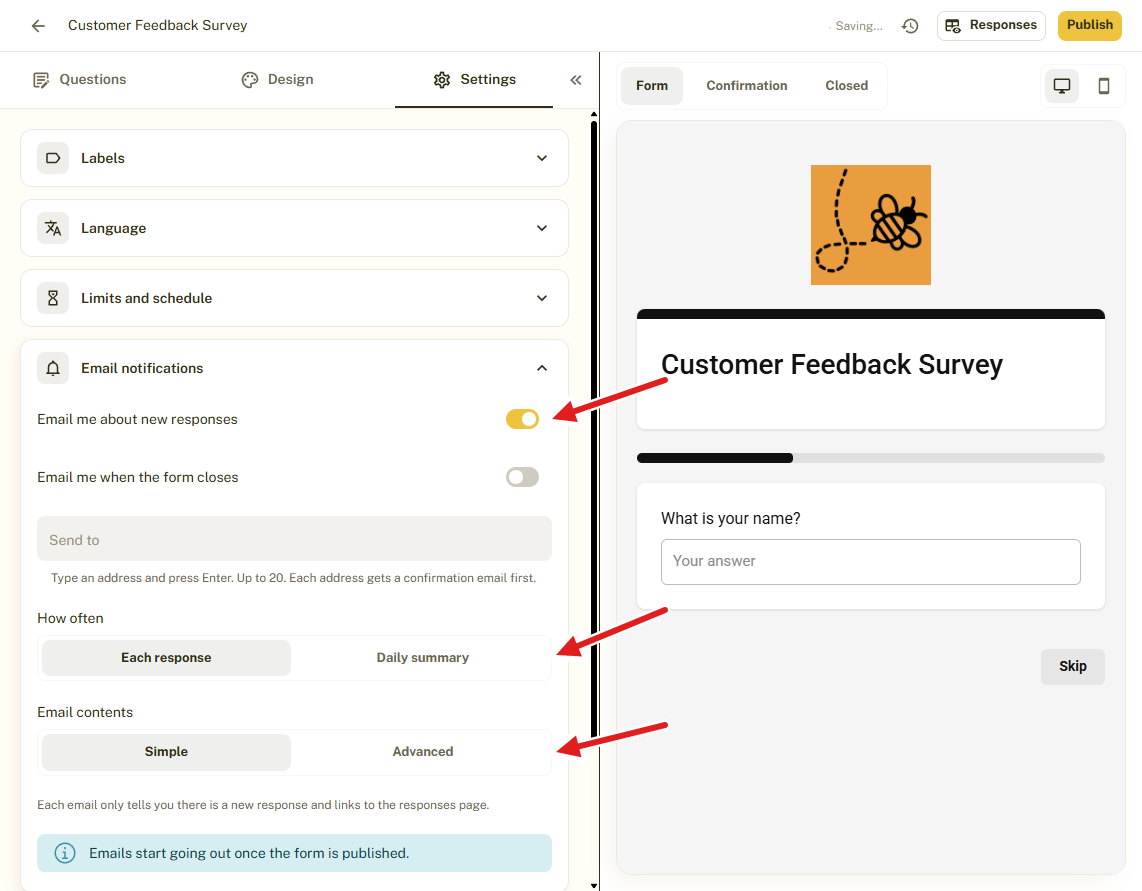
Microsoft Forms can email you each time a response is submitted. BeeForm includes more options in the form's settings (email alerts are a Pro feature):
- Send to up to 20 addresses. Each address gets a confirmation email first, so only people who agree receive alerts.
- How often: an email for each response, or one daily summary.
- Email contents: Simple, or Advanced with more detail.
- Email me when the form closes, for forms with a limit or a closing date.
5. Analytics: See Views, Starts and Drop-Off
With Analytics (Pro, with 90 days of history) you see Views, Started, Submitted and the Completion rate over 7, 30 or 90 days, plus the funnel, the Traffic sources and the Devices people use. A form's own Analytics tab also shows which questions people stop at.
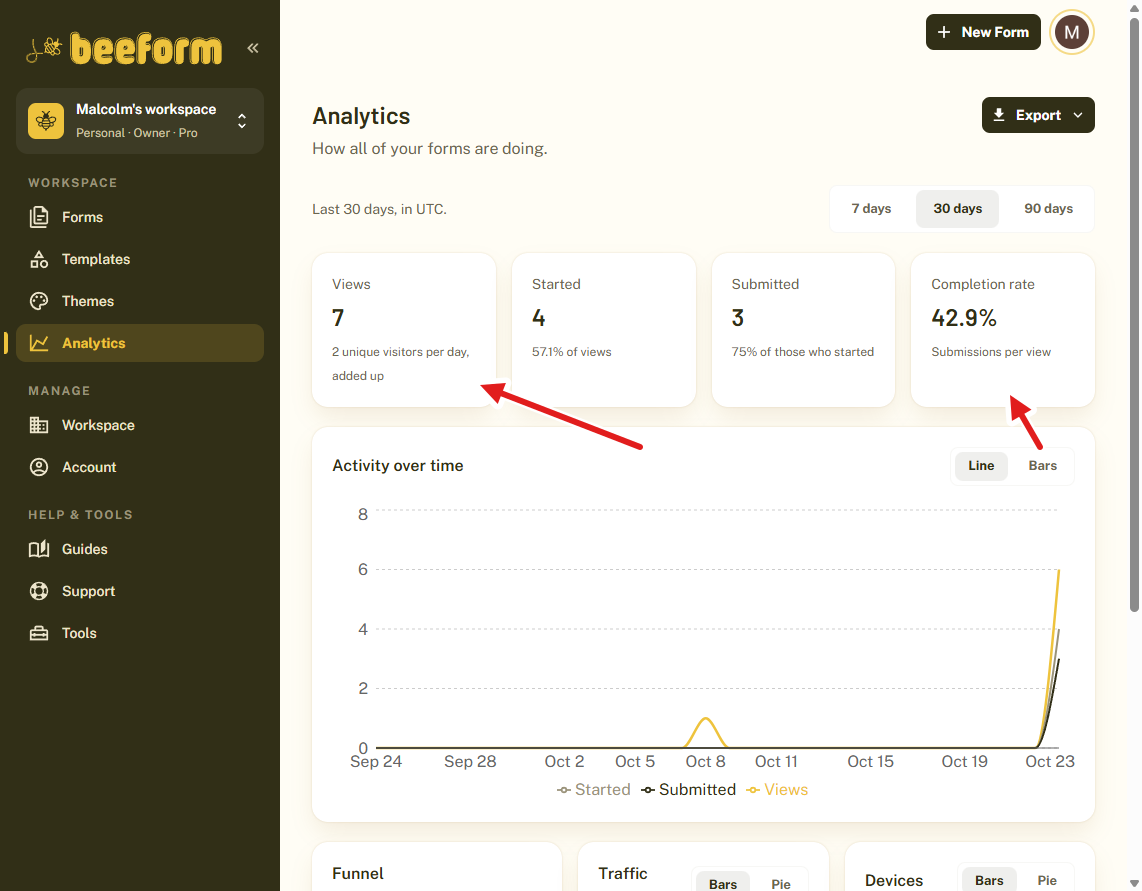
Analytics only counts activity after you publish, and tests in the editor preview are not counted. Learn more in How to Track Form Performance with Analytics.
6. Export Responses to CSV, Excel and PDF
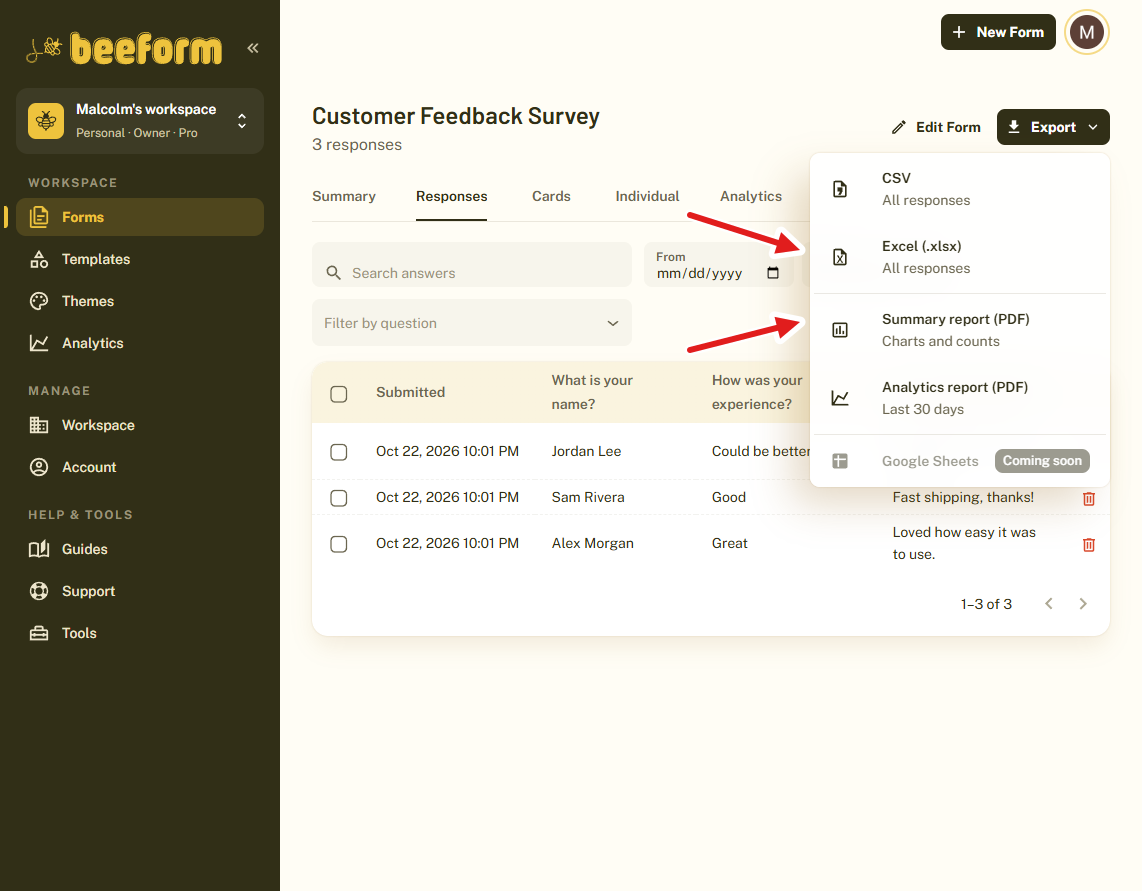
BeeForm's Export menu offers CSV and Excel (.xlsx) with all responses, a Summary report (PDF) with charts and counts, and an Analytics report (PDF) for the last 30 days. Excel export and response reports are included in the Free plan.
7. Teams Without Per-Member Pricing
BeeForm has shared team workspaces with roles that decide what each member can do. On Pro and Business there are unlimited workspaces and unlimited members, and you do not pay per team member. Business also adds form version history.
Free Tools to Plan Your Survey
Whichever form builder you choose, a few free BeeForm tools help you plan and read the results. None of them need a sign-up:
- Survey sample size calculator: find how many responses your survey needs for reliable results, before you send it.
- NPS calculator: turn promoters, passives and detractors into a Net Promoter Score. Microsoft Forms has a Net Promoter Score question type, so this is handy for checking your numbers.
- CSAT calculator: turn satisfied and total responses into a customer satisfaction score.
You can browse them all on the free tools page.
BeeForm vs Microsoft Forms: Feature Comparison
Here is every feature covered in this guide side by side. Features marked (Pro) need BeeForm's Pro plan. The Microsoft Forms column is based on Microsoft's own support pages.
| Feature | BeeForm | Microsoft Forms |
|---|---|---|
| Free to start | ✓ | ✓ |
| Anyone can respond, inside or outside your organization | ✓ | ✓ |
| Theme gallery | ✓ | ✓ |
| Custom background color by hex code | ✓ | ✓ |
| Background image upload | ✓ | ✓ |
| Save your own design as a reusable theme | ✓ | ✗ |
| Logo, form container, answer field and button styling | ✓ | ✗ |
| Wizard mode, one question per step | ✓ | ✗ |
| Progress bar | ✓ | ✓ |
| Close automatically on a date | ✓ | ✓ |
| Close automatically after a number of responses | ✓ | ✗ |
| Email alert for each response | ✓ | ✓ |
| Up to 20 alert recipients with confirmation (Pro) | ✓ | ✗ |
| Daily summary email (Pro) | ✓ | ✗ |
| Views, starts and completion rate (Pro) | ✓ | ✗ |
| CSV and Excel export | ✓ | ✓ |
| Team workspaces without per-member pricing (Pro) | ✓ | ✗ |
| Branching logic | ✗ | ✓ |
| Quizzes with scoring | ✗ | ✓ |
| Limit responses to people in your organization | ✗ | ✓ |
When Microsoft Forms Is the Better Choice
A fair comparison goes both ways:
- If your form needs branching logic, such as skipping questions based on an answer, Microsoft Forms supports it and BeeForm does not yet.
- If you are building quizzes with scoring, correct answers and explanations, or a practice mode for students, Microsoft Forms has them built in.
- If your form is for people inside your organization, Microsoft Forms can limit responses to your organization or to named people and groups, record names and allow one response per person. These options need a work or school account.
- If your team already lives in Microsoft 365, Forms is already there and sits next to Teams, Excel and OneDrive.
If your forms are lead capture, registrations, applications or surveys for people outside your organization that need a polished look, BeeForm covers that.
Pricing
The Free plan has unlimited forms and responses, wizard mode, response limits, file uploads up to 10 MB, advanced design controls, Excel export, response reports and up to 10 saved themes. Pro is $18 per month and adds analytics, branding removal, a custom logo and header, premium themes, email alerts, team workspaces and priority support. Business is $29 per month and adds form version history, 1 GB file uploads and 2-year file retention. Paying yearly takes 20% off the monthly price. There is no free trial because the Free plan is the trial.
How to Get Started
- Sign up for free at BeeForm with Google or email.
- Click New form and choose a blank form or a template.
- Open the Design tab, click Browse themes and apply one.
- Open Settings to add a response limit, a closing date and email alerts.
- Click Publish and share your link.
Tips and Best Practices
- Start from a template when you are short on time, then change the questions and design.
- Use Wizard mode for long forms and Classic mode for short ones.
- Save your branded design as a theme so every new form starts on-brand.
- Check how many responses you need with the free sample size calculator before you share the form.
Common Pitfalls to Avoid
- Analytics, email alerts, a custom logo, premium themes and branding removal need the Pro plan.
- BeeForm does not have branching logic or quizzes yet. Check that your form does not depend on them before you move.
- Forms and responses are not imported from Microsoft Forms, so export your responses before you stop using it.