Google Forms Alternative: Why Teams Choose BeeForm
7 min read
Updated Oct 27, 2026
Why People Look for a Google Forms Alternative
Google Forms is a capable, familiar tool, and it covers the basics well. You can add questions, share a link and read the answers in a summary or a spreadsheet. People start looking for a Google Forms alternative when the basics are no longer enough: they want a form that looks like their brand, closes by itself, and tells them what happens before the first answer arrives.
BeeForm is an online form builder and form designer made for exactly that. You can build forms from scratch in BeeForm, or keep using Google Forms and use BeeForm to restyle and manage them. This guide compares the two honestly, so you can decide which one fits.
What BeeForm Is
BeeForm lets you build, design, publish and manage forms without needing Google Forms at all. It also works with Google Forms: the BeeForm add-on restyles forms you already have, and you can connect your Google account to link them. Every plan, including the Free plan, has unlimited forms and unlimited responses, with no time limit and no card needed.
1. Custom Themes and Real Branding
Google's help page for form themes describes the options as a theme color, a background color, a header image and the fonts for headers, questions and text. That is enough for a tidy form, but not for a form that matches your brand.
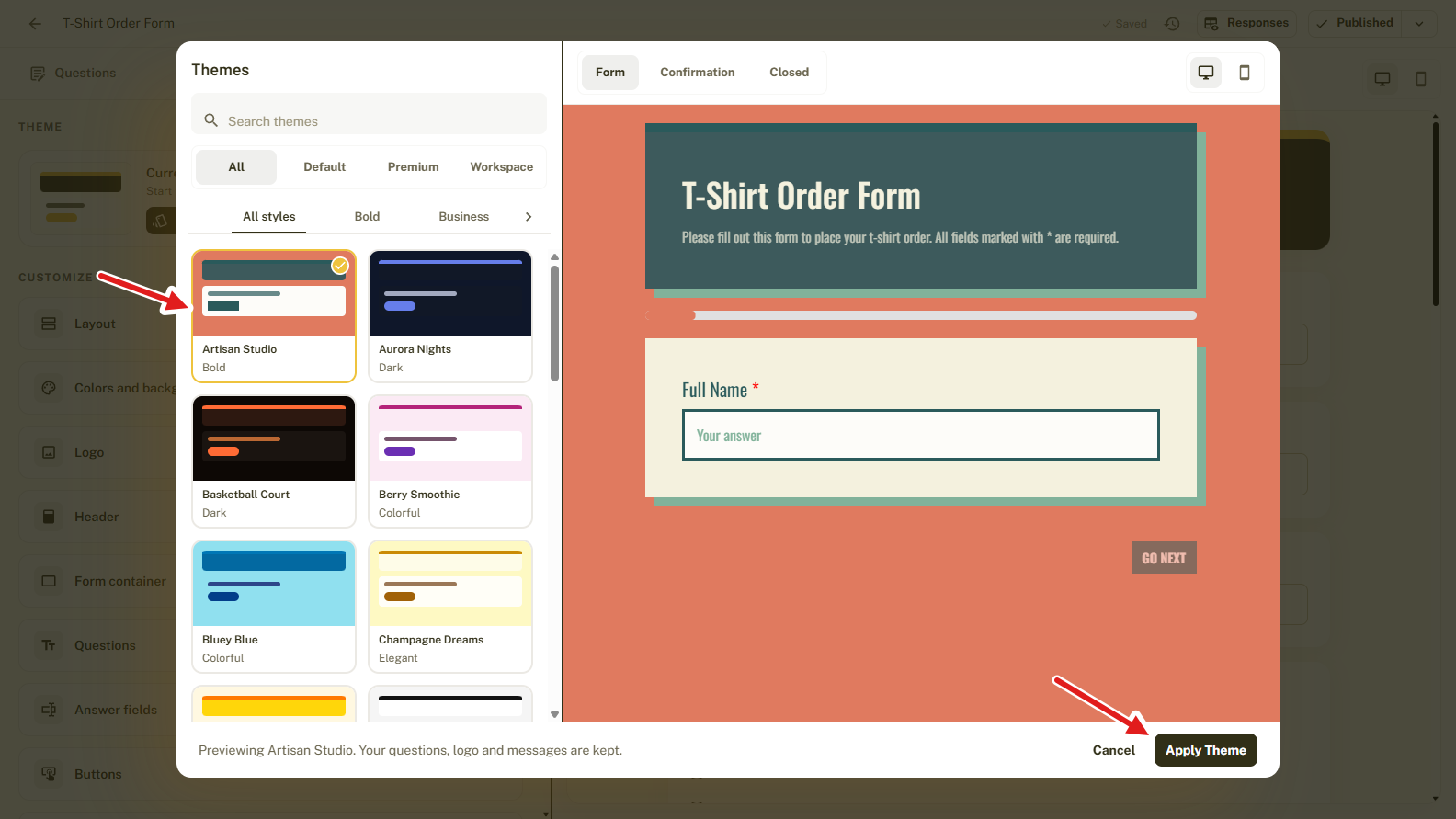
BeeForm starts from a gallery of designed themes. The gallery can be filtered by Default, Premium and Workspace themes, and by styles such as Bold and Business. You preview a theme on your own form before you apply it, and your questions, logo and messages are kept.
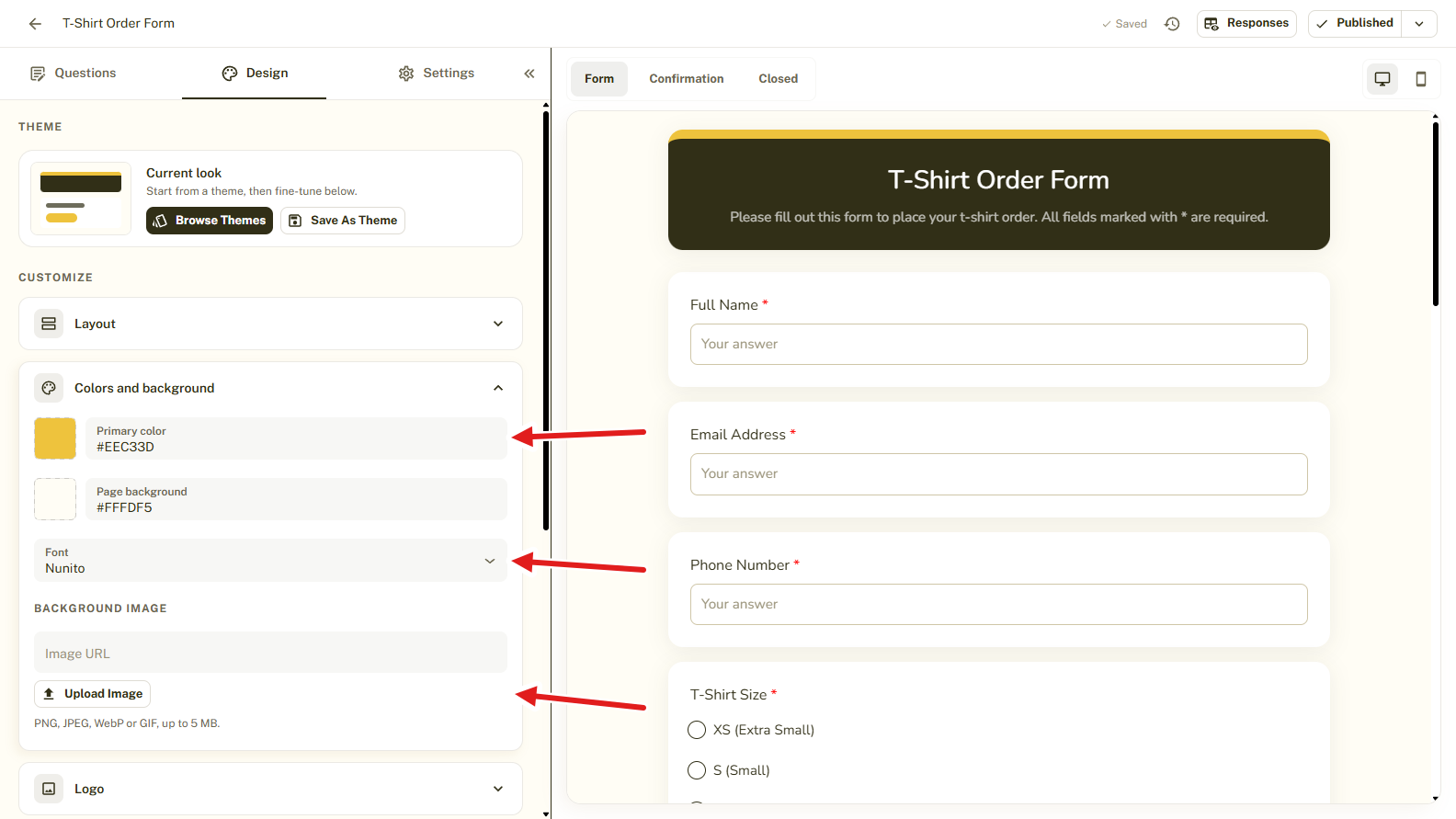
After you pick a theme, the Design tab lets you fine-tune the Layout, Colors and background, Logo, Header, Form container, Questions, Answer fields and Buttons. You can type exact hex codes to match your brand colors, choose a font, and upload a background image (PNG, JPEG, WebP or GIF, up to 5 MB).
Once your design is right, click Save as theme and reuse it on every new form. Pro adds a custom logo and header, premium themes, unlimited saved themes and the option to remove BeeForm branding. See How to Choose a Theme in BeeForm for the full steps.
2. Wizard Mode for Long Forms
Google Forms lets you split a form into sections. BeeForm adds a second layout that long forms benefit from.
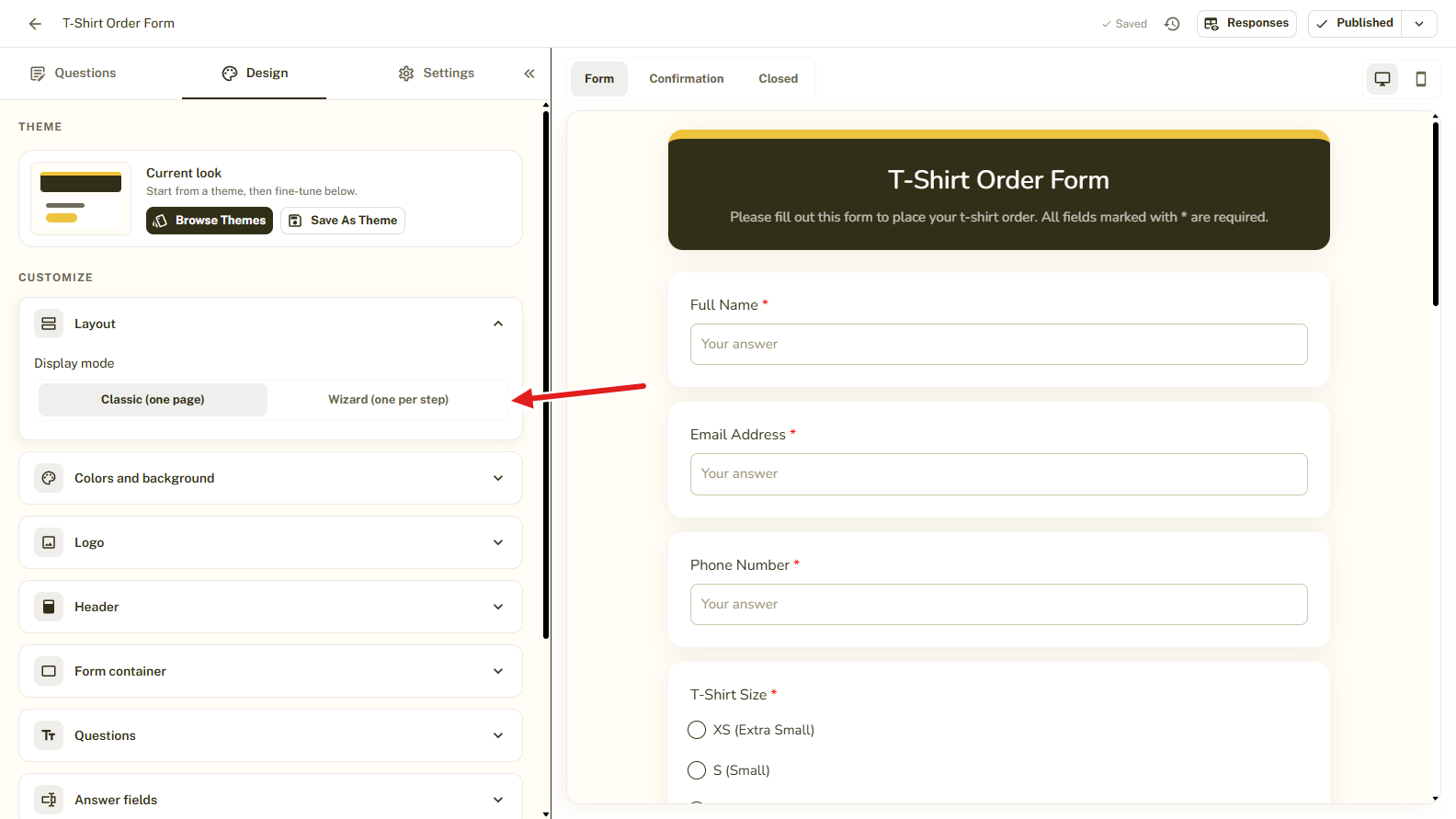
Under Layout, the Display mode is either Classic (one page) or Wizard (one per step). In Wizard mode, respondents see one question at a time.
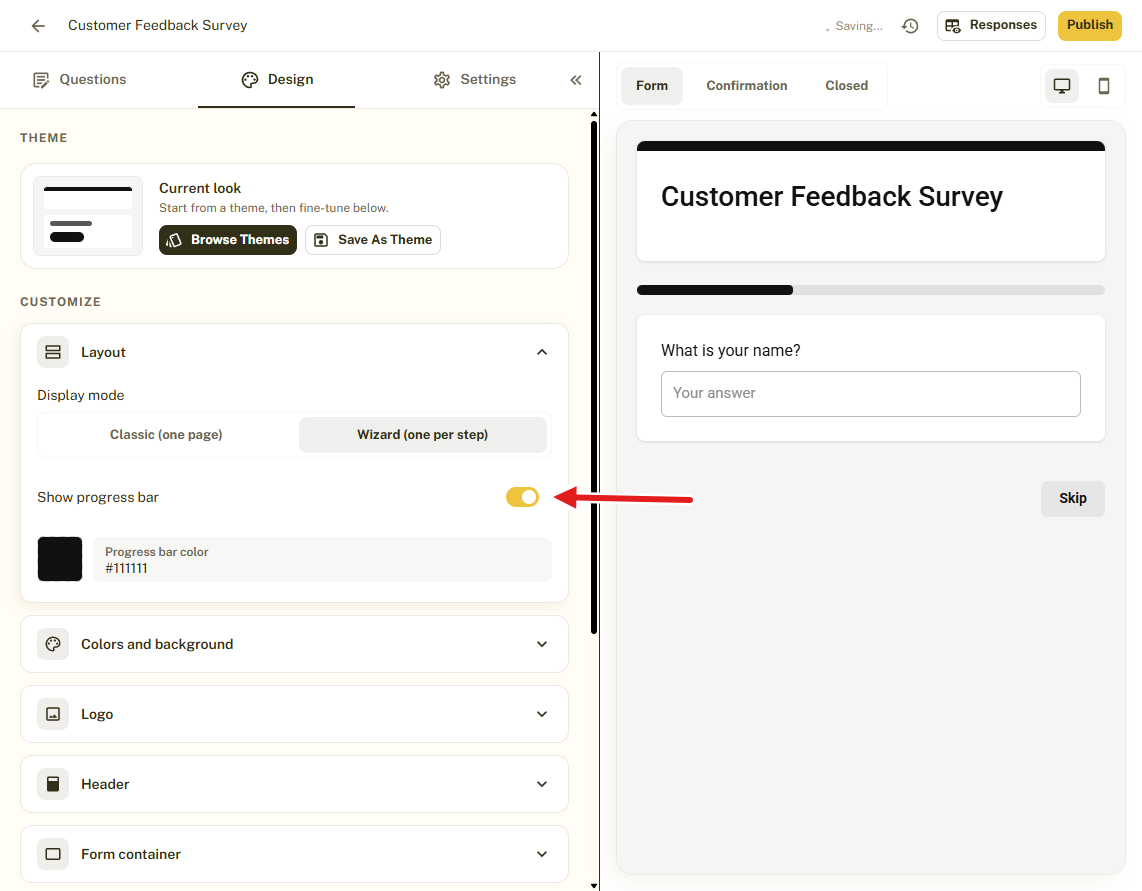
You can turn on a progress bar and choose its color. Respondents move with Back and Next, the last step shows Submit, and optional questions get a Skip button. The button text and colors are yours to change.
3. Close Forms Automatically
In Google Forms, you stop collecting responses yourself. Google's help page lists Stop collecting responses as one of the response options you manage by hand. It does not list a way to close a form after a set number of responses or on a date.
BeeForm has this built in. Open Settings, then Limits and schedule. You get two independent switches, and you can use one or both:
- Limit the number of responses: the form closes automatically once that many responses arrive.
- Close the form on a date: pick a date and time, shown in your local time.
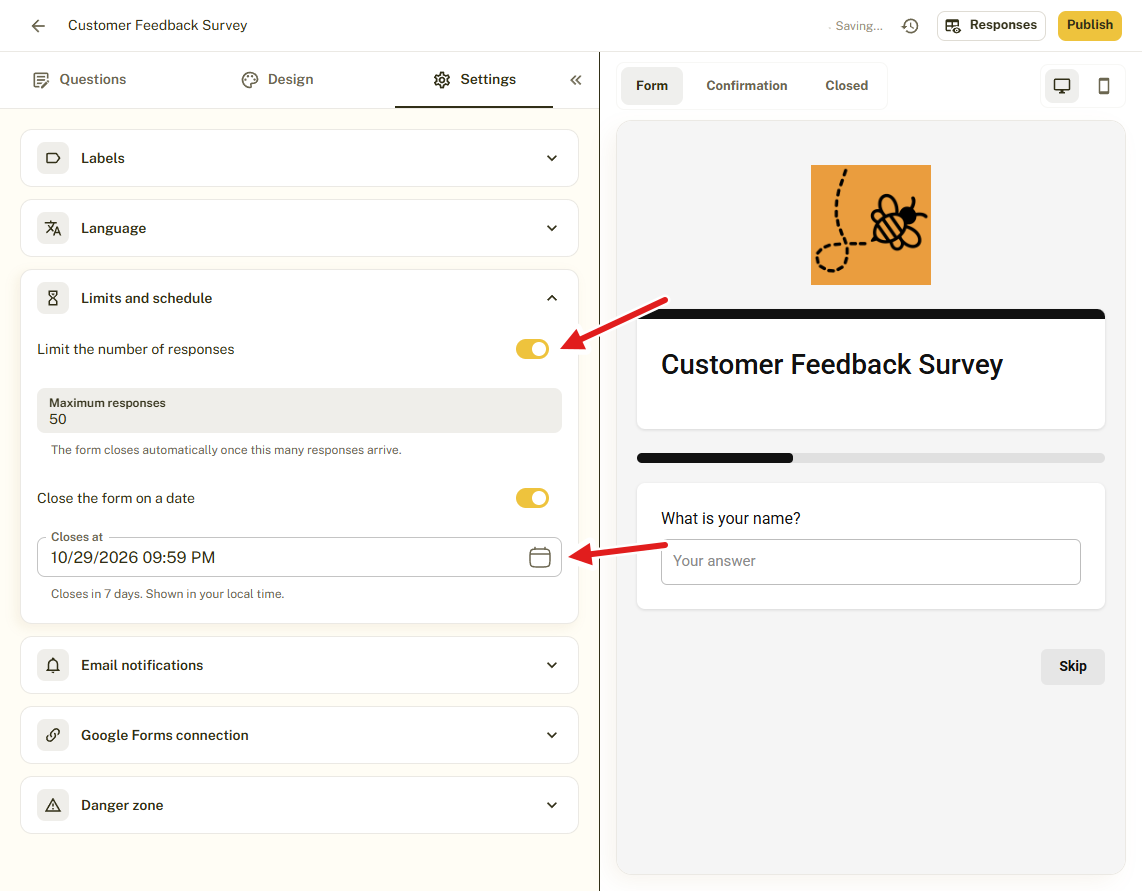
This is useful for event seats, first-come offers, registrations and applications with a deadline. You also write the message late visitors see, using the Closed page. Read How to Set a Response Limit or Closing Date for the steps.
4. More Control Over Email Alerts
Google Forms can email you about new responses. You turn it on from the Responses tab with Get email notifications for new responses. Google's own help page points to a separate add-on for more notification options.
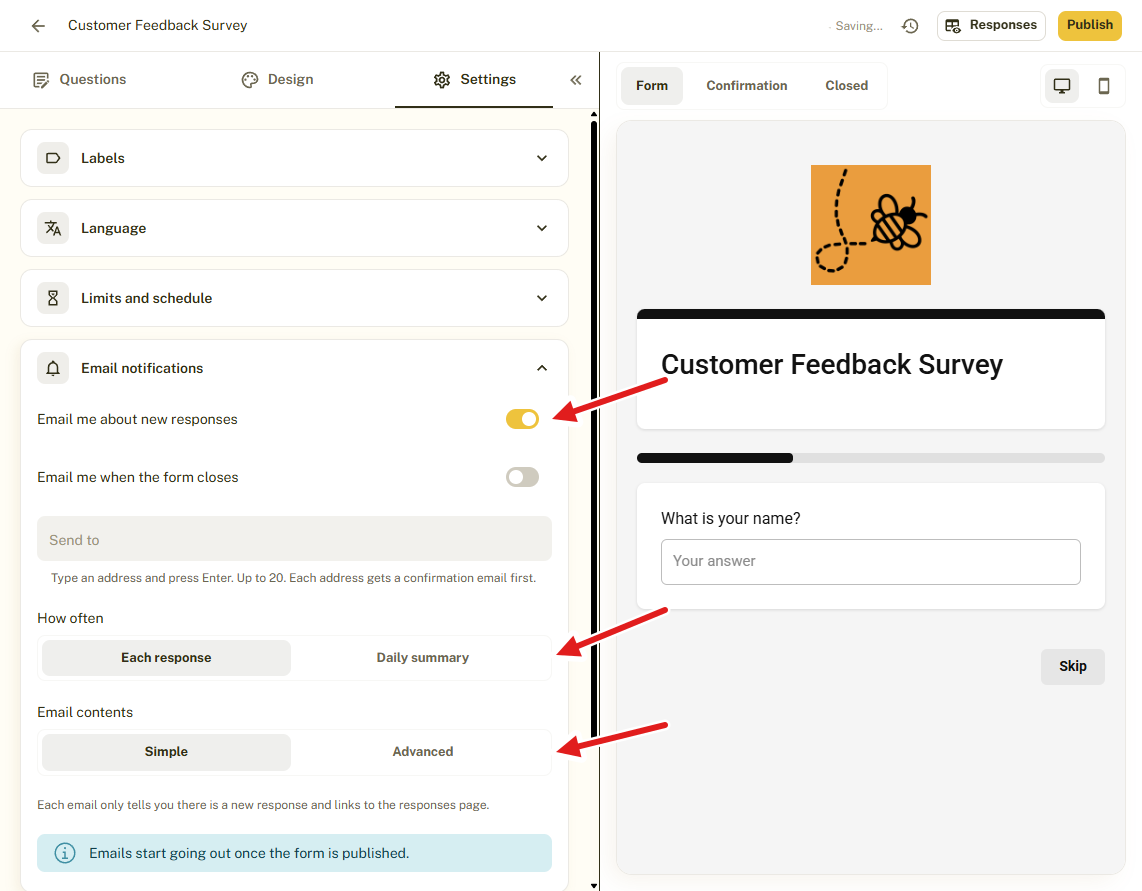
BeeForm includes more options in the form's settings (email alerts are a Pro feature):
- Send to up to 20 addresses. Each address gets a confirmation email first, so only people who agree receive alerts.
- How often: an email for each response, or one daily summary.
- Email contents: Simple, or Advanced with more detail.
- Email me when the form closes, for forms with a limit or a closing date.
5. Analytics: See Views, Starts and Drop-Off
The Google Forms Responses tab is built around the answers people submit, shown as a summary, by question or by person. BeeForm adds analytics for what happens before people submit.
With Analytics (Pro, with 90 days of history) you see Views, Started, Submitted and the Completion rate, with a chart over 7, 30 or 90 days. Below that are the funnel from views to submissions, the Traffic sources that bring people to your form and the Devices they use. A form's own Analytics tab also shows which questions people stop at.
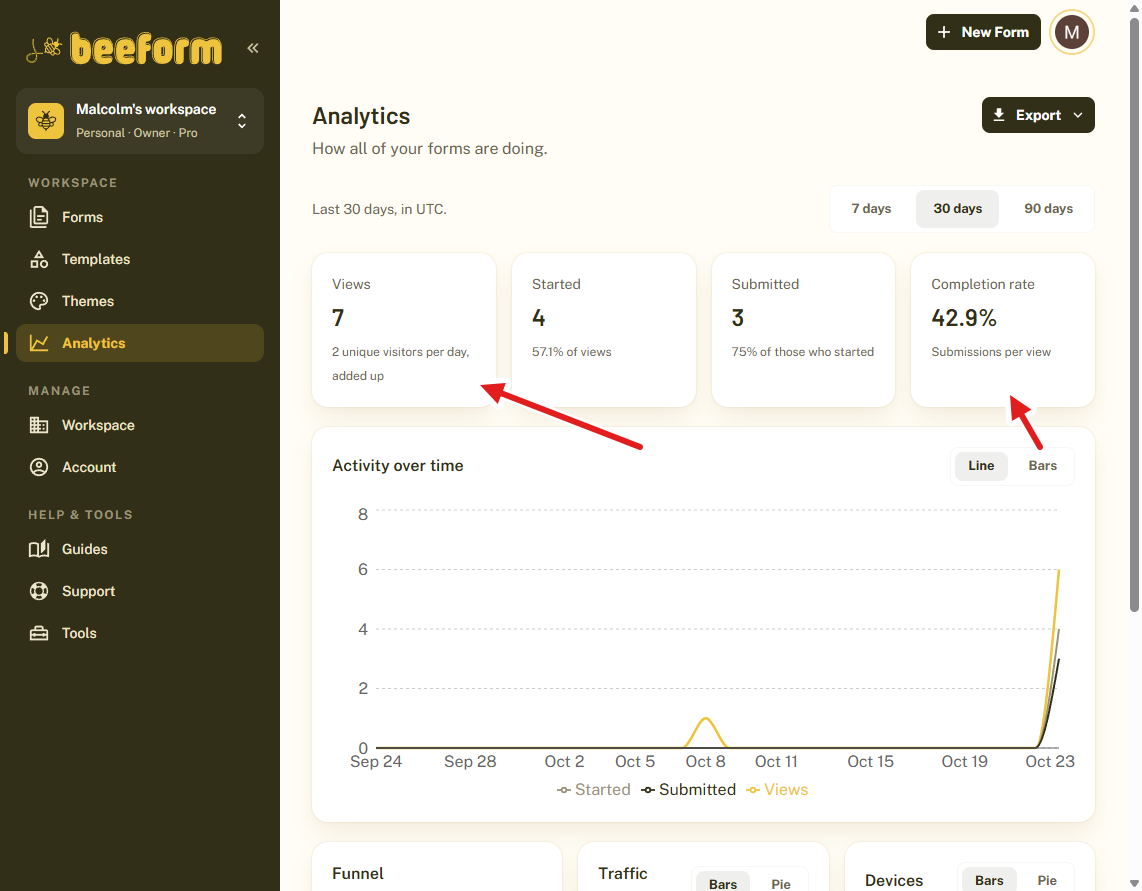
Analytics only counts activity after you publish. Tests you run in the editor preview are not counted. Learn more in How to Track Form Performance with Analytics.
6. Export Responses to CSV, Excel and PDF
Google Forms lets you view responses in a spreadsheet and download them as a CSV file. BeeForm's Export menu offers:
- CSV and Excel (.xlsx) with all responses
- Summary report (PDF) with charts and counts
- Analytics report (PDF) for the last 30 days
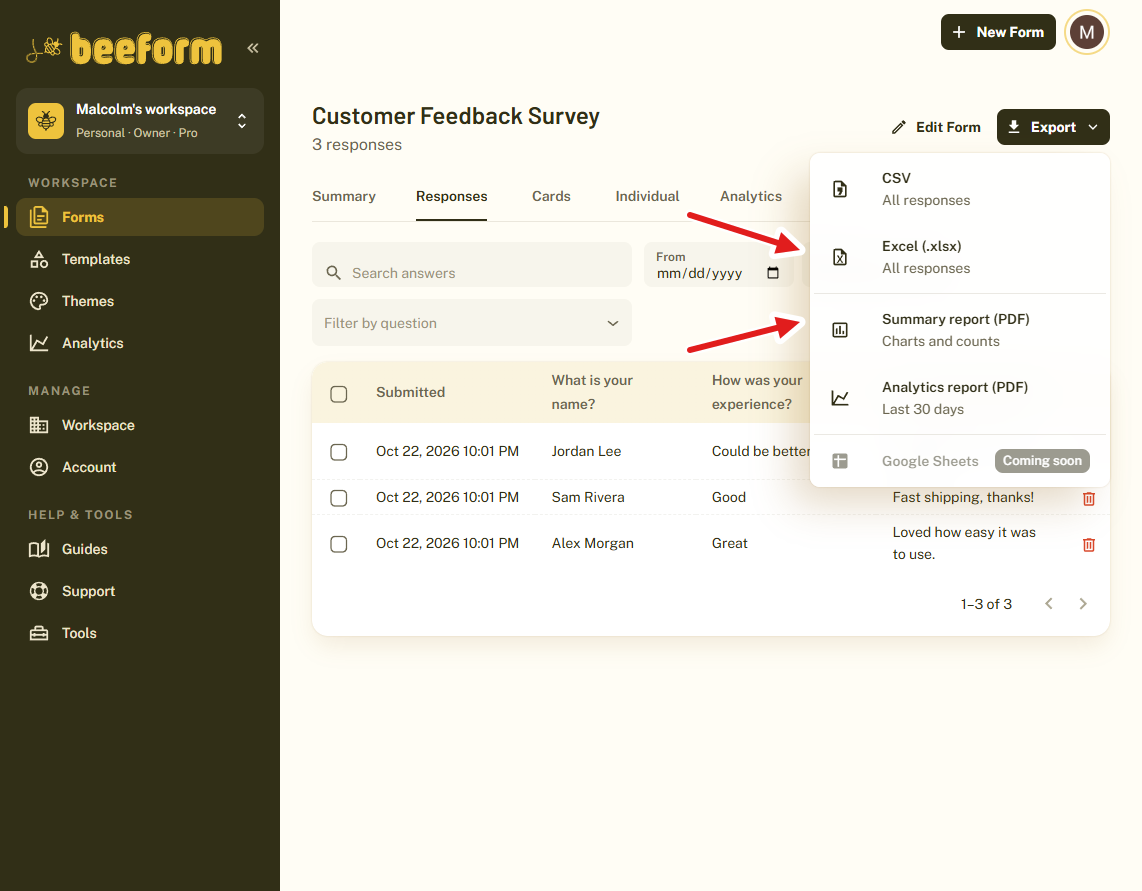
On the Responses page you can also search answers, filter by date or by question, and switch between Summary, Responses, Cards and Individual views. Excel export and response reports are included in the Free plan.
7. File Uploads You Control
Both tools offer a file upload question. In BeeForm you choose the allowed file types (images, PDF, Word documents, spreadsheets, presentations, text files, video and audio), the maximum number of files and the maximum size per file.
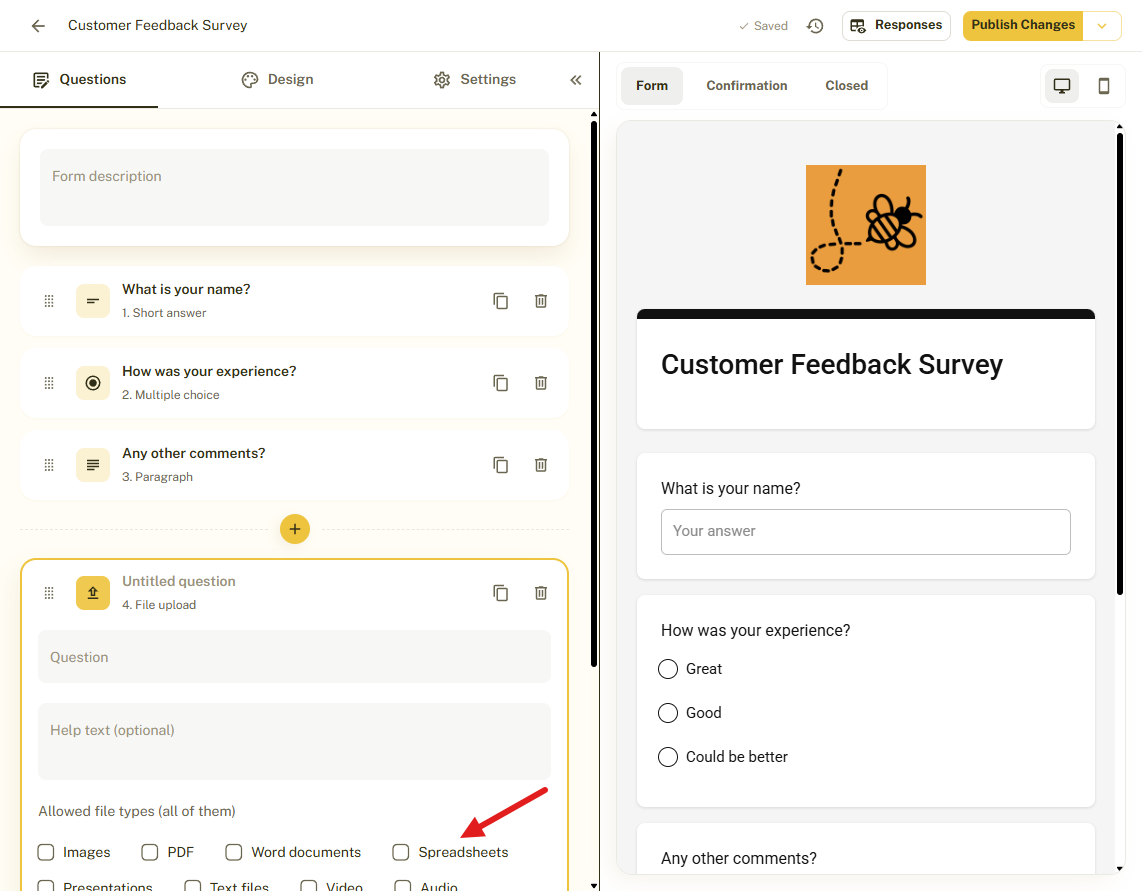
The largest size you can set depends on your plan: 10 MB on Free, 100 MB on Pro and 1 GB on Business. Files are stored privately, only people in your workspace can download them, and they are deleted after the retention period you choose (up to 30 days on Free, 1 year on Pro and 2 years on Business).
8. Team Workspaces
BeeForm has shared team workspaces with roles that decide what each member can do. On Pro and Business there are unlimited workspaces and unlimited members, and you do not pay per team member. Business also adds form version history.
You Do Not Have to Choose Between Them
If your forms already live in Google Forms, you can keep them there. Install the BeeForm add-on from the Google Workspace Marketplace to restyle them, or connect your Google account in BeeForm and choose Already have a Google Form? when you create a new form. The questions stay in Google, and BeeForm adds the design, the short link and the limits.
You can also go the other way. Open a BeeForm form, go to Settings, open Google Forms connection and click Link to Google Forms to create a Google Form from it. See How to Connect Google and Manage Google Forms in BeeForm.
BeeForm vs Google Forms: Feature Comparison
Here is every feature covered in this guide side by side. Features marked (Pro) need BeeForm's Pro plan. The Google Forms column is based on Google's own help pages.
| Feature | BeeForm | Google Forms |
|---|---|---|
| Core question types (short answer, paragraph, multiple choice, checkboxes, dropdown, scales, grids, date, time) | ✓ | ✓ |
| File upload question | ✓ | ✓ |
| Sections for multi-page forms | ✓ | ✓ |
| Share with collaborators | ✓ | ✓ |
| Theme color, background color and fonts | ✓ | ✓ |
| Header image | ✓ | ✓ |
| Theme gallery you can preview on your own form | ✓ | ✗ |
| Save your own design as a reusable theme | ✓ | ✗ |
| Logo, form container, answer field and button styling | ✓ | ✗ |
| Background image upload | ✓ | ✗ |
| Wizard mode, one question per step | ✓ | ✗ |
| Custom Back, Next and Skip button text | ✓ | ✗ |
| Close automatically after a number of responses | ✓ | ✗ |
| Close automatically on a date | ✓ | ✗ |
| Email alert for new responses (Pro in BeeForm) | ✓ | ✓ |
| Up to 20 alert recipients with confirmation (Pro) | ✓ | ✗ |
| Daily summary email (Pro) | ✓ | ✗ |
| Email when the form closes (Pro) | ✓ | ✗ |
| Views, starts and completion rate (Pro) | ✓ | ✗ |
| Traffic sources and devices (Pro) | ✓ | ✗ |
| CSV export | ✓ | ✓ |
| Excel (.xlsx) export and PDF reports | ✓ | ✗ |
| Responses linked to a Google Sheet | ✗ | ✓ |
When Google Forms Is the Better Choice
A fair comparison goes both ways:
- If you want your responses to flow into a linked Google Sheet automatically, Google Forms does that natively. A Google Sheets export is shown in BeeForm's Export menu as Coming soon.
- If you only need a quick, plain form for a few friends or colleagues, Google Forms is fast and familiar.
- If your whole workflow is built on Google Forms and Sheets integrations, linking your forms to BeeForm keeps that workflow while adding the design.
Pricing
The Free plan has unlimited forms and responses, response limits, file uploads up to 10 MB, advanced design controls, Excel export, response reports and up to 10 saved themes. Pro is $18 per month and adds analytics, branding removal, a custom logo and header, premium themes, email alerts, team workspaces and priority support. Business is $29 per month and adds form version history, 1 GB file uploads and 2-year file retention. Paying yearly takes 20% off the monthly price. There is no free trial because the Free plan is the trial.
How to Get Started
- Sign up for free at BeeForm with Google or email.
- Click New form and choose a blank form, a template, or Already have a Google Form?
- Open the Design tab, click Browse themes and apply one.
- Open Settings to add a response limit, a closing date and email alerts.
- Click Publish and share your link.
Tips and Best Practices
- Start from a template when you are short on time, then change the questions and design.
- Use Wizard mode for long forms and Classic mode for short ones.
- Save your branded design as a theme so every new form starts on-brand.
- Say when a form closes in its description so people respond in time.
Common Pitfalls to Avoid
- Analytics, email alerts, a custom logo, premium themes and branding removal need the Pro plan.
- When you turn a Google-linked form into a regular BeeForm form, its questions are copied but its responses stay in Google. None are copied.
- A Google-linked form keeps its questions in Google, so edit them there.
On this page
Why People Look for a Google Forms AlternativeWhat BeeForm Is1. Custom Themes and Real Branding2. Wizard Mode for Long Forms3. Close Forms Automatically4. More Control Over Email Alerts5. Analytics: See Views, Starts and Drop-Off6. Export Responses to CSV, Excel and PDF7. File Uploads You Control8. Team WorkspacesYou Do Not Have to Choose Between ThemBeeForm vs Google Forms: Feature ComparisonWhen Google Forms Is the Better ChoicePricingHow to Get StartedTips and Best PracticesCommon Pitfalls to Avoid